1.1.1 Generate Touch Project With MCC Harmony
Objective
The following procedure shows how to create a Touch project with the MCC Harmony platform where touch sensors and their parameters can be graphically added and tuned. The resulting project supports the MPLAB® XC32 compiler in MPLAB® X IDE. This project uses the SAML10 Xplained Pro board along with the T10 Mutual Capacitance Xplained Pro Extension Kit.
Materials
Hardware Tools
Software Tools
MPLAB® X IDE with MCC plug in installed
Procedure
Step 1: Open MPLAB® X IDE
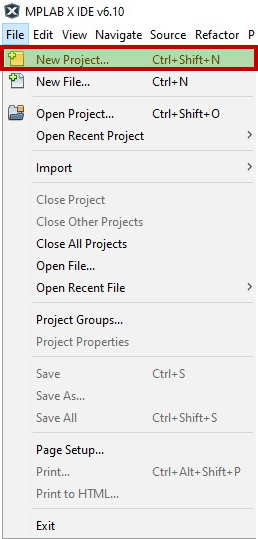
Go to File>New Project in MPLAB® X IDE.
Step 2: Choose Project
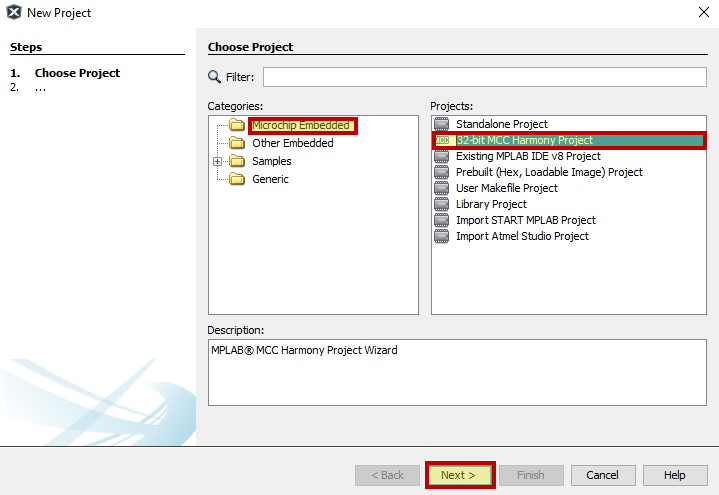
Select “32-bit MCC Harmony Project” in the Choose Project window and click Next.
Step 3: Content Path Selection
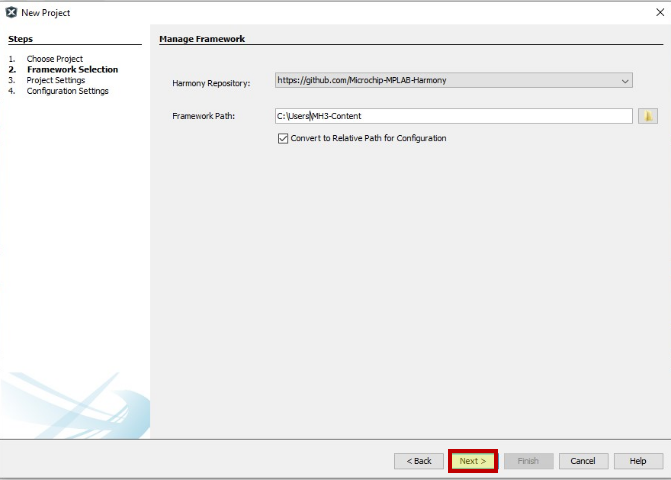
Choose the path where the Harmony content is downloaded and click Next.
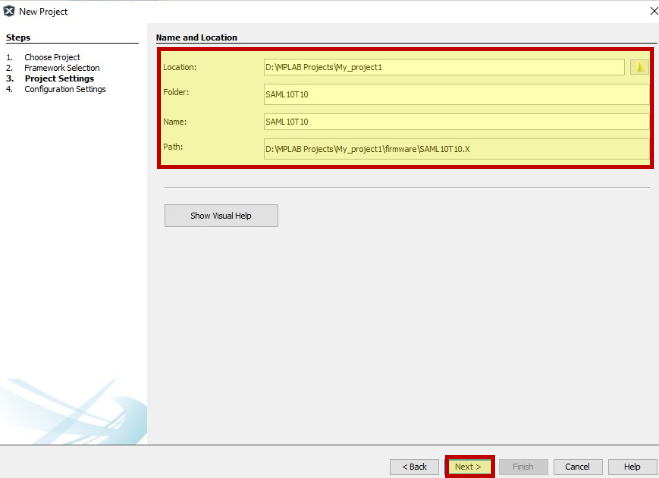
Step 4: Project Settings
Enter the location, folder name, and path for the project and click Next.
Step 5: Configuration Settings
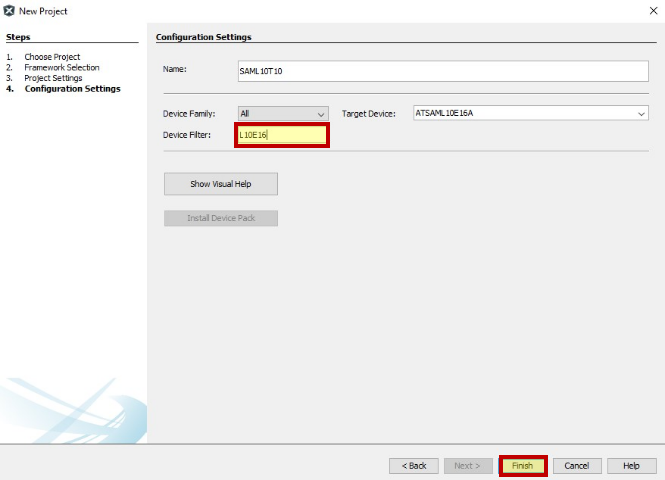
Type “SAML10-touch” as the configuration name and choose the device.
Type “L10E16” in the Device Filter box to find the device. Make sure the Target Device is ATSAML10E16 and click Finish.
Step 6: MCC Harmony With Touch Packages
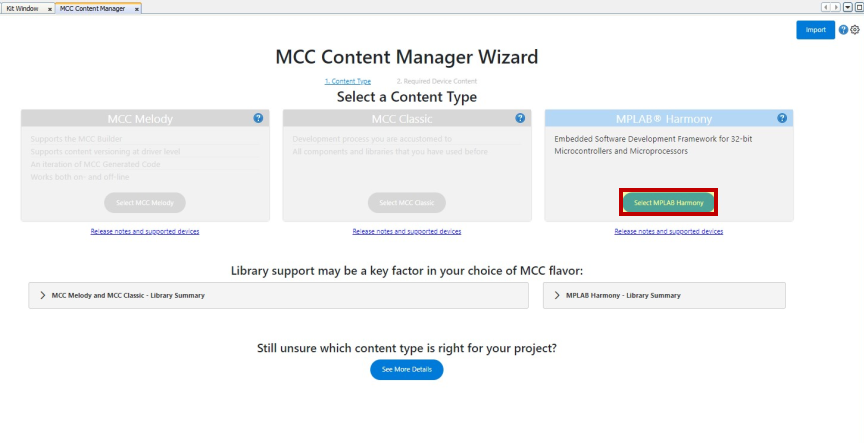
MCC Content Manager Wizard is opened. Click the Select MPLAB Harmony button and wait for the content manager to open.
Once the content type is selected, in Optional Content>Harmony 3 - Capacitive touch solutions, select “touch” and “touch_apps” and click Finish.
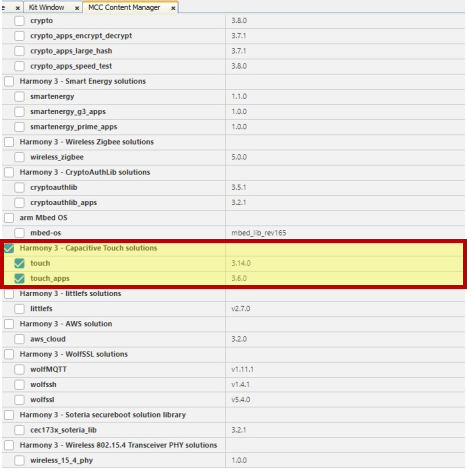
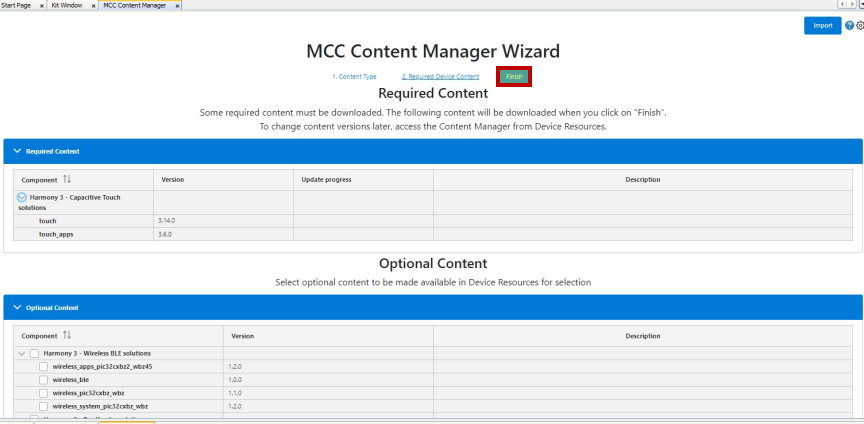
The touch package will be downloaded to the content path given earlier. Once the download is complete, MCC Harmony window opens with the Project Graph tab.
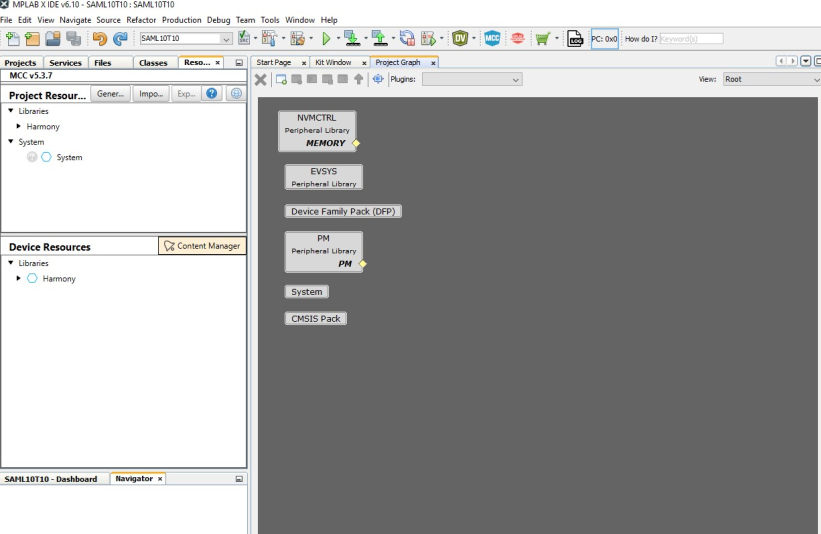
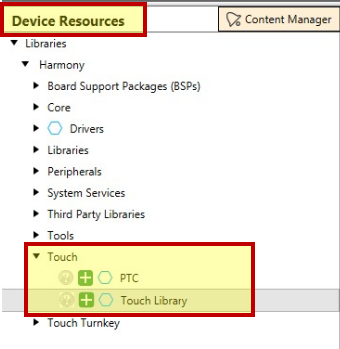
Step 7: From the Device Resources tab, select Touch Library.
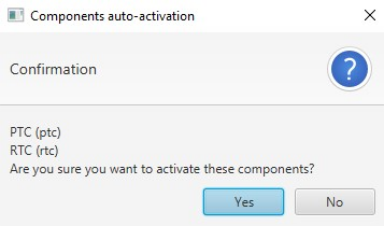
A pop-up window appears asking for PTC and RTC activation. Click Yes.
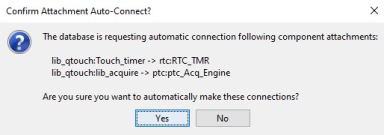
Another pop up appears asking for automatic connection activation. Click Yes.
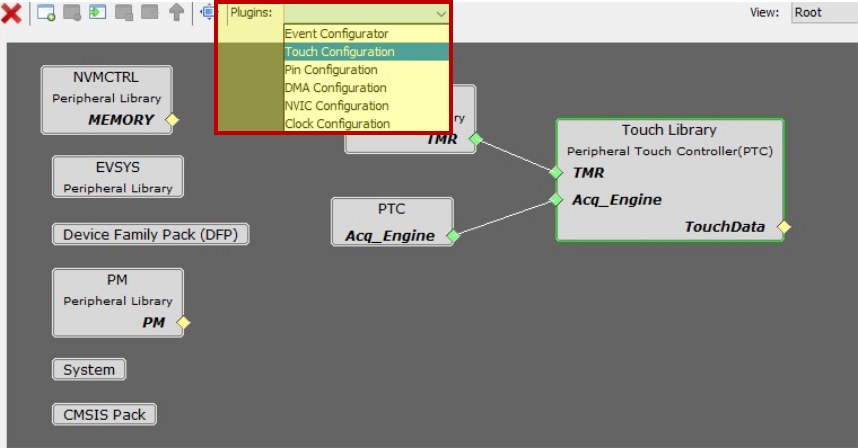
Step 8: Launch Touch Configurator by selecting it from the drop down near Plugins.
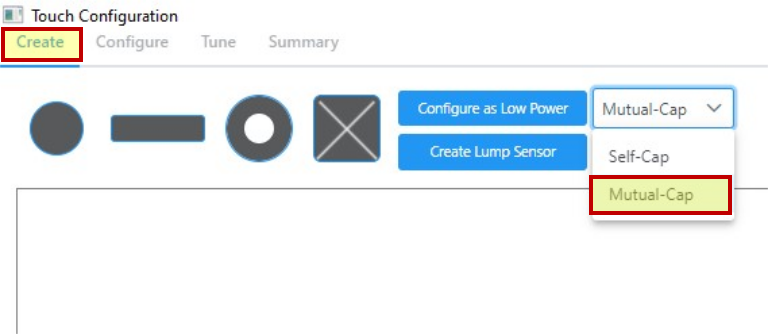
Step 9: Choose Technology
The T10 Xplained Pro extension board consists of four mutual cap touch buttons and one slider sensor.
Choose Mutual-Cap as the sensing technology from the drop-down menu.
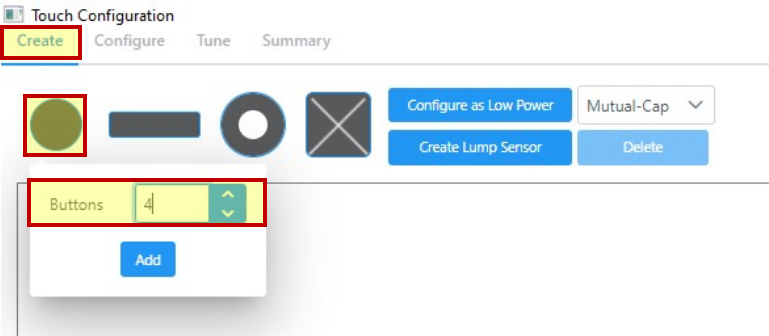
Step 10: Add Buttons
Click the Button icon and input 4 as the number of buttons.
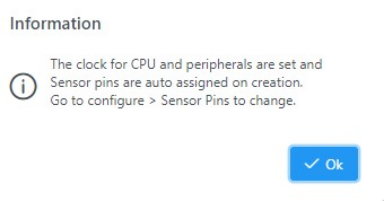
A pop up appears, informing that the clocks for the CPU and peripherals are set. Click Ok.
Step 11: Add Slider
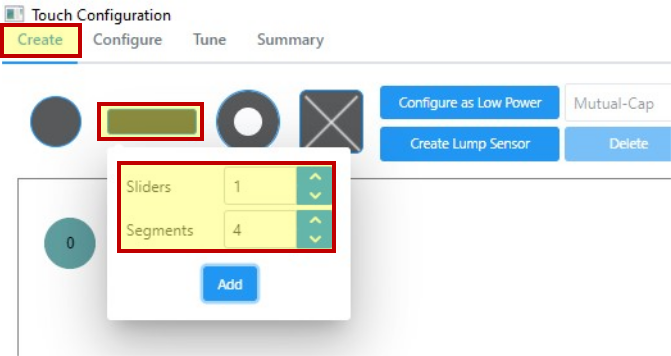
Click the “Slider” icon and input 1 in the Sliders field and 4 in Segments (if not already present).
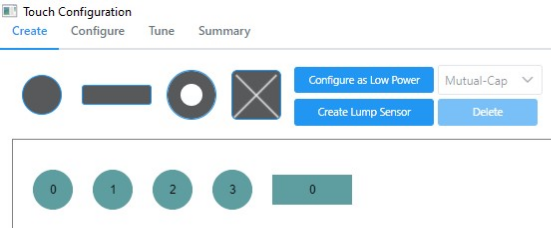
Now four buttons and four channel slider sensors are added.
Step 12: Pin Assignment
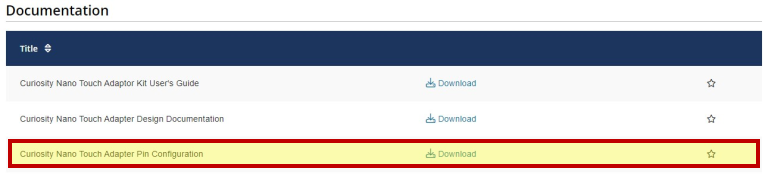
A generalized pin assignemnt for a majority of the Xplained PROs and microcontrollers (MCUs) has been provided in a downloadable file titled Curiosity Nano Touch Adapter Pin Configuration. To download it, scroll down to the Documentation section in this link, as indicated in the image below.
If the MCU or the XPRO board are not available, then the user can assign the pins based on the indications in their respective data sheet or user guide. The figure below shows a snapshot of the SAML10 and T10 XPRO pinout configuration.
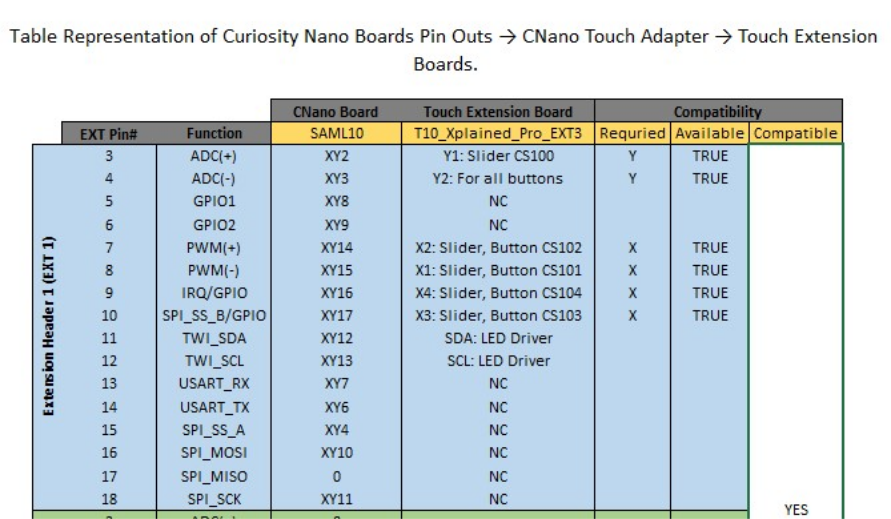
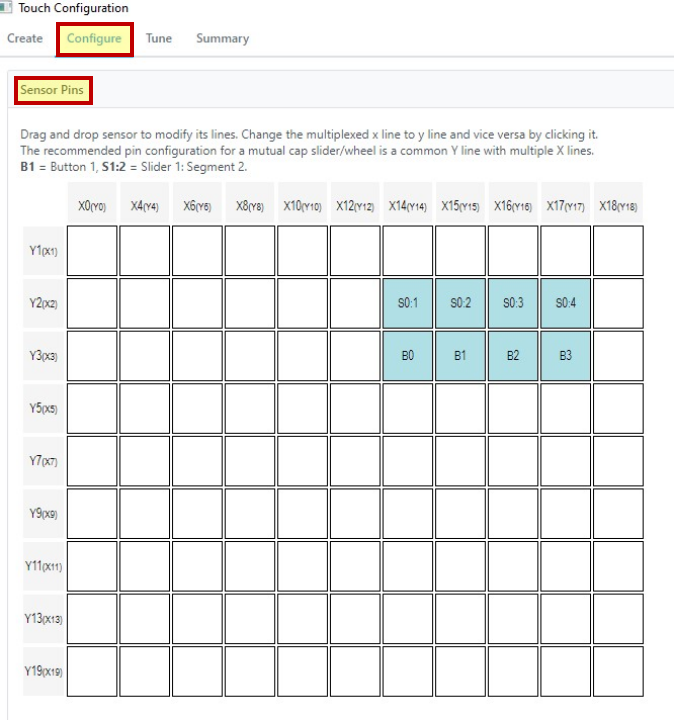
Based on the documentation file, select the X and Y lines as follows:
| Sensor | Channel ID | X Line | Y Line |
| Button 0 | 0 | 14 | 3 |
| Button 1 | 1 | 15 | 3 |
| Button 2 | 2 | 16 | 3 |
| Button 3 | 3 | 17 | 3 |
| Slider 0 | 4 | 14 | 2 |
| 5 | 15 | 2 | |
| 6 | 16 | 2 | |
| 7 | 17 | 2 |
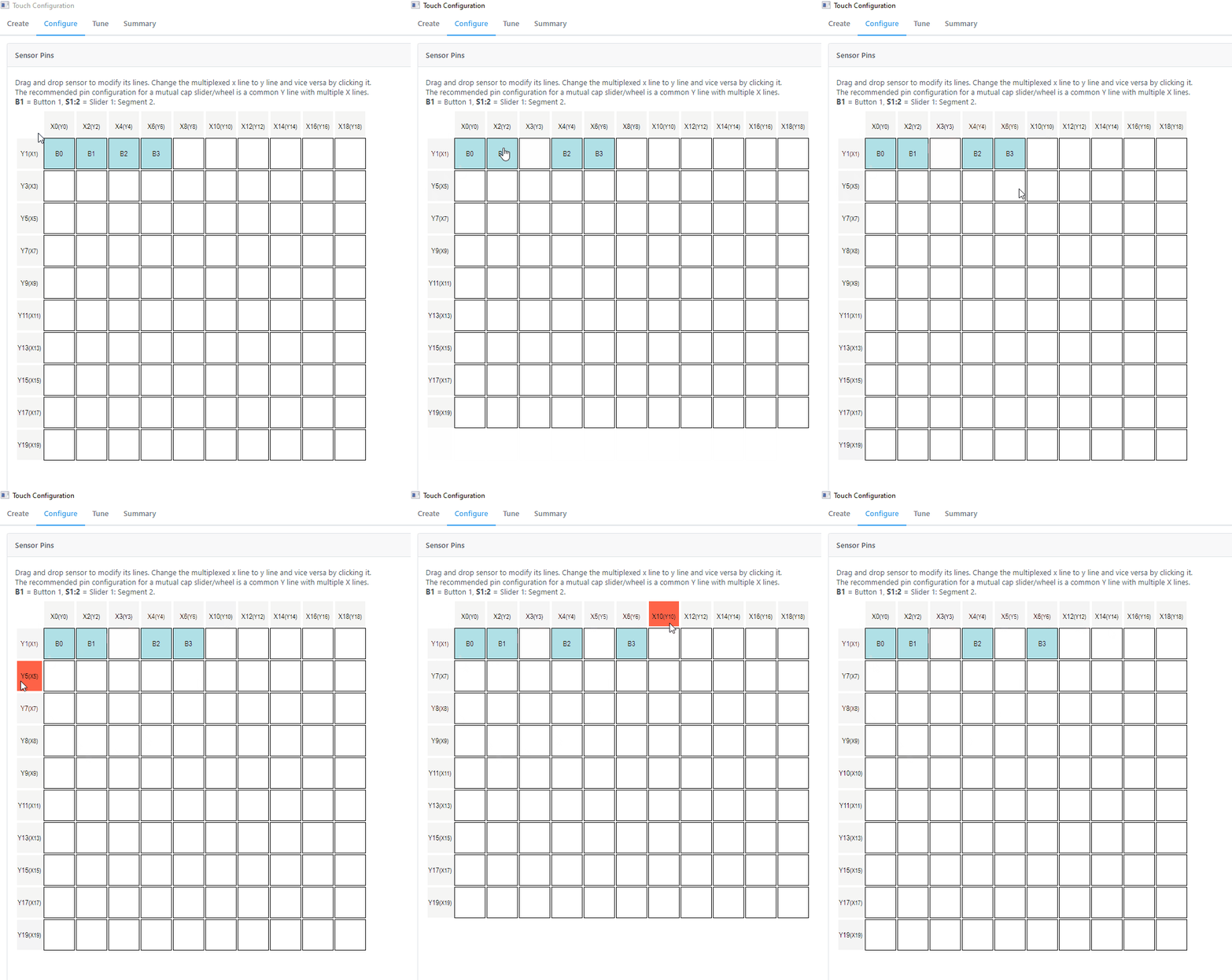
The pin assignment can be done in Configure>Sensor Pins. The pins were selected by referencing the above table.
Parameters
Step 13: Sensor Parameters
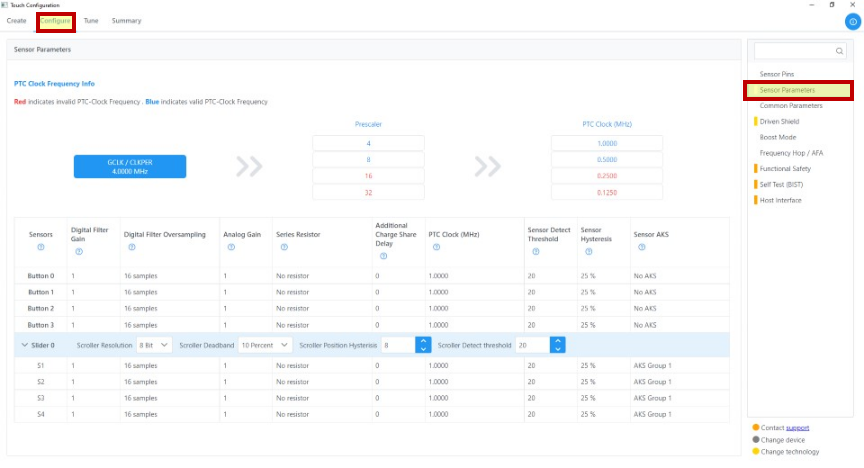
For tuning the touch parameters, Config>Sensor Parameters and tune according to the application.
The Sensor Parameters tab allows to configure touch sensor parameters such as:
- Digital Filter Gain
- Digital Filter Oversampling
- Analog Gain
- Series Resistor
- Addition Charge Share Delay
- PTC Clock
- Sensor Detect Threshold
- Sensor Hysteresis
- Sensor AKS
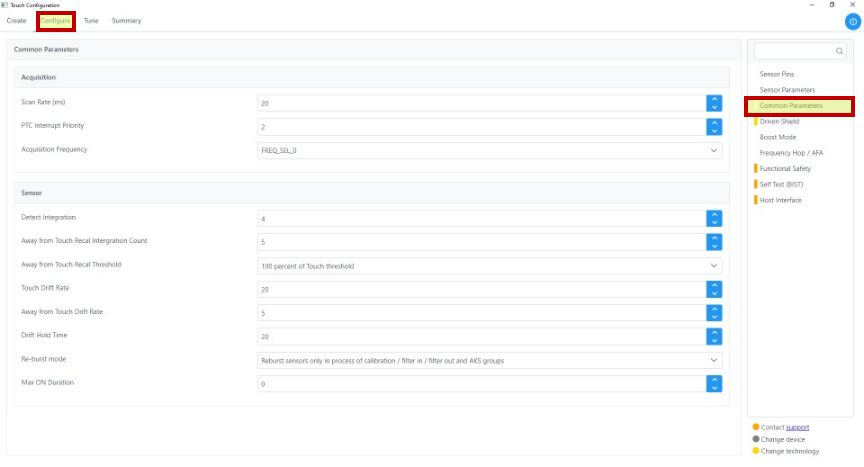
Step 14: Common Parameters
For tuning the touch parameters, Config>Common Parameters and tune according to the application.
The Common Parameters tab allows to configure touch sensor parameters such as:
- Acquisition
- Scan Rate
- PTC Interrupt Priority
- Acquisition Frequency
- Sensor
- Detect Integration
- Away from Touch Recal Integration count
- Away from Touch Recal Threshold
- Touch Drift Rate
- Away from touch Drit Rate
- Drift Hold Time
- Re-Burst mode
- Max ON Duration
Step 15: Frequency Hop
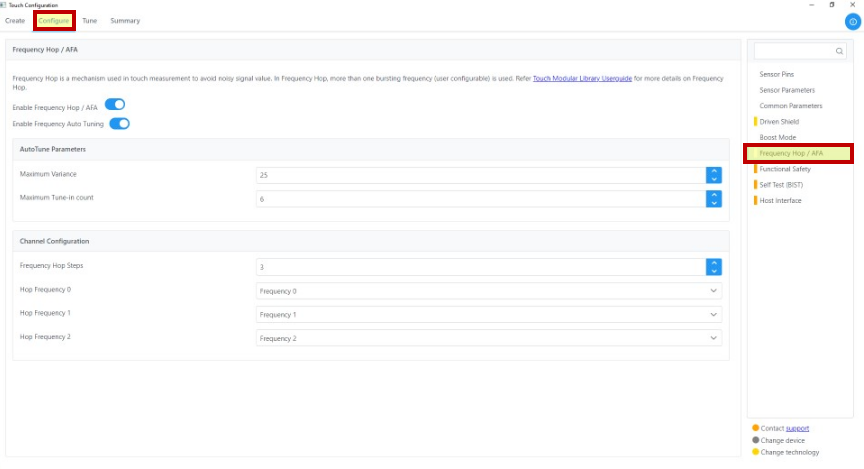
Frequency Hop can be enabled by navigating to Config>Frequency Hop and then toggling on the Enable Frequency Hop/AFA button. A maximum of seven frequency steps can be selected which can be individually configured using the drop down. Hop Frequencies are fixed at compile time in Frequency Hop. The auto-tune feature can be enabled by sliding the Enable Frequency Auto Tuning button. A detailed description on how to configure the Frequency Hop and Frequency Hop Autotune is provided in the How to Enable Frequency Hop Auto Tune section.
Step 16: Touch Tuning
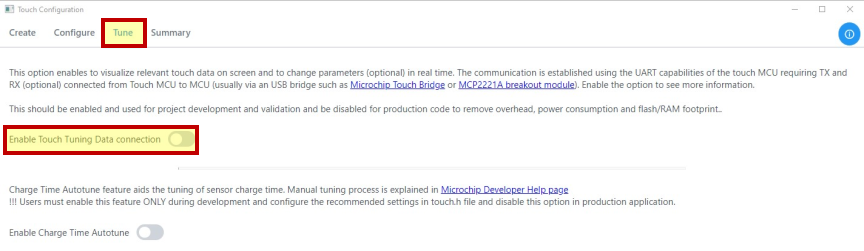
Enable the datastreamer by toggling on the Enable Touch tuning Data connection button. Refer to the Guide to View Touch Tune Data Using MPLAB® Data Visualizer section for a detailed description on how to configure the datastreamer.
Step 17: Summary
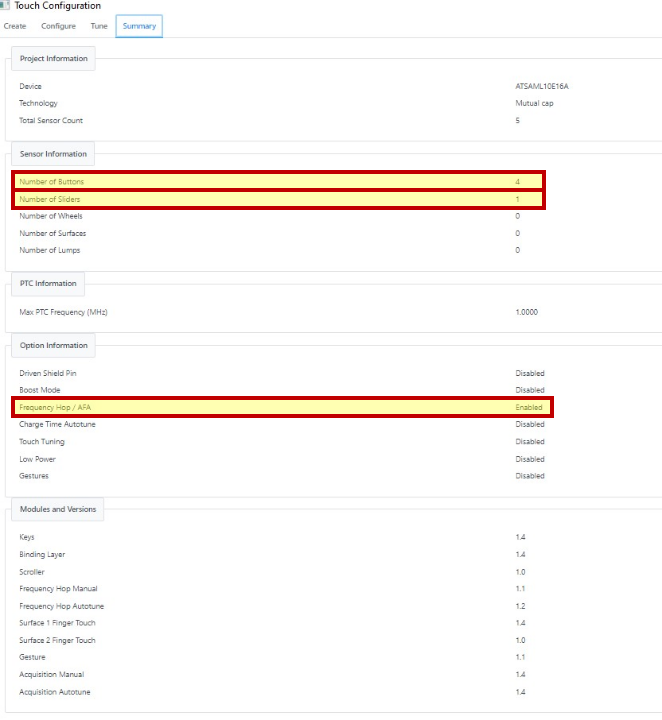
Click the Summary tab to review the project configuration and find versions of Library modules.
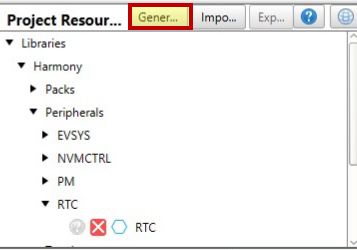
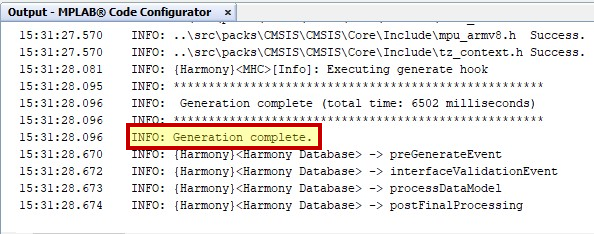
Step 18: Once the project is configured, click Project Resources>Generate to generate the code.
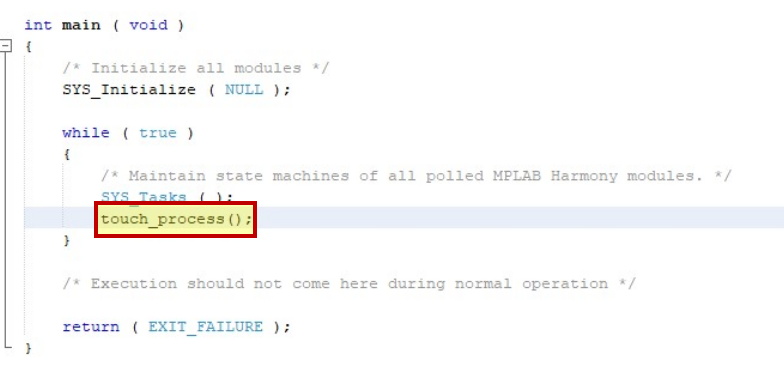
Step 19: Include touch_process() to the
main while(1) loop. Now the project is ready for testing on the
kit.