
8.6 Scope Triggers
X2Cscope supports target-side triggers, allowing the MCU to detect trigger conditions and control when data capture occurs. This provides precise triggering on high-speed events that would be difficult to detect on the PC side.
The trigger configuration is located in the X2Cscope Protocol session panel together with the scope configuration.
The values used when configuring trigger settings (trigger level for instance) must be in range of the variable selected as a trigger source, other wise the trigger will not hit but rather loop forever.
Trigger Modes
- Data capture begins immediately when started.
- The scope updates as soon as the buffer is full.
Use this mode for continuous monitoring without waiting for specific events.
- Data capture is controlled by detection of a trigger condition.
- Data is captured from the time of the trigger event or as determined by the Trigger Delay setting (see below).
Configuring a Trigger
- Select the trigger variable from your scope channels. Choose a variable that clearly indicates the event of interest.
- Choose the trigger type:
- Rising Edge: Triggers when the value crosses the trigger level going up.
- Falling Edge: Triggers when the value crosses the trigger level going up.
- Set the trigger level (the threshold value that the variable must cross to trigger). The level must be within range of the selected variable.
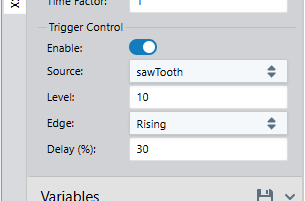
Trigger Delay (Pre/Post Trigger)
| Delay Setting | Trigger Position | Use Case |
|---|---|---|
| 0% | Start of capture | See what happens after the trigger. |
| -50% | Before capture window | See what happens some time after the trigger. |
| 50% | Middle of capture window | See context before and after the trigger. |
Adjust the delay to capture the relevant portion of data around your event of interest.
Trigger Configuration Example
- Add the trigger variable and other relevant variables to the scope channel table.
- Select the variable to trigger on in the trigger settings.
- Select Rising Edge trigger type.
- Set trigger level to the threshold (e.g. 10.0).
- Set delay to 50% to see data before and after the trigger condition.
- Click Start Streaming and wait for the trigger condition to occur.
Configure the time plot to show the scope variables. The time plot will show the captured data when the trigger condition has been met and the data has been transferred to the PC.
Tips and Troubleshooting
| Issue | Solution |
|---|---|
| Never triggers | Verify variable crosses threshold; check edge direction. |
| Incomplete capture | Adjust pre/post trigger delay. |