
9.1 Add Custom Device Dialog
The Add Custom Device dialog allows the user to search for MCP2222 devices that use a non-default VID and PID.
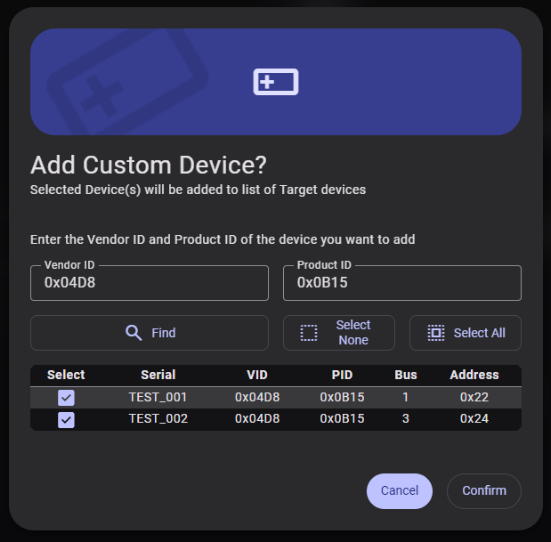
- Enter the Vendor ID and Product ID (decimal or hexadecimal, 1–65,535).
- Click Find. A loading indicator appears while the search is in progress.
- The results table shows matching devices and their related data, structured in the following columns: Serial, VID, PID, Bus and Address.
- If no devices are found, the message “No devices found.” is displayed.
- Use the Select None/Select All buttons or individual checkboxes to choose devices.
- Click Confirm to add the selected devices to the target list. The Confirm button is disabled until at least one device is selected.