
6.2.1 DFU over Serial Using Python Script
This chapter provides the details about the prerequsites for performing DFU over serial
using python scripts.
- Hardware – PIC32WM-BW1 Curiosity Board
The following tables detail the prerequisites for the DFU over serial
using Python scripts.
| Item Description | Version | File Location/Name |
|---|---|---|
| OTA Bluetooth® LE sensor (ota_ble_sensor) project (current user application) | 1.0.0.0 | wireless_apps_pic32_bw1\apps\ble\peripheral\ota_ble_sensor\firmware\ |
| Bootloader Trigger Mode | Precompiled Hex File Location |
|---|---|
| GPIO Trigger mode DFU | wireless_apps_pic32_bw1\apps\bootloader\bootloader_GPIO\precompiled_hex\bootloader_gpio.X.production.hex |
| Timer Based Trigger mode DFU | wireless_apps_pic32_bw1\apps\bootloader\bootloader_timer\precompiled_hex\bootloader_timer.X.production.hex |
Note: Ensure to have Python version v3.12.7 only and libraries
like pyserial, numpy must be pre-installed.
| Bootloader Trigger Mode | Required Python Scripts | Default Python Script Location |
|---|---|---|
| GPIO Trigger mode DFU | flash_load_2ndSlot.py and progctrl.py | wireless_apps_pic32_bw1\apps\utilities\pic32wm-bw1\dfuPythonScripts |
| Timer Based Trigger mode DFU | flash_load_2ndSlot_timer.py and
progctrlOptimized.py | wireless_apps_pic32_bw1\apps\utilities\pic32wm-bw1\dfuPythonScripts |
Running Python Script for DFU (Device Firmware Update)
- For GPIO Trigger mode DFU, the user must execute the following
command:
python flash_load_2ndSlot.py -i image.bin - For Timer Based Trigger mode DFU, the user must execute the following
command:
python flash_load_2ndSlot_timer.py -i image.bin - The user application generates the binary file
image.bin, which represents a new user image, using MPLAB® X IDE. Depending on the user’s application, the file name can vary, and it can include a path name before the file name.
Preparation: Creating and Programming the Unified Image
The following are the steps to operate DFU over serial and program a new user image
using the Bootloader.
Note: Before the DFU operation, create
and program the unified image containing the bootloader and current user
application.
- Open the
ota_ble_sensorproject in MPLAB® X IDE. - Click on “Loadables” to verify that the bootloader precompiled hex file is
added into the project.
Figure 6-27. Verify Loadable File in ota_ble_sensor Project 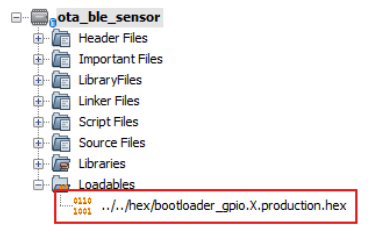 Tip: For Timer Based Trigger mode DFU, remove the GPIO bootloader hex and add
bootloader_timer.X.production.hexas the loadable file. - Click Clean and Build Main Project to build the unified image:
- This action creates a unified image
ota_ble_sensor.X.production.signed.unified.hex
Tip: This action creates another binary file namedota_ble_sensor.X.production.signed.binat the same time. The bootloader uses this binary file as the target image file for DFU. However, in this demonstration, the user uses another precompiled binary file as the target image, since that image contains a different firmware version to indicate that DFU is successful.Figure 6-28. Build Unified Image 
- This action creates a unified image
- Once the code building is complete, click the Make and Program Device
Main Project icon on the MPLAB X IDE tools bar to program the
device. The unified image will be programmed into the PIC32WM-BW1 Curiosity Board.
Figure 6-29. Program Unified Image 
- Now that the board is ready,
the user uses DFU over serial to upgrade it to a new image
ota_ble_sensor.X.production.signed.bin.Note: User needs to generateota_ble_sensor.X.production.signed.binwith updated firmware. To do this, change#define BLE_SENSOR_VERSIONto “1.0.0.1” inapp.c, compile and build the project. The file will be generated inota_ble_sensor/firmware/ota_ble_sensor.X/dist/default/production/ota_ble_sensor.X.production.signed.bin. This.binfile is the updated firmware bin file.
For more details on creating unified image, refer to the Add Bootloader as Lodable File/Project to Create Unified Image section of the Configure User Application to Use Bootloader from Related Links.