4.8.1.2 Placing Widgets on the Dashboard
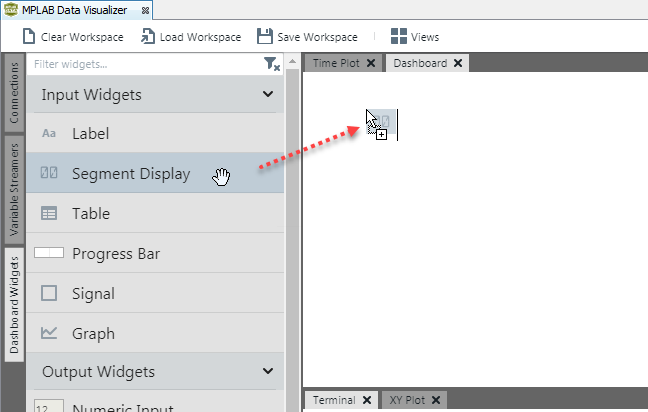
On the Data Sources pane, Dashboard Widgets tab, click, drag and drop a widget to add it to the Dashboard. This can be done only in Edit mode. For more on each widget, see Dashboard Widgets Tab.
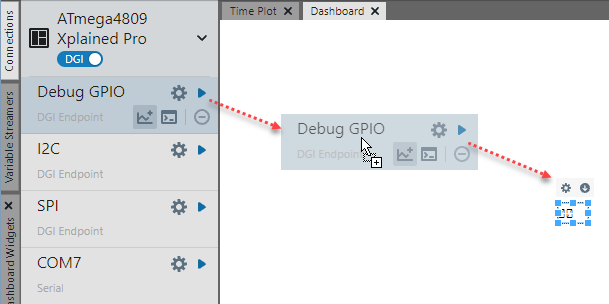
Sources and variable streamer fields may also be dragged onto the window and will display as a Segment widget (see figure below). The segment will be automatically associated with the data source.
A streamer group will display as a Table widget. When Debug GPIO is dragged onto the Dashboard , the widget will show the GPIO bus value. Individual GPIO lines can be selected from the source drop down list. When Power is dragged onto the Dashboard, the widget will show Channel A Power. Other power data fields can be selected from the source drop down list.