
4.8.1.3 Sending Values to and from Widgets
To select where a widget receives or sends data, use the buttons that appear when clicking a widget on the Dashboard in Edit mode. If the widget can communicate with external connections, there is a vertical arrow button to enable the selection. In that case, it is also possible to drag a source onto the widget to configure it.
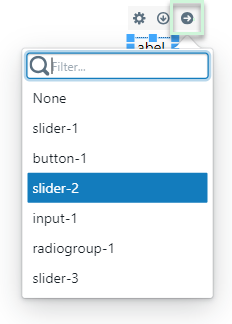
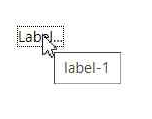
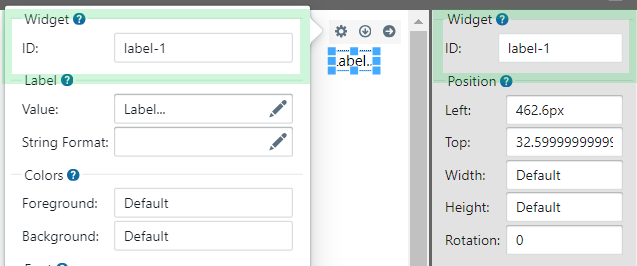
For input widgets, there is also a horizontal arrow button enabling receiving data from output widgets. Selectable widgets are displayed as their widget ID. This ID can be found by hovering over widget in Edit mode. It is also shown in the widget configuration options described in Configuring Widget Properties.
Input widgets can only be connected to one external connection or output widget at a time. Output widgets can be connected to a single external connection, however several input widgets can receive data from the same output widget. The selected connection or widget is highlighted. To disconnect, select the connection named None.