6.4.2 Generating Certificates
The user must follow these steps to generate the required certificates and keys for TLS
mutual authentication:
- Open Git Bash in the
ota_wincs02_demo\Tools. - Execute the following command:
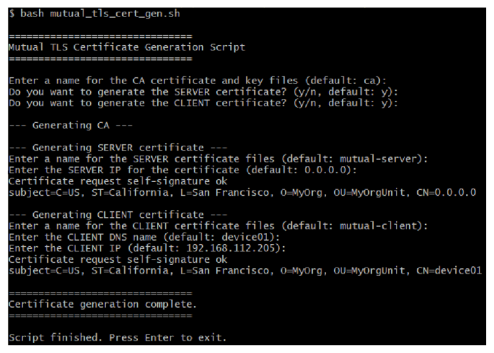
bash mutual_tls_cert_gen.sh
- The script automatically guides the user through generating the required certificates and keys.
Step-by-Step Guidance During Script Execution
CA Certificate and Key
- The script first asks the user to enter a name for the CA certificate and key files.
- The user can type a custom name or simply press Enter to use the default
name (
ca.keyandca-cert.pem). - The CA certificate signs both the server and client certificates, establishing trust.
Server Certificate and Key
- Next, the system asks the user if they want to generate a server
certificate. The user must type
yforyesornforno.Note: If the user just presses Enter, the system defaults toy (yes).
- Enter a name for the server certificate files, or press Enter to use the
default (
mutual-server.keyandmutual-server-cert.pem. - The system then prompt the user to enter the server’s IP address. The
user can provide the actual IP address of the server, or press Enter to
use the default (
0.0.0.0).Tip: Ensure to enter the correct server IP address, as this is included in the certificate and is important for secure connections.
Client Certificate
- The script asks if the user wants to generate a client certificate.
Again, type
yforyesornforno.Note: If the user just presses Enter, the system defaults toy (yes). - Enter a name for the client certificate files, or press Enter to use the
default (
mutual-client.keyandmutual-client-cert.pem). - The prompt requests the client’s DNS name. Enter the name or press Enter
to use the default (
device01). - Finally, enter the client’s IP address, or press Enter to use the
default (
192.168.112.205).
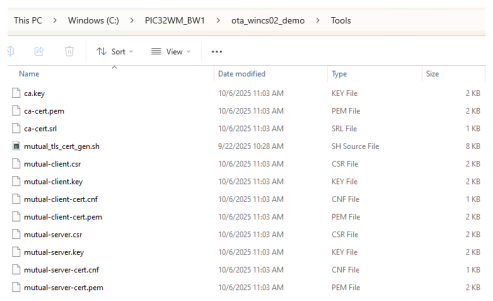
After completing these steps, the script generates and displays confirmation messages for each certificate. The generated files are available in the working directory.
The following figure illustrates the list of generated certificates with default names.