6.4.1 Building and Running the OTA Demo Application
Building the Application
To build the application, perform the following steps:
- Open the project file (
apps/wifi/ota_wincs02_demo/ota_pic32wm_bw1_curiosity.X) in MPLAB® X IDE. - For more details on opening the project file in MPLAB X IDE, refer to the Opening, Building and Programming the Existing Application section of the WINCS02 Application Developer’s Guide in the Reference Documentation from Related Links.
| Project Name | Description |
|---|---|
ota_pic32wm_bw1_curiosity.x |
|
Running the Application
The following steps describe how to run the OTA demo application for the WINCS02 firmware update on the PIC32WM-BW1 Curiosity Board, using the project built from the
ota_pic32wm_bw1_curiosity.x:- Connect the USB Type-C® cable to supply power to the PIC32WM-BW1 Curiosity Board.
- Open the project and launch MCC Harmony3.
- Configure the Home-AP credentials for the STA mode and set the SNTP IP
address using the WINCS02
Wi-Fi® configuration options.
- Ensure that the access point is connected to the internet.
- For more details on Wi-Fi settings, refer to the Wi-Fi Service section of the WINCS02 Application Developer’s Guide in the Reference Documentation from Related Links.
- Update the certificates, server IP address and port number (obtained during server setup) in the net service socket configuration. See OTA Server Setup from Related Links. For more details on net socket service configuration, refer to the Net Socket Service section of the WINCS02 Application Developer’s Guide in the Reference Documentation from Related Links.
- Configure the OTA Server Socket, File Name and OTA Time Out in OTA System service.
- Follow the certificate creation steps for server and client certificate, refer to the Generating Certificates from Related Links.
- The user can generate the code as illustrated in the following figure.
- Click Generate to generate the code.
Figure 6-104. Code Generation 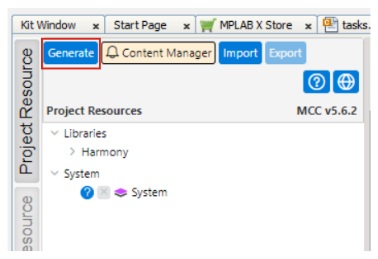
- Click Generate to generate the code.
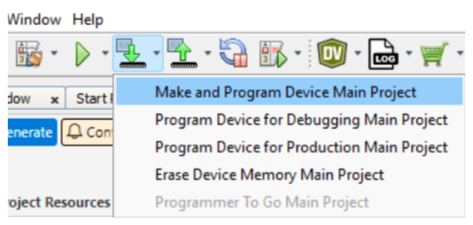
- Build and program the code to the hardware using MPLAB X IDE.
Figure 6-105. Make and Program Device Main Project