6.4.3 Flashing Certificate
To enable secure TLS mutual authentication for OTA updates, the user must flash the generated certificates to the WINCS02 module. The user must perform the following the steps to prepare the hardware and transfer the certificates.
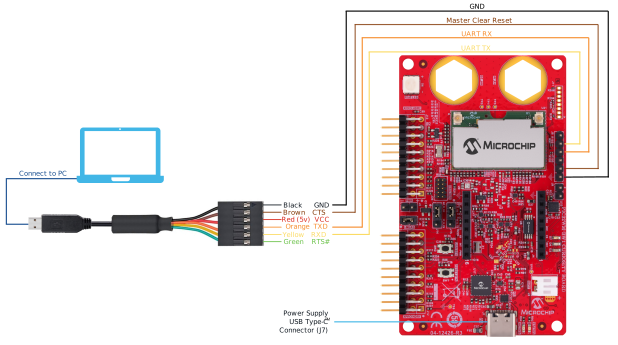
Connection Setup
- Connect the USB Type-C® cable to supply power to the PIC32WM-BW1 Curiosity Board.
- Attach the FTDI cable to the JTAG port located on the right side.
- Place the jumper on the WINCS02 side (J14-2 and J14-3, J15-2 and J15-3).
Note:
- Ensure that no other application on the PC uses or opens the COM port.
- Ensure that the device is not programmed with any existing project. To erase the project from the device, use MPLAB® X IPE.
Flashing the Certificate Procedure
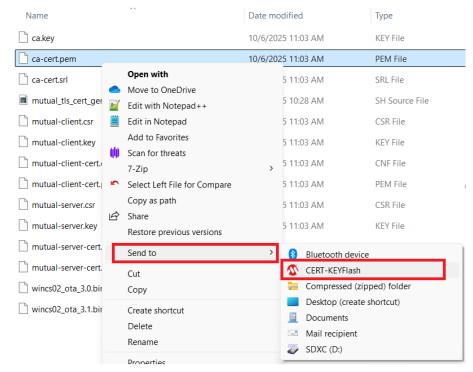
- Flash the certificate using the Windows® “Send to”
utility.
- If not already installed, follow the instructions provided in the documentation to install the CERT-KEYFlash utility to the Windows Send to menu (refer to the Windows Send To Utility section under the File System chapter in the WINCS02 Application Developer's Guide).
- Navigate to the folder containing the generated certificate files (for
example,
ca-cert.pem,mutual-client-cert.pemandmutual-client.key). - For each certificate or key file (CA certificate, client certificate, client
key), perform the following steps:
- Right-click on the certificate or key file.
- Hover over or click Send to.Tip: Click Show more options (if using Windows 11 or later).
- In the sub-menu, click CERT-KEYFlash.
- Repeat the above process for each required file (CA certificate, client certificate, client key) until all are flashed to the WINCS02 module.