
4.1.3 Bluetooth®LE Multirole Multilink Transparent UART
This section helps users create a multirole multilink device and send/receive characters between connected Bluetooth Low Energy devices over Microchip proprietary Transparent UART Profile. The multilink central enables users to connect multiple peripheral devices to a central device. The multilink central device acts as peripheral device and is connected to an another central device (MBD mobile application). The central is MBD application and peripheral devices in this demo is PIC32WM-BW1 devices.
Hardware Requirement
| Tool | Qty |
|---|---|
| PIC32WM-BW1 Curiosity Board | 3 (min) |
| USB Type-C™ cable | 3 |
Software Requirement
- To install Tera Term tool, refer to the Tera Term web page listed in the Reference Documentation from Related Links.
Programming the Precompiled hex File or Application Example
Programming the hex file using MPLABX IPE
- Precompiled Hex file is located in
“
<Harmony Content Path>\wireless_apps_pic32_bw1\apps\ble\multirole\multilink\hex” folder - For detailed steps, refer to
Programming a Device in MPLAB® IPE in Reference
Documentation from Related Links.Note: Ensure to choose the correct Device and Tool information.
Programming the application using MPLABX IDE
- Perform the following the steps mentioned in Running a Precompiled Example. For more information, refer to Running a Precompiled Application Example from Related Links.
- Open and program the application example
“
mr_ml_trp_uart.x” located in “<Harmony Content Path>\wireless_apps_pic32_bw1\apps\ble\multirole\multilink\firmware” using MPLABX IDE
Testing
- Users must use 3–4 PIC32WM-BW1 Curiosity Boards where 3 boards are peripheral devices and 1 configured as multirole device.
- Program 3 peripheral devices with
“
peripheral_trp_uart” application. For demo testing with multiple links, user needs to configure the peripheral devices with different Public addresses as following. The public address can be changed from fileapp_ble.c,APP_BleConfigBasic()in struct devAddr.- Board 1:{0xA1, 0xA2, 0xA3, 0xA4, 0xA5, 0xA6}
- Board 2: {0xB1, 0xB2, 0xB3, 0xB4, 0xB5, 0xB6}
- Board 3: {0xC1, 0xC2, 0xC3, 0xC4, 0xC5, 0xC6}
Figure 4-92. app_ble.c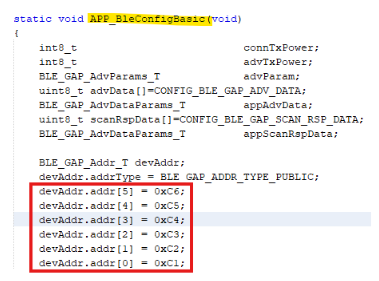
- For respective peripheral device open Tera Term configured with following settings
through Terminal Settings:
- Baud rate/ Speed – 115200
- Parity – None
- Data bits – 8
- Stop bits – 1
- Flow Control – None
- Reset the board. Upon reset, “BW1-Advertising” will be displayed. This indicates a peripheral device is advertising itself.
- Program PIC32WM-BW1 Curiosity board 4 with
“
mr_ml_trp_uart.X” application. Open Tera Term configured with following settings through Terminal Settings:- Baud rate/ Speed – 115200
- Parity – None
- Data bits – 8
- Stop bits – 1
- Flow Control – None
- Reset the board. Upon reset, “Scanning” will be displayed. This indicates multirole device is looking for nearby peripheral devices to connect. It scans for 100 seconds.
- Upon finding peripheral device with any public address message “Found Peer Node” will be displayed and a connection request will be initiated. The user will see message “Initiating Connection” followed by “Connected” after successful connection.
- During the scan time if more devices are available, which will be true in this case, multirole multilink device will keep initiating connections with the new peer nodes.
- After connection establishment, all connected peripheral devices will display “Connected!” on respective terminal windows.
- Users can now start sending data through
peripheral devices to the multirole device. Characters entered on any peripheral device
(Board 1,2,3) terminal emulator will appear on central board’s (board 4) terminal emulator.
Figure 4-93. Tera Term Logs 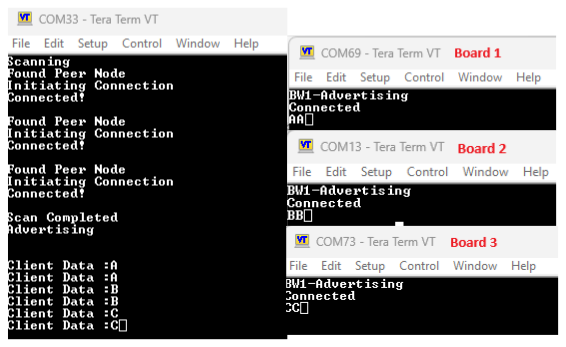
- After scanning is completed, multirole device will start advertising with message “Scan Completed! Advertising” to enable the user to connect a central device (like mobile) to multirole device.
- Open LightBlue Bluetooth LE application on mobile device and connect to the multirole device advertising with name “pic32wm-bw1”.
- To send message, select
0x49535343-8841-43F4-A8D4-ECBE34729BB3. Change the text string to UTF-8 through option on top right corner and select on Write new value to enter your text.Note: When connecting through the LightBlue app on Android, select the following properties: Write and Write Without Response. - The entered text will be displayed on
multirole device emulator as “Server Data:”.
Figure 4-94. LightBlue App 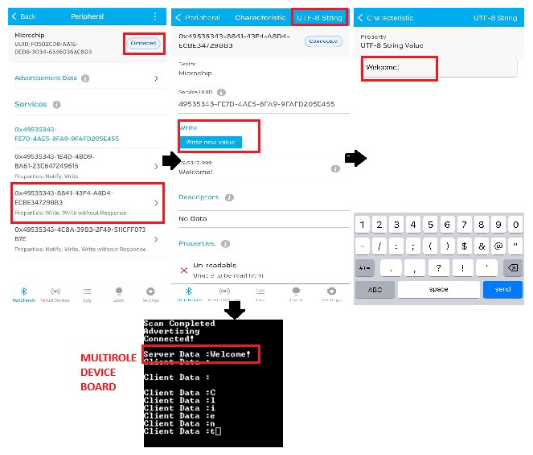
- Characters entered on multirole multilink device terminal emulator will appear on peripheral devices emulator in a round-robin fashion without priority. For example, to send character “a” to all peripheral devices “aaa” needs to be entered on terminal emulator of central device.
MCC Project Graph
This section explains how MCC Project graph should look like and component configurations.
- Verify if the Project Graph window has
all the expected configuration as illustrated in the following figure.
Figure 4-95. Project Graph 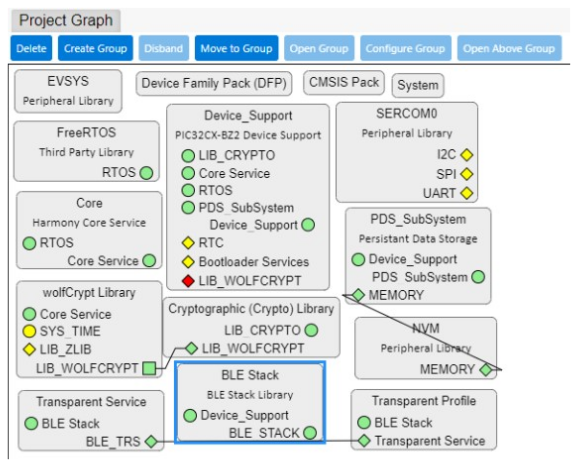
Verify Scan, Advertisement and Transparent Profile Configuration
- Select BLE Stack component in project
graph.
Figure 4-96. BLE Stack Configuration 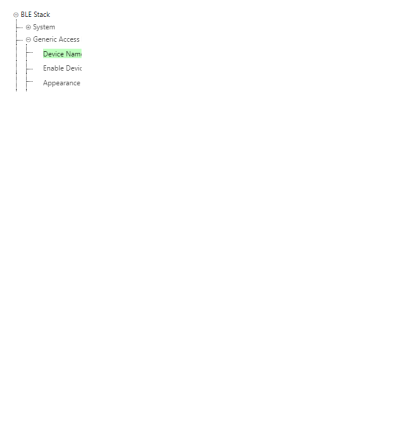
Figure 4-97. BLE Stack Configuration 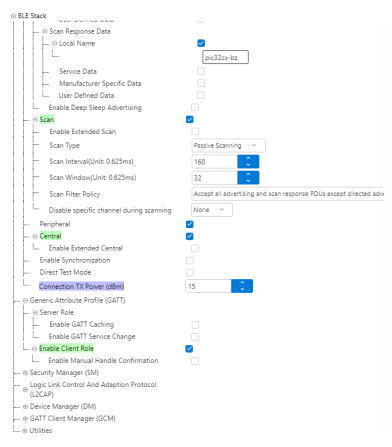 Note: Advertising Interval Min and Max can be modified. Advertisement payload can be configured by user here.
 - Select Transparent Profile configuration.
Figure 4-98. Transparent Profile Configuration 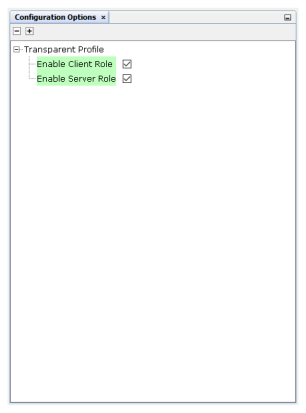
Generating a Code
For more details on code generation, refer to MPLAB Code Configurator (MCC) Code Generation section from Related Links.
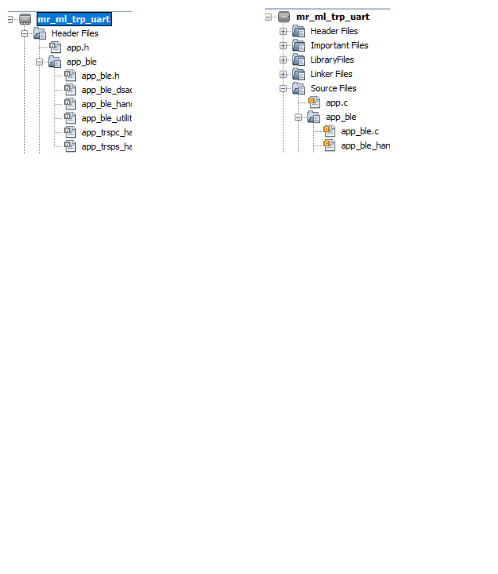
initialization.c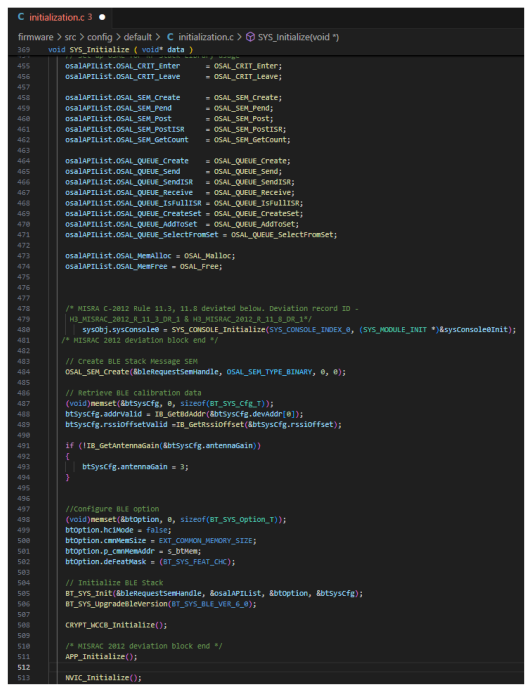
The BLE stack initialization routine executed during application initialization can be found in project files. This intitialization routine is automatically generated by the MCC. This call initializes and configures the GAP, GATT, SMP, L2CAP and BLE middleware layers.
| Source Files | Usage |
|---|---|
app.c | Application State machine, includes calls for Initialization of all Bluetooth Low Energy stack (GAP,GATT, SMP, L2CAP) related component configurations |
app_ble.c | Source Code for the Bluetooth Low Energy stack related component
configurations, code related to function calls from app.c |
app_ble_handler.c | All GAP, GATT, SMP and L2CAP Event handlers |
app_trspc_handler.c | All Transparent UART Client related Event handlers |
app_trsps_handler.c | All Transparent UART Server related Event handlers |
ble_trspc.c | All Transparent Client Functions for user application |
ble_trsps.c | All Transparent Server Functions for user application |
app.c is auto generated and has a state machine based Application code
sample and users can use this template to develop their application. Header Files
ble_gap.h: This header file contains BLE GAP functions and is automatically included in theapp.cfileble_trspc.h: This is the header file associated with API’s and structures related to BLE Transparent Client functions for application userble_trsps.h: This is the header file associated with API’s and structures related to BLE Transparent Server functions for application user
Function Calls
APP_BleStackInit() functionAPP_BleStackInit()is the API that will be called inside the Applications Initial State (APP_STATE_INIT) inapp.c
User Application Development
- Include
ble_trspc.hinapp.c, Bluetooth Low Energy Transparent UART client related API’s are available here.ble_trsps.hinapp.c, Bluetooth Low Energy Transparent UART Server related API’s are available hereosal/osal_freertos_extend.hinapp_trsps_handler.c, OSAL related API’s are available heredefinitions.hin all the files where UART will be used to print debug informationNote:definitions.his not specific to just UART peripheral, instead it must be included in all application source files where peripheral functionality will be exercised- Include the user action. For more information, refer to User Action from Related Links.
- Start Scanning in
app.c// Scanning Enabled BLE_GAP_SetScanningEnable(true, BLE_GAP_SCAN_FD_ENABLE, BLE_GAP_SCAN_MODE_OBSERVER, 1000); // Output the status string to UART SERCOM0_USART_Write((uint8_t *)"Scanning \r\n", 11);
This API is called in the Applications Initial state (
APP_STATE_INIT) inapp.c. Scan duration is 100 seconds. -
Scan results and Initiating a BLE Connection in
app_ble_handler.c- Connection handle associated with the peer peripheral device needs to be saved for data exchange after a BLE connection.
p_event->eventField.evtConnect.connHandlehas this information.- In Multilink Application, unique
connection handler's will be generated for all the peripheral
links
#include "peripheral/sercom/usart/plib_sercom0_usart.h"

extern uint16_t conn_hdl[3];// connection handle info captured @BLE_GAP_EVT_CONNECTED event
extern uint8_t no_of_links;// No of connected peripheral devices
- In
APP_BleGapEvtHandler, caseBLE_GAP_EVT_ADV_REPORT:/* TODO: implement your application code.*/ // code snippet to filter scan results and initiate connection // Filter Devices based of Address, for this example address checking only 2 bytes if ((p_event->eventField.evtAdvReport.addr.addr[0] == 0xA1 && p_event->eventField.evtAdvReport.addr.addr[1] == 0xA2) || (p_event->eventField.evtAdvReport.addr.addr[0] == 0xB1 && p_event->eventField.evtAdvReport.addr.addr[1] == 0xB2) || (p_event->eventField.evtAdvReport.addr.addr[0] == 0xC1 && p_event->eventField.evtAdvReport.addr.addr[1] == 0xC2)) { SERCOM0_USART_Write((uint8_t *)"Found Peer Node\r\n", 17); BLE_GAP_CreateConnParams_T createConnParam_t; createConnParam_t.scanInterval = 0x3C; // 37.5 ms createConnParam_t.scanWindow = 0x1E; // 18.75 ms createConnParam_t.filterPolicy = BLE_GAP_SCAN_FP_ACCEPT_ALL; createConnParam_t.peerAddr.addrType = p_event->eventField.evtAdvReport.addr.addrType; memcpy(createConnParam_t.peerAddr.addr, p_event->eventField.evtAdvReport.addr.addr, GAP_MAX_BD_ADDRESS_LEN); createConnParam_t.connParams.intervalMin = 0x10; createConnParam_t.connParams.intervalMax = 0x10; createConnParam_t.connParams.latency = 0; createConnParam_t.connParams.supervisionTimeout = 0x48; SERCOM0_USART_Write((uint8_t *)"Initiating Connection\r\n", 23); BLE_GAP_CreateConnection(&createConnParam_t); }
Figure 4-101. app_ble_handler.c
-
Connected and Disconnected Events in
app_ble_handler.c- In
APP_BleGapEvtHandler, caseBLE_GAP_EVT_CONNECTED:/* TODO: implement your application code.*/ SERCOM0_USART_Write((uint8_t *)"Connected!\r\n", 12); conn_hdl[no_of_links]=p_event->eventField.evtConnect.connHandle; no_of_links++;
-
In
APP_BleGapEvtHandler, caseBLE_GAP_EVT_DISCONNECTED:/* TODO: implement your application code.*/ SERCOM0_USART_Write((uint8_t *)"Disconnected\r\n", 15);
Figure 4-102. app_ble_handler.c
- In
-
Scan Timeout Handler
- The initiated scan operation will provide scan timeout event, user can start the advertisement to connect with another central device.
- In
APP_BleGapEvtHandler, caseBLE_GAP_EVT_SCAN_TIMEOUT:
/* TODO: implement your application code.*/
SERCOM0_USART_Write((uint8_t *)"Scan Completed \r\n", 17);
// Start Advertisement
BLE_GAP_SetAdvEnable(0x01, 0x00);
SERCOM0_USART_Write((uint8_t *)"Advertising\r\n",13);
Transmit Data
- Add
APP_MSG_UART_CBinAPP_MsgId_Tenum inapp.has illustrated in the following figureFigure 4-103. app.h
BLE_TRSPC_SendData(conn_hdl[i],
              1, &uart_data);
is the API to be used for sending data towards the client deviceBLE_TRSPS_SendData(conn_hdl[i], 1, &uart_data);is the API to be used for sending data towards the Server device
Example Implementation for Transmitting the received data over UART using the
BLE_TRSPC_SendData API in app.c
#include "peripheral/sercom/usart/plib_sercom0_usart.h"
#include "config/default/ble/profile_ble/ble_trspc/ble_trspc.h"
#include "config/default/ble/profile_ble/ble_trsps/ble_trsps.h"

uint16_t conn_hdl[3];// connection handle info captured @BLE_GAP_EVT_CONNECTED event
uint8_t uart_data;
uint8_t no_of_links;// No of connected peripheral devices
uint8_t i = 0;// link index
void uart_cb(SERCOM_USART_EVENT event, uintptr_t context)
{
  APP_Msg_T   appMsg;
  // If RX data from UART reached threshold (previously set to 1)
  if( event == SERCOM_USART_EVENT_READ_THRESHOLD_REACHED )
  {
    // Read 1 byte data from UART
    SERCOM0_USART_Read(&uart_data, 1);

    appMsg.msgId = APP_MSG_UART_CB;
    OSAL_QUEUE_Send(&appData.appQueue, &appMsg, 0);
  }
}

void APP_UartCBHandler()
{
    // Send the data from UART to connected device through Transparent service
BLE_TRSPC_SendData(conn_hdl[i], 1, &uart_data);
    i++;
    if(i==no_of_links) i = 0; //reset link index
}
app.c
- When data is available on UART in
APP_Tasks(), caseAPP_STATE_INIT:// Enable UART Read SERCOM0_USART_ReadNotificationEnable(true, true); // Set UART RX notification threshold to be 1 SERCOM0_USART_ReadThresholdSet(1); // Register the UART RX callback function SERCOM0_USART_ReadCallbackRegister(uart_cb, (uintptr_t)NULL);
-
In
APP_Tasks(), caseAPP_STATE_SERVICE_TASKS:else if(p_appMsg->msgId==APP_MSG_UART_CB) { // Transparent UART Client Data transfer Event APP_UartCBHandler(); }
app.c
- In
app_trspc_handler.c#include <string.h> #include <stdint.h> #include "ble_trspc/ble_trspc.h" #include "definitions.h"
-
In
APP_TrspcEvtHandler(), caseBLE_TRSPC_EVT_RECEIVE_DATA:/* TODO: implement your application code.*/ uint16_t data_len; uint8_t *data; // Retrieve received data length BLE_TRSPC_GetDataLength(p_event->eventField.onReceiveData.connHandle, &data_len); // Allocate memory according to data length data = OSAL_Malloc(data_len); if(data == NULL) break; // Retrieve received data BLE_TRSPC_GetData(p_event->eventField.onReceiveData.connHandle, data); // Output received data to UART SERCOM0_USART_Write((uint8_t *)"\r\nClient Data :", 15); SERCOM0_USART_Write(data, data_len); // Free memory OSAL_Free(data);
Receive Data
BLE_TRSPC_EVT_RECEIVE_DATAis the event generated when data is sent from peripheral device- Users need to use the
BLE_TRSPC_GetDataLength(&data_len)andBLE_TRSPS_GetDataLength(&data_len)API to extract the length of application data received BLE_TRSPC_GetData(&conn_hdl, data);andBLE_TRSPS_GetData(&conn_hdl, data);API is used to retrieve the data,conn_hdlis the value obtained from Connection Handler section
BLE_TRSPC_Event_T
                p_event
structure stores the information about Bluetooth Low Energy transparent UART callback functionsBLE_TRSPS_Event_T p_eventstructure stores the information about Bluetooth Low Energy transparent UART callback functions
Example Implementation for printing the received data from peripheral device over UART
- In
app_trsps_handler.c#include <string.h> #include <stdint.h> #include "ble_trsps/ble_trsps.h" #include "ble_trspc/ble_trspc.h" #include "definitions.h" extern uint16_t conn_hdl[3];// connection handle info captured @BLE_GAP_EVT_CONNECTED event extern uint8_t no_of_links;// No of connected peripheral devices
- In
APP_TrspsEvtHandler(), caseBLE_TRSPS_EVT_RECEIVE_DATA:/* TODO: implement your application code.*/ uint16_t data_len; uint8_t *data; // Retrieve received data length BLE_TRSPS_GetDataLength(p_event->eventField.onReceiveData.connHandle, &data_len); // Allocate memory according to data length data = OSAL_Malloc(data_len); if(data == NULL) break; // Retrieve received data BLE_TRSPS_GetData(p_event->eventField.onReceiveData.connHandle, data); // Output received data to UART SERCOM0_USART_Write((uint8_t *)"\r\nServer Data :", 15); SERCOM0_USART_Write(data, data_len); // Send the data from UART to connected device through Transparent service for (int i=0;i<no_of_links;i++) { BLE_TRSPC_SendData(conn_hdl[i], data_len, data); } // Free memory OSAL_Free(data);