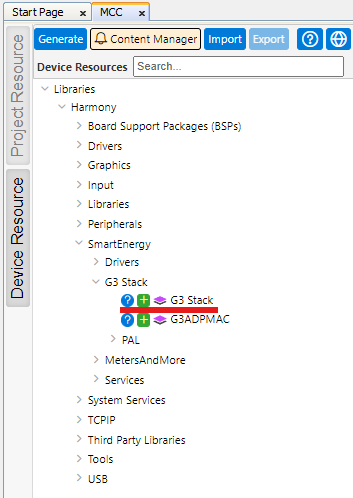
Add G3 Stack Component. On Device
Resources, navigate to SmartEnergy>G3 Stack and click the + sign next to
G3 Stack.Figure 2-24. Add G3 Stack
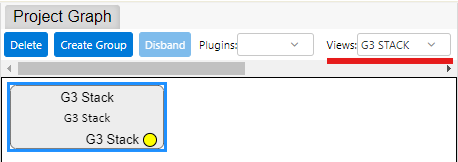
Double click the G3 Stack folder just
added, or select G3 STACK on the View Selector in Project Graph window. This opens a
new Project Graph view, where G3 Stack components will be added and configured.Figure 2-25. Select G3 Stack
Configure G3 Stack Component.
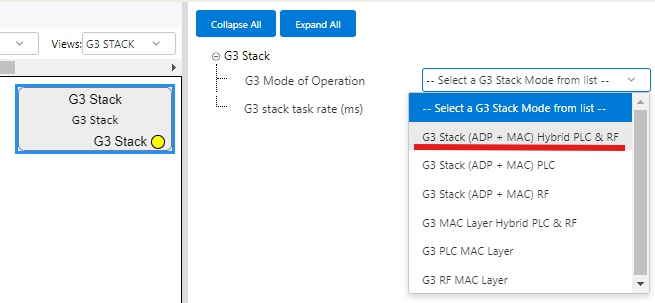
Click the G3 Stack component,
on Configuration Options set G3 Mode of Operation to G3 Stack (ADP + MAC)
Hybrid PLC and RF:Figure 2-26. Set G3 Mode of
Operation
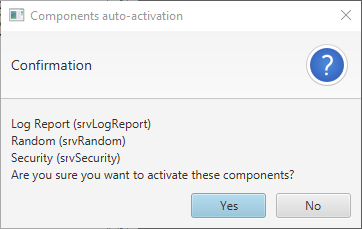
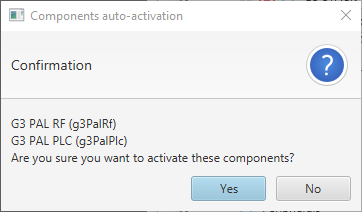
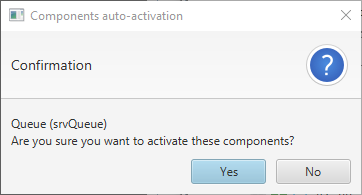
This triggers the G3 Components Auto Activation. For the selected option, 3
Confirmations are required to activate all components, as seen on the
following figures:Figure 2-27. Auxiliary Services Auto ActivationFigure 2-28. PAL_Layers Auto ActivationFigure 2-29. Queue Service Auto Activation
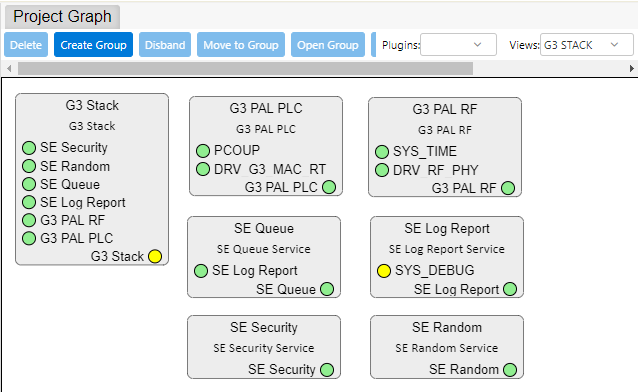
When all components are activated, they appear on the Project Graph:Figure 2-30. G3 Components Added
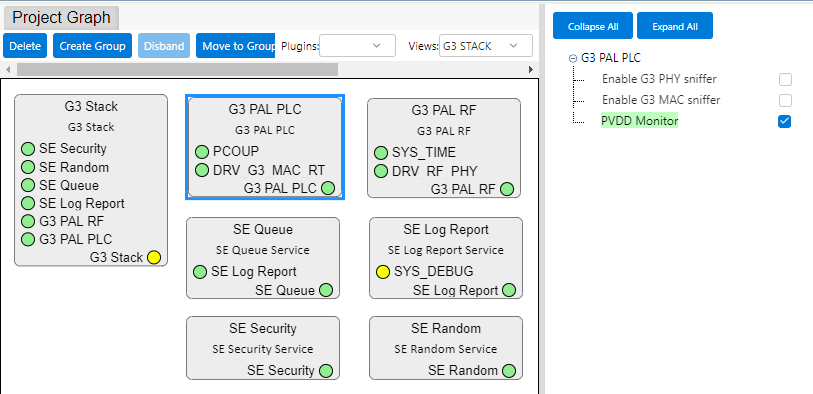
Click the G3 PAL PLC
component, on Configuration Options enable PVDD Monitor:Figure 2-31. Enable PVDD
Monitor
Every other components configuration will use their default values.