2.7 Adding and Configuring TCP/IP Stack to Project
- Open TCP/IP Configuration from the Plugins drop-down on the Project Graph
window.
Figure 2-32. Open TCPIP Configuration 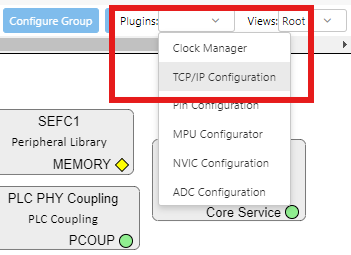
- This will open an empty TCP/IP Configuration window, as seen on the figure.
Figure 2-33. Empty TCPIP Configuration Window 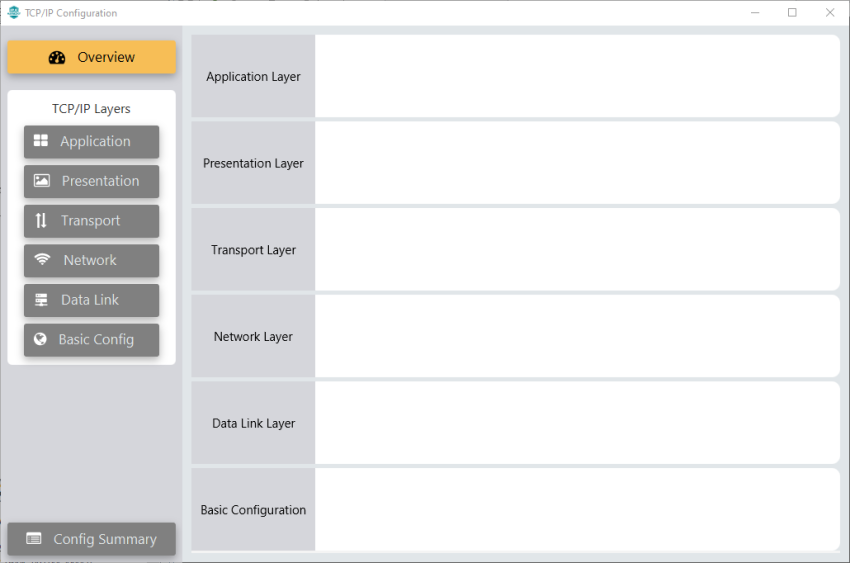
- Add TCP/IP Components to Configuration.
- Click the Basic Config
button on the left panel.
Figure 2-34. Basic Config 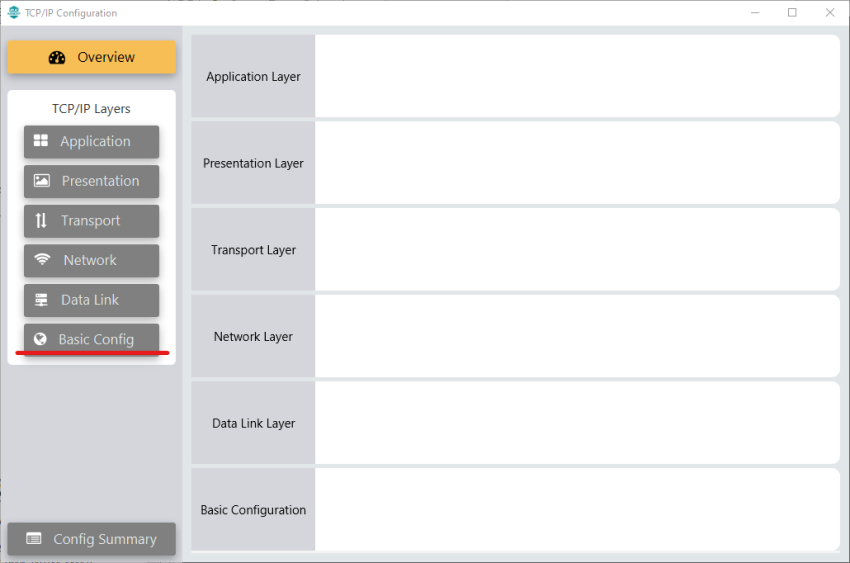
- Add TCPIP CORE component.
Figure 2-35. Add TCPIP CORE Component 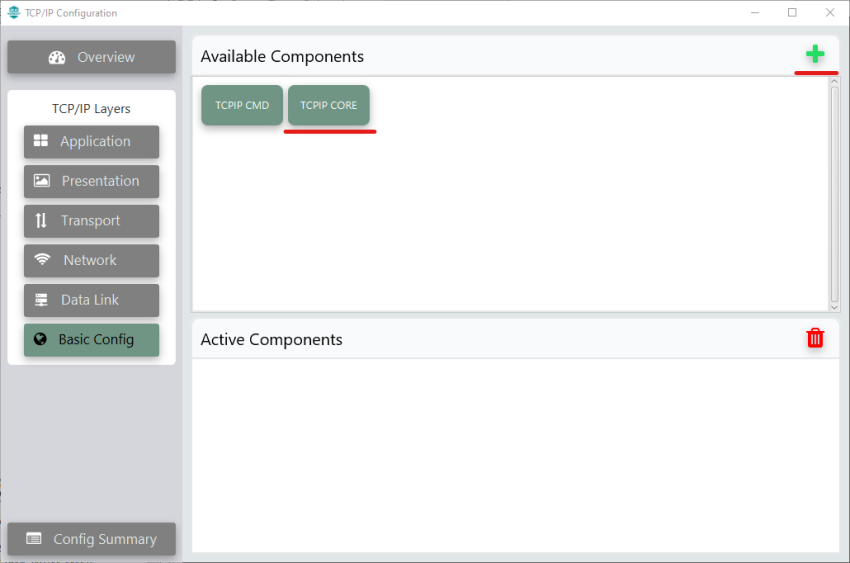
- Click the Data Link
button on the left panel.
Figure 2-36. Data Link 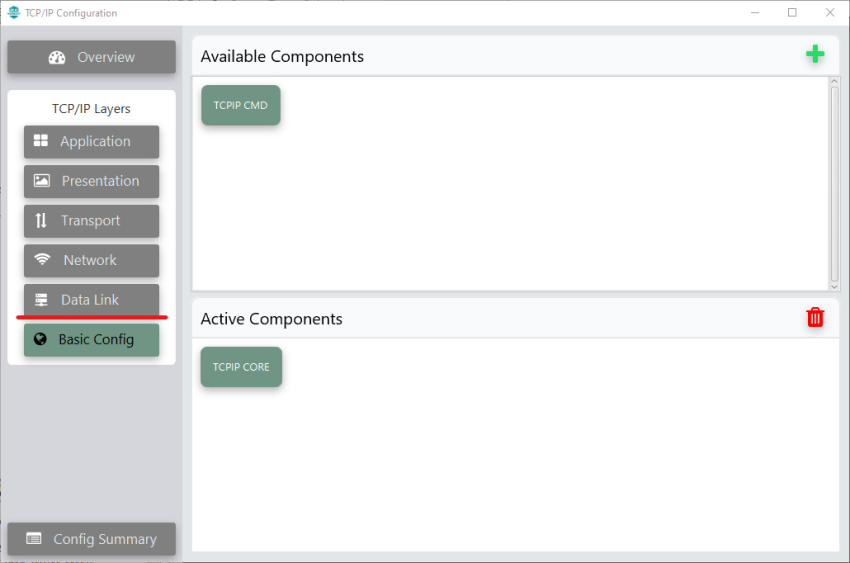
- Add G3ADPMAC component.
Figure 2-37. Add G3ADPMAC Component 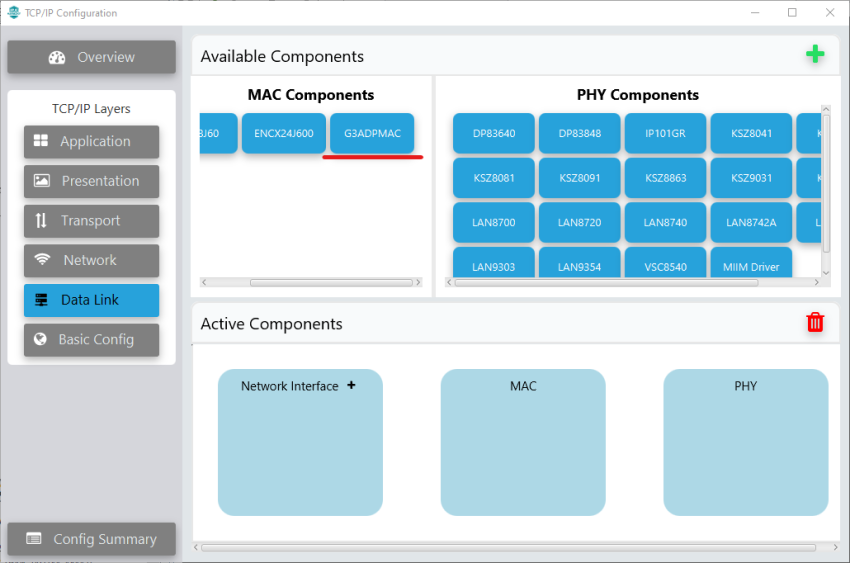
- Add a new Network Interface.
Figure 2-38. Add Network Interface 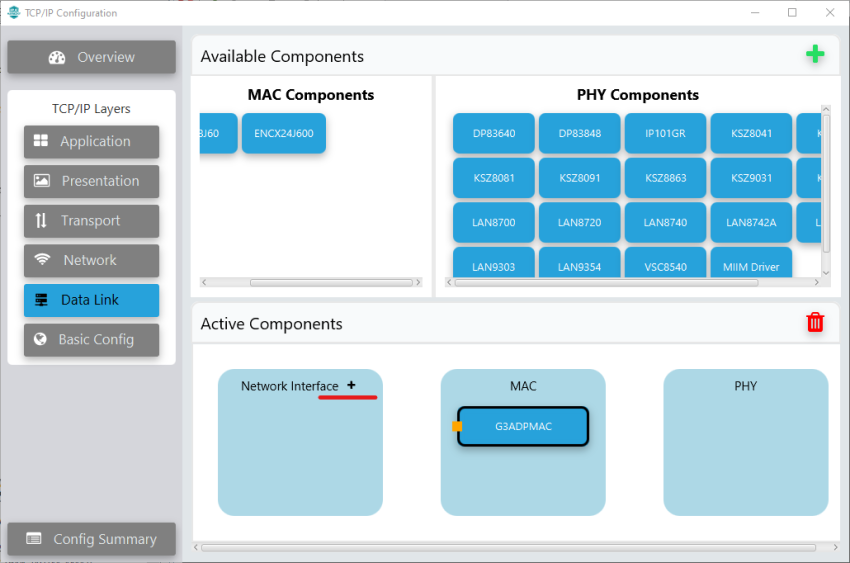
- Link G3ADPMAC and Network Interface components.
Figure 2-39. Link Components 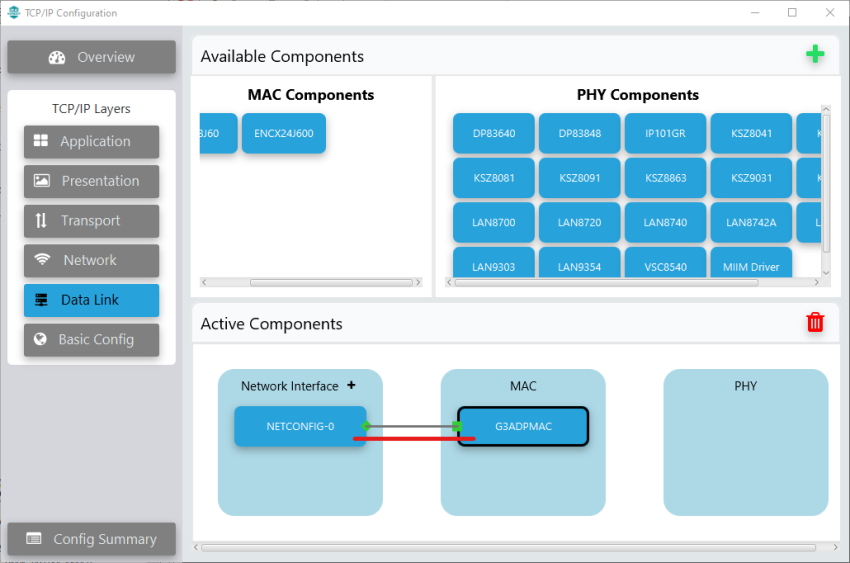
- Click the Network
button on the left panel and add IPv6, ICMPv6 and NDP components.
Figure 2-40. Add Network Components 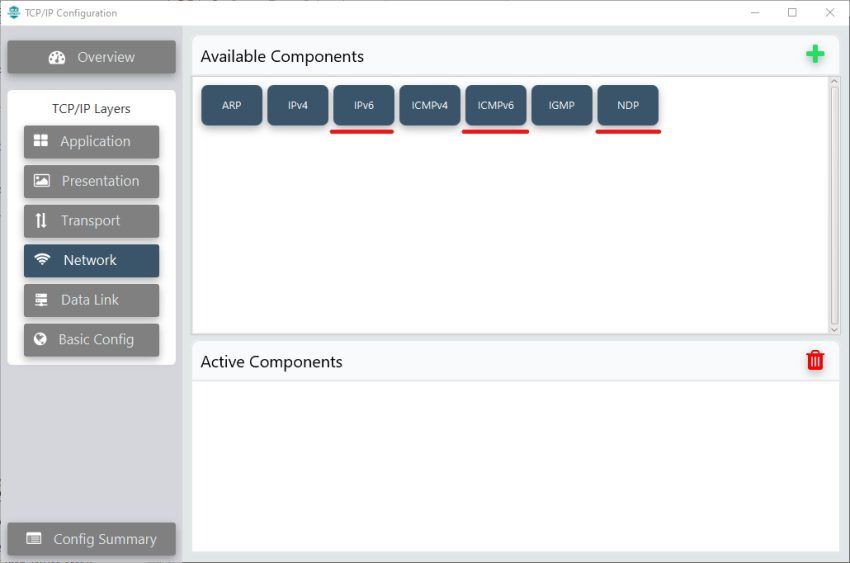
- Click the Transport
button on the left panel and add UDP component.
Figure 2-41. Add UDP Component 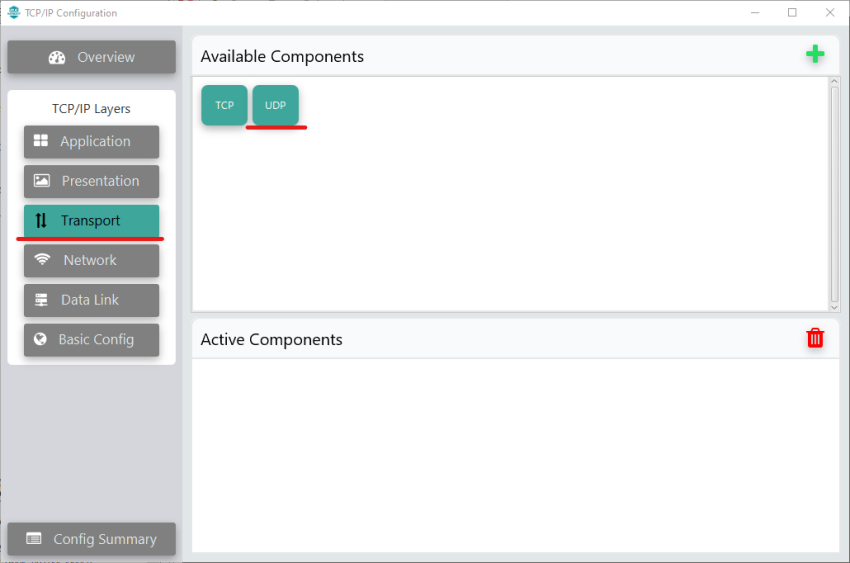
- Click the Overview
button on the left panel and verify that all components are correctly
added.
Figure 2-42. Verify Components 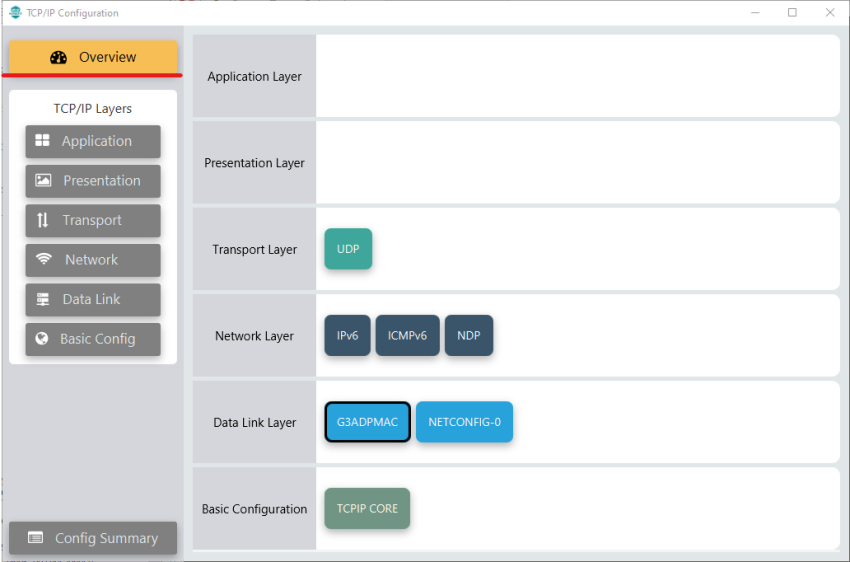
- Close TCP/IP Configuration window.
- Click the Basic Config
button on the left panel.
- At this point, close MCC and re-open it again. This will auto configure some of the TCP/IP options during MCC start-up, since G3ADPMAC component is linked to it.
- Configure TCP/IP Components.
- Double click the TCP/IP STACK
folder in Project Graph.
Figure 2-43. Open TCPIP Stack Folder 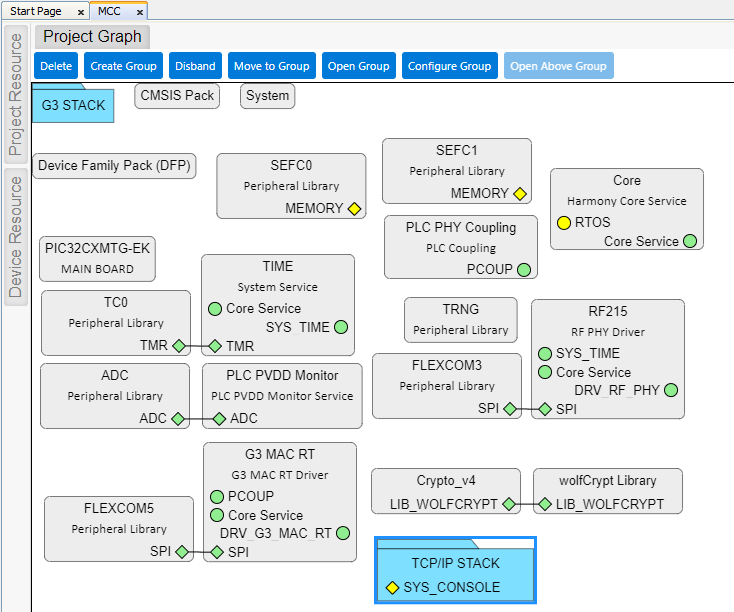
- This opens the TCP/IP
Components view. Double click the BASIC CONFIGURATION folder.
Figure 2-44. Open Basic Configuration Folder 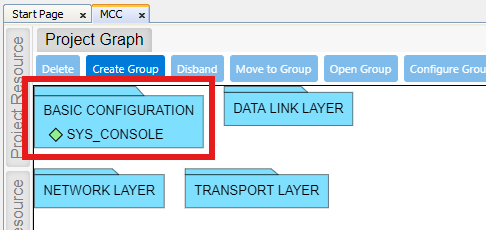
- Click the TCPIP CORE
component, on Configuration Options set values to match the following
figure. Note: Some of them are auto-configured when G3ADPMAC Component is linked to Network Interface.
Figure 2-45. Configure TCPIP CORE 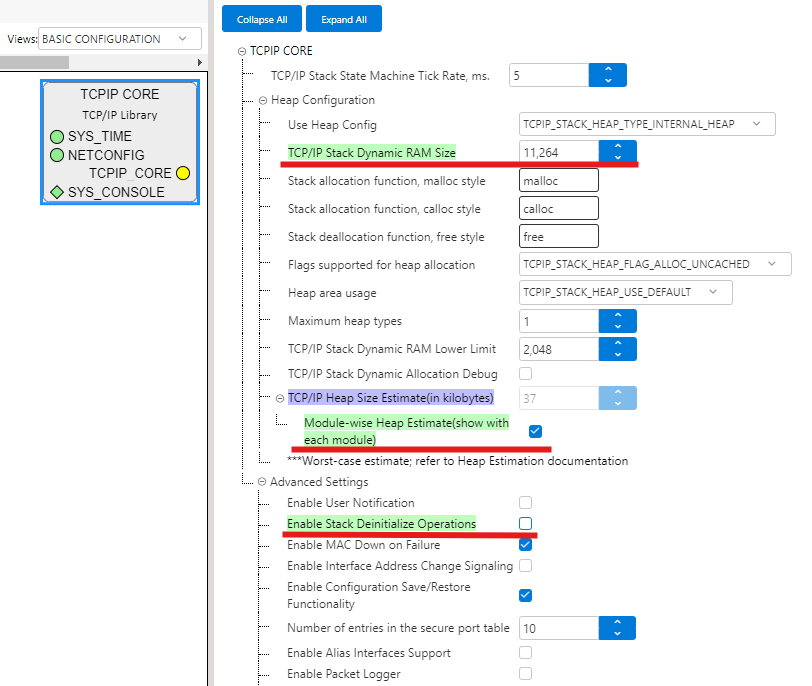
- Double click the DATA LINK
LAYER folder.
Figure 2-46. Open Data Link Layer Folder 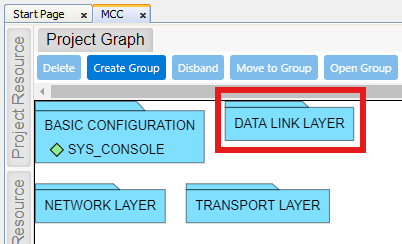
- Click the NETCONFIG
component, on Configuration Options set values to match the following
figure.Note: Some of them are auto-configured when G3ADPMAC Component is linked to Network Interface.
Figure 2-47. Configure NETCONFIG Instance 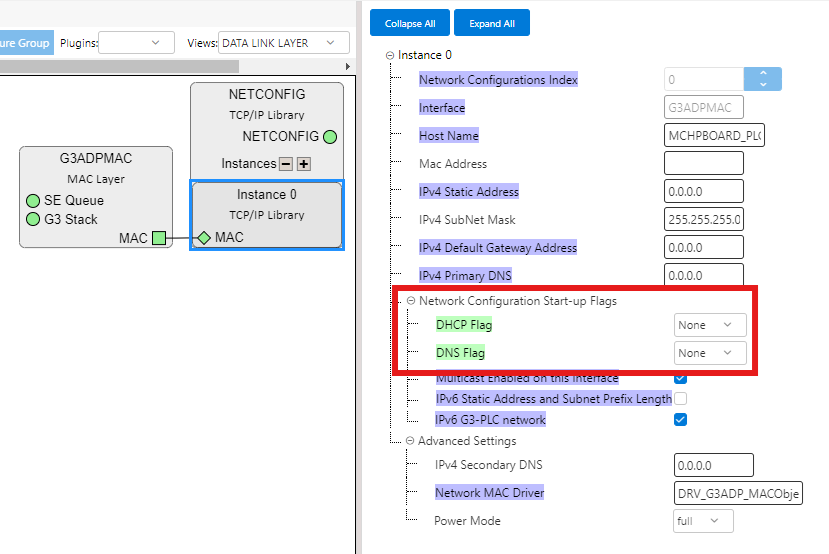
- Double click the NETWORK
LAYER folder.
Figure 2-48. Open Network Layer Folder 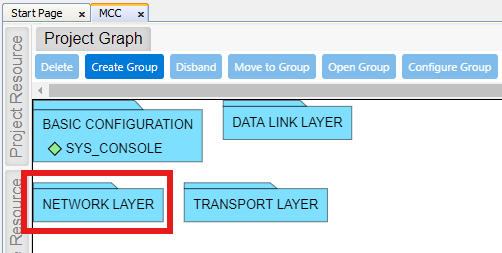
- IPv6 and NDP components are auto-configured, as seen on the figures.
Figure 2-49. IPv6 Autoconfigured 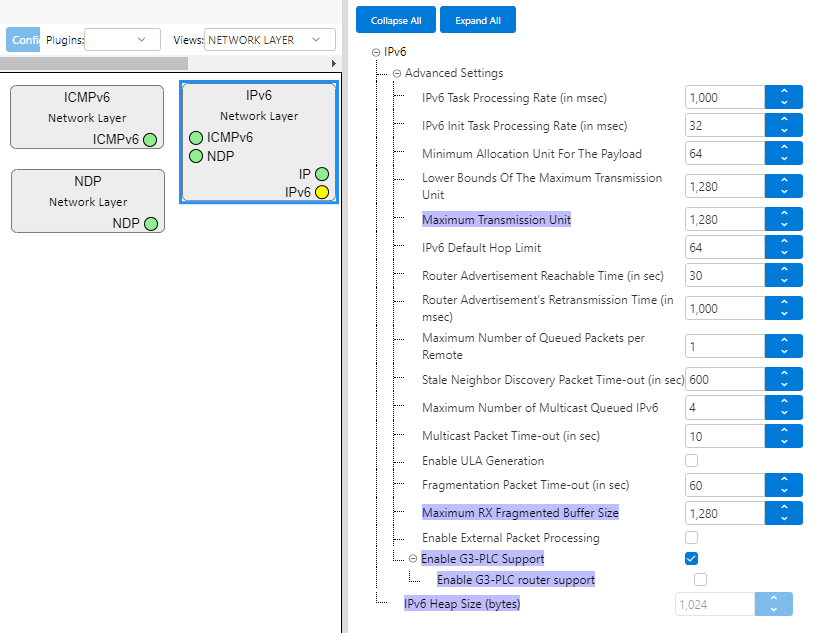
Figure 2-50. NDP Autoconfigured 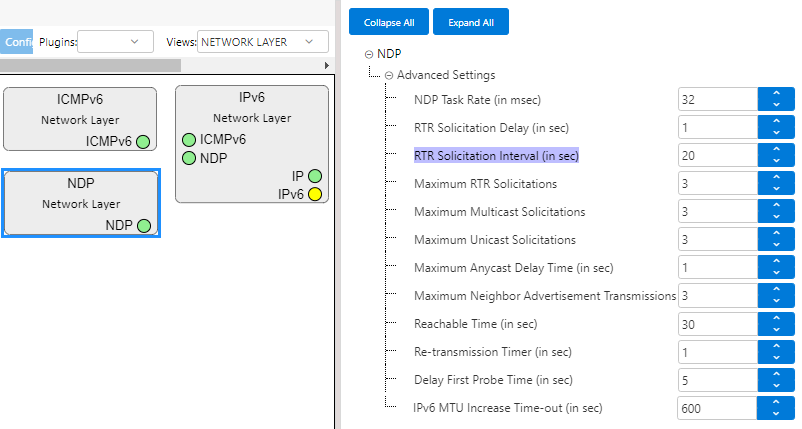
- Double click the TRANSPORT
LAYER folder.
Figure 2-51. Open Transport Layer Folder 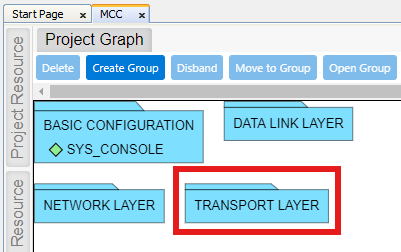
- Click the UDP component, on
Configuration Options set Maximum number of Sockets to 1, as G3 does not use
more.Note: Some of them are auto-configured when G3ADPMAC Component is linked to Network Interface.
Figure 2-52. UDP Configuration 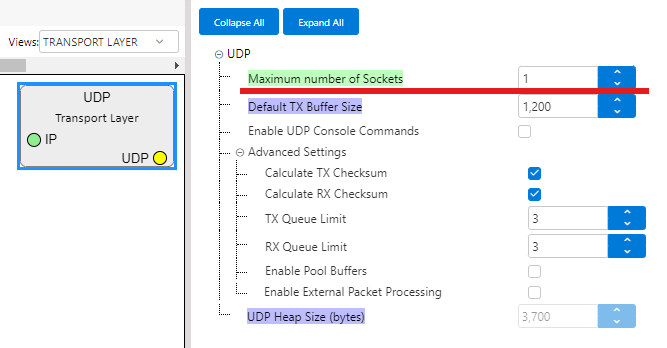
- Double click the TCP/IP STACK
folder in Project Graph.
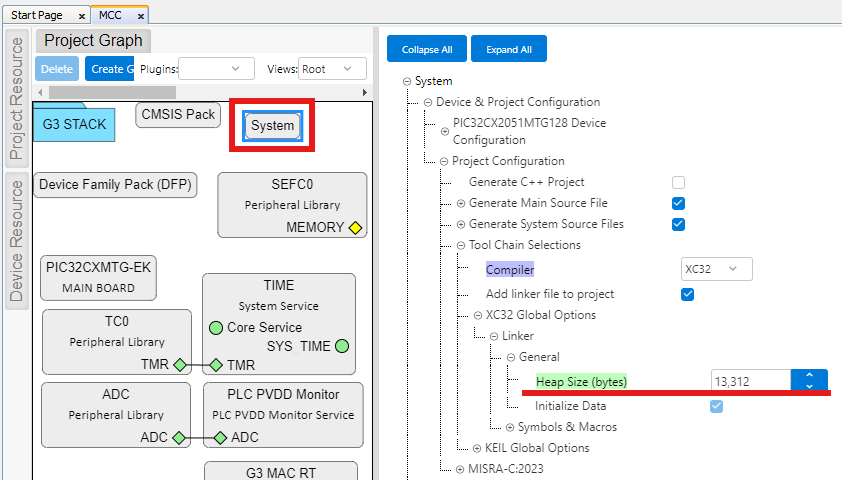
- After TCP/IP Configuration, go back to Root view on Project Graph window and select
System component. Configure the Heap Size as seen on the figure to allocate the
memory that was previously configured for the TCP/IP Stack.
Figure 2-53. Configure System Heap Size