
5.1.1.1 Central - FreeRTOS BLE Stack and App Initialization
This section gives a detail information on creating a new MPLAB® Code Configurator (MCC) Harmony project, configuring FreeRTOS component and BLE stack component in the project and generating code using the MPLAB MCC framework.
The recommendation is to follow the examples in order, starting with learning the basic concepts first and then progressing to the more advanced topics.
Recommended Readings
- Getting Started with Application Building Blocks – See Building Block Examples from Related Links.
- Getting Started with Central Building Blocks – See Central Devices from Related Links.
- FreeRTOS and BLE Stack Setup – See Central - FreeRTOS BLE Stack and App Initialize from Related Links.
- See BLE Legacy Scan from Related Links.
- BLE Software Specification – See MPLAB® Harmony Wireless BLE in Reference Documentation from Related Links.
Hardware Requirement
None
Software Setup
Refer to Getting Started with Software Development from Related Links.
Initiating a BLE Stack
Follow the steps below to build the application manually:
Note: It is recommended for the new users of the MPLAB Code Configurator to refer
MPLAB® Code Configurator (MCC) User’s Guide
in Reference Documentation from Related Links.
- Create a new harmony project. For more details, see Creating a New MCC Harmony Project from Related Links.
- Open the MPLAB Code Configurator: The following figure illustrates the opening window of the MCC.
Figure 5-1. Opening MPLAB® Code Configurator 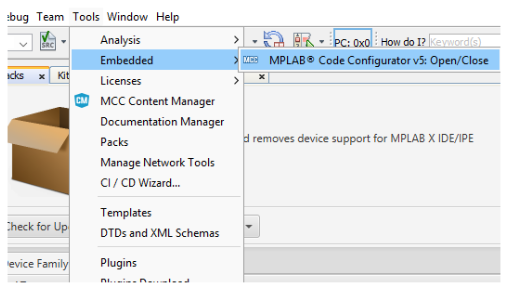
Figure 5-2. Default MCC Window 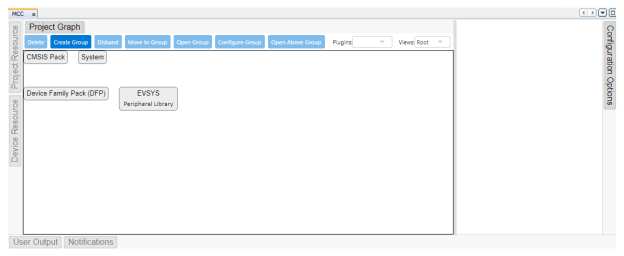
- To add the BLE Stack component to the project graph, go to
Harmony>Wireless>Drivers>BLE>BLE Stack from
the “Device Resources” field (see the following figure).
Figure 5-3. Device Resources – BLE Stack 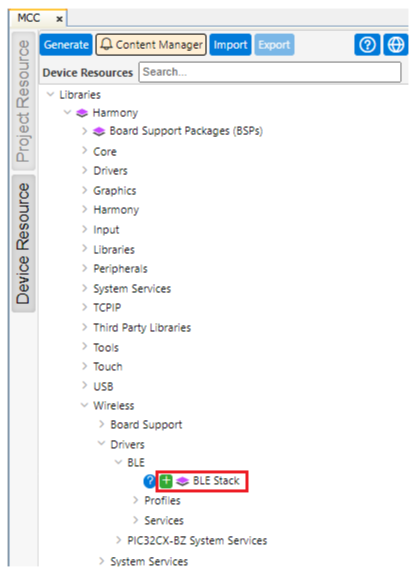
- The following figure
illustrates the addition of BLE_Stack to the project graph.
Figure 5-4. Project Graph Window 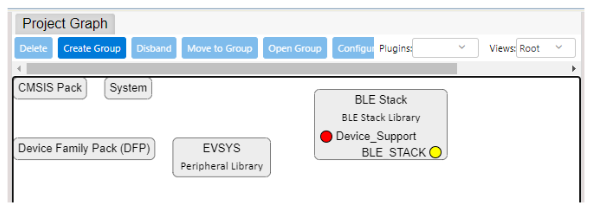
- The following figure
illustrates the addition of BLE_Stack to the project graph.
- Upon selection, the user receives a prompt for auto-activation and auto-connect
request of different component dependencies. Click Yes to add all the
dependent components and also for all attachment auto-connect requests.
Figure 5-5. Auto-Activation 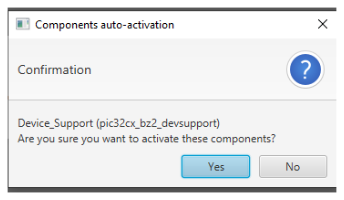
Figure 5-6. Auto-Activation and Auto-Connect 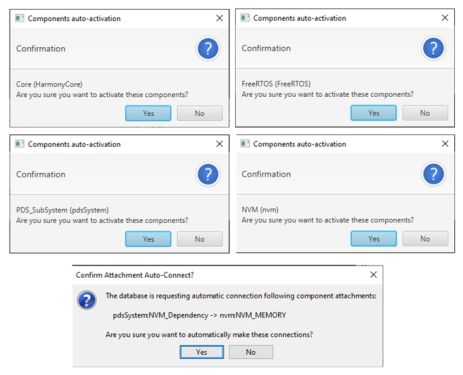
- The following figure
illustrates the project graph.
Figure 5-7. Project Graph with Added Components 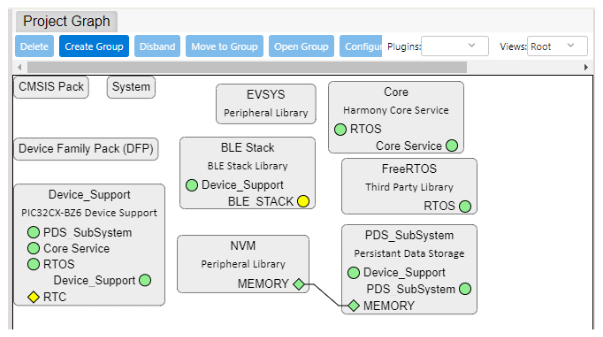
- The following figure
illustrates the project graph.
- Click on the FreeRTOS component in project graph, open Configuration
Options tab and configure as illustrated in the following image. the
configuration must suit most application needs. It is recommended to refer the
FreeRTOS Customization in Reference Documentation from Related Links.
- To ensure the proper functioning of applications on the WBZ35x platform, it is crucial to adjust the default heap size set in the FreeRTOS component. The default heap size is often insufficient because the common memory required by the Bluetooth Low Energy library is allocated from the heap. This necessitates an increase in the heap memory variable value within the FreeRTOS component to 59,392 bytes. Failure to make this adjustment results in the application not functioning correctly.
Note: Upon selecting any component, the default configuration options available for user are displayed.Note: By default, the “Total heap size” is set to a default value which might not be sufficient to a specific project. If the total heap size is not enough, vApplicationMallocFailedHook( ) will be caught. Then user can adjust the “Total heap size” to avoid this situation.Note: It is required to address the heap needed or BLE stack library as defined in initialization.c #define EXT_COMMON_MEMORY_SIZE (22*1024). Hence the default “Total heap size”.Figure 5-8. Configuration Options - FreeRTOS (Total Heap Size) 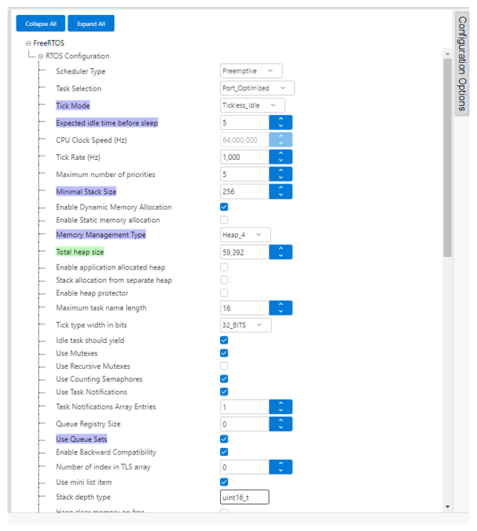
- Click on the BLE Stack component in project graph. Open Configuration
Options tab and apply the following configurations:
- Peripheral Device functionality is enabled by default, this must be unchecked (BLE Stack>Generic Access Profile (GAP)>Peripheral)
- Central configuration
must be checked (BLE Stack>Generic Access Profile
(GAP)>Central)
Figure 5-9. BLE Stack – Check Central Configuration 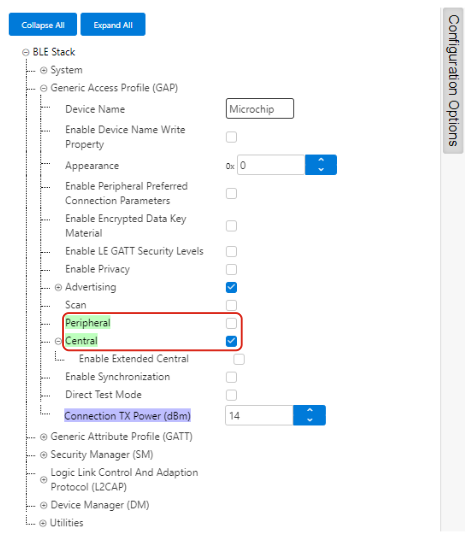
- To generate the code, refer to MPLAB Code Configurator (MCC) Code Generation from Related Links.
- Build Project and upon building the project, user action is required. For more information, refer to User Action from Related Links.
- Switch to MPLAB X IDE window and Build Project. The project must compile
successfully.
Figure 5-10. Build Project 
- Choose the correct compiler version, as suggested in Development Environment, refer to Getting Started with Software Development from Related Links.