5.1.1.6 BLE Multilink Transparent UART
This section helps users to create a multilink central device and send/receive characters between connected BLE devices over Microchip proprietary Transparent UART profile. The multilink central enables users to connect multiple peripheral devices to a central device. The central and peripheral devices in this tutorial are the WBZ351 devices.
Users can choose to either run the precompiled Application Example hex file provided on the WBZ351 Curiosity Board or follow the steps to develop the application from scratch.
It is recommended to follow the examples in sequence to understand the basic concepts before progressing to the advanced topics.
Recommended Readings
-
Getting Started with Application Building Blocks – See Building Block Examples from Related Links.
-
Getting Started with Central Building Blocks – See Central Devices from Related Links.
- See BLE Connection from Related Links.
- See BLE Transparent UART from Related Links.
-
BLE Software Specification – See MPLAB® Harmony Wireless BLE in Reference Documentation from Related Links.
Hardware Requirement
| S. No. | Tool | Quantity |
|---|---|---|
| 1 | WBZ351 Curiosity Board | 3 (minimum) |
| 2 | Micro USB cable | 3 |
SDK Setup
Refer to Getting Started with Software Development from Related Links.
Software
To install Tera Term tool, refer to the Tera Term web page in Reference Documentation from Related Links.
Smartphone Application
None
Programming the Precompiled Hex File or Application Example
Using MPLAB® X IPE:
- Central Device – Import and program the
precompiled hex file:
<Discover Path>\wireless_apps_pic32cxbz3_wbz35\apps\ble\building_blocks\central\profiles_services\multilink\firmware - Peripheral Device – Import and program
the precompiled hex file:
<Discover Path>\wireless_apps_pic32cxbz3_wbz35\apps\ble\building_blocks\peripheral\profiles_services\peripheral_trp_uart\hex - For detailed steps, refer to
Programming a Device in MPLAB® IPE in Reference
Documentation from Related Links.Note: Ensure to choose the correct Device and Tool information.
Using MPLAB® X IDE:
- Perform the following the steps mentioned in Running a Precompiled Example. For more information, refer to Running a Precompiled Application Example from Related Links.
- Central Device – Open and program the
application
central_ml_trp_uart.X<Discover Path>\wireless_apps_pic32cxbz3_wbz35\apps\ble\building_blocks\central\profiles_services\central_trp_uart\firmware - Peripheral Device – Open and program the
application
peripheral_trp_uart.Xlocated in <<Discover Path>\wireless_apps_pic32cxbz3_wbz35\apps\ble\building_blocks\peripheral\profiles_services\peripheral_trp_uart\firmware. -
For more details on how to find the Discover path, refer to Download Application Example from Discover in Running a Precompiled Application Example from Related Links.
Demo Description
Upon programming the demo application, the central device (WBZ351) starts scanning for near by peripheral devices to connect. Once it establishes a connection, the two connected devices can exchange data over UART. The central device continues scanning until 100s and allows new peripheral devices that are advertising to join. This example demonstrates three Bluetooth Low Energy links.
                    ------------------Central Device------------------
                    |                      |                         |
                    |                      |                         |
            Peripheral Device       Peripheral Device        Peripheral Device
Scanning– At the initiation of the scan process.Connected!– Upon successful connection.Disconnected– When the connection is lost, within a terminal emulator interface.
- Baud Rate/Speed – 115200 (as configured in SERCOM configuration)
- Parity – None
- Data Bits – 8
- Stop Bits – 1
- Flow Control – None
Enter application data in the terminal emulator to send it to the connected peripheral device.
Testing
- Device 1 – To have PUBLIC address of {0xA1, 0xA2, 0xA3, 0xA4, 0xA5, 0xA6}
- Device 2 – To have PUBLIC address of {0xB1, 0xB2, 0xB3, 0xB4, 0xB5, 0xB6}
- Device 3 – To have PUBLIC address of {0xC1, 0xC2, 0xC3, 0xC4, 0xC5, 0xC6}
For more details on changing the device address, refer to the “Set PUBLIC Device Address” in BLE Transparent UART, see BLE Transparent UART from Related Links.
Demo Experience when Using Four WBZ351 Curiosity Boards, Three Configured as Peripheral and One Configured as Central Device
peripheral_trp_uart on at least two WBZ351
Curiosity Boards and central_ml_trp_uart application on one WBZ351 Curiosity Boards.- Board 1 – WBZ351 Curiosity Board with
central_trp_uartApplication Programmed- Open TeraTerm and configure as
mentioned below:Terminal Settings
- Baud Rate/Speed – 115200 (as configured in SERCOM configuration)
- Parity – None
- Data Bits – 8
- Stop Bits – 1
- Flow Control – None
- Reset the board. Upon reset, the
Scanningmessage appears on the Tera Term. - Upon finding peripheral device with
public address {0xA1, 0xA2, 0xA3, 0xA4, 0xA5, 0xA6} message
Found Peer
                  Node
will be displayed and a connection request will be initiatedInitiating Connection. - During the scan time, if more
devices are available, which will be true in this case, the central device keeps
initiating connections with the new peer nodes.
- Use these settings under Setup>Terminal… and Setup>Serial
port…:
Figure 5-61. Terminal Setup, Serial Port Setup and Connection Settings 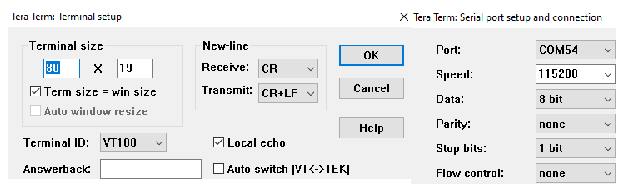
- Use these settings under Setup>Terminal… and Setup>Serial
port…:
- Open TeraTerm and configure as
mentioned below:
- Board 2 (Device 1) – WBZ351 Curiosity Board with
peripheral_trp_uartApplication Programmed - Board 3 (Device 2) – WBZ351 Curiosity Board with
peripheral_trp_uartApplication Programmed - Board 4 (Device 3) – WBZ351 Curiosity Board with
peripheral_trp_uartApplication Programmed - Board 2/Board 3/Board 4:
- Open Tera Term and configure as
mentioned below:Terminal Settings
- Baud Rate/Speed – 115200 (as configured in SERCOM configuration)
- Parity – None
- Data Bits – 8
- Stop Bits – 1
- Flow Control – None
- Reset the board. Upon reset, the
Scanningmessage appears on the Tera Term.- Use these settings under
Setup>Terminal… and Setup>Serial
port…:
Figure 5-62. Terminal Setup, Serial Port Setup and Connection Settings 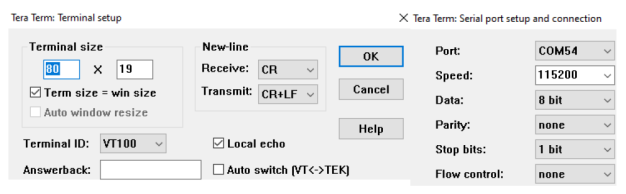
- Use these settings under
Setup>Terminal… and Setup>Serial
port…:
- Open Tera Term and configure as
mentioned below:
- The recommendation is to reset the central device first and then the peripheral devices one by one.
- Scanner is configured to scan only for 100s. The user must ensure the peer device is advertising.
After connection establishment, both the peripheral device (Board 2/3/4) and the central device
(Board 1) displays Connected! message on respective terminal windows.
a to all peripheral devices, aaa needs to be entered on
terminal emulator of the central device.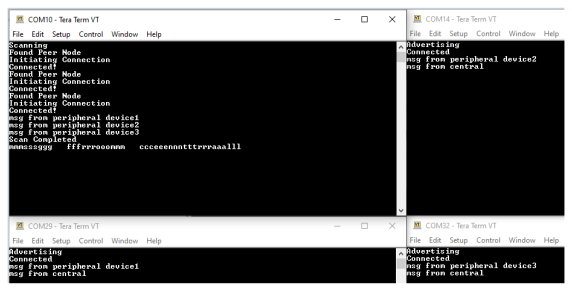
Developing the Application from Scratch using MCC
-
Create a new harmony project. For more details, see Creating a New MCC Harmony Project from Related Links.
-
Import Component Configuration - This step helps users to setup the basic components and configuration required to develop this application. The imported file is of format
.mc4and is located in the path<Discover Path>\wireless_apps_pic32cxbz3_wbz35\apps\ble\building_blocks\central\profiles_services\central_trp_uart\firmware\central_ml_trp_uart.X.Note: Import and export functionality of component configuration helps users to start from a known working setup of MCC configuration. -
Accept Dependencies or Satisfiers.
- If prompted to resolve dependencies or add required modules. Click Yes.
- MPLAB® MCC automatically adds any required drivers or middleware.
-
Verify Project Graph.
- In Project Graph window, confirm
that all expected components are present.
Figure 5-64. Project Graph 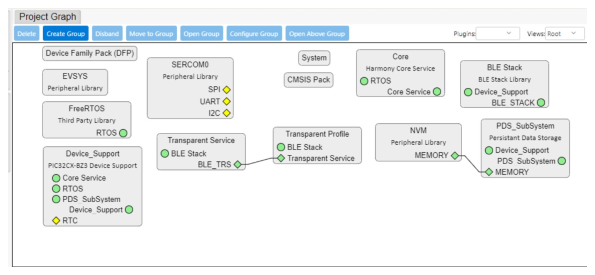
- In Project Graph window, confirm
that all expected components are present.
Verifying Scan, Connection and Transparent UART Profile Configuration
- Select BLE Stack component in project
graph, to open component configuration and configure as illustrated in the following
figure.
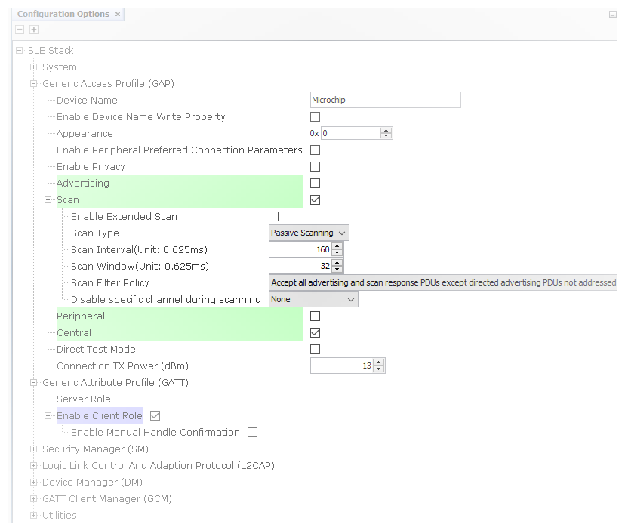
- Select Transparent Profile component in project graph, to open component configuration and configure as illustrated in the following figure.
Figure 5-65. Transparent Profile Configuration 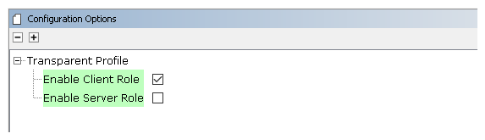
Generating a Code
For more details on code generation, refer to MPLAB Code Configurator (MCC) Code Generation from Related Links.
Files and Routines Automatically Generated by the MCC
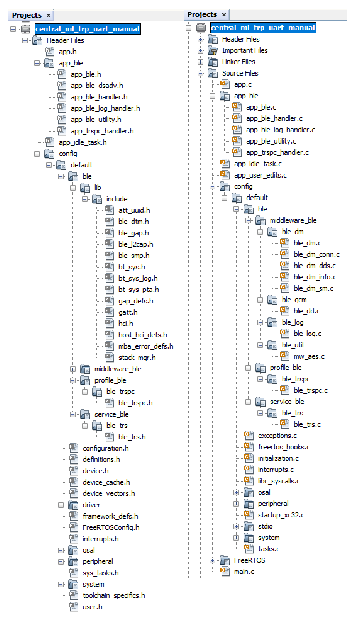
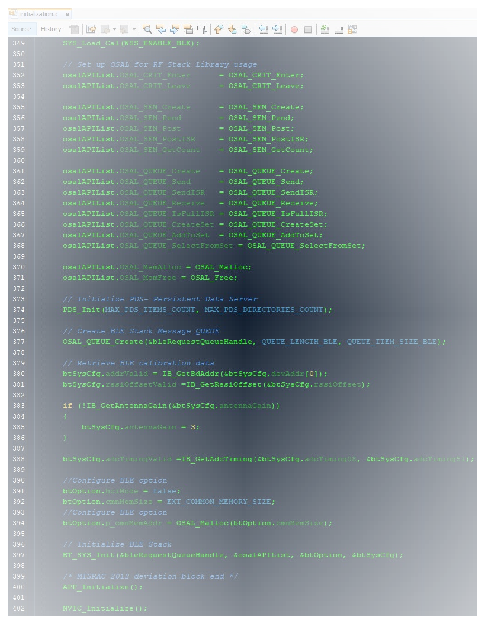
app_ble.c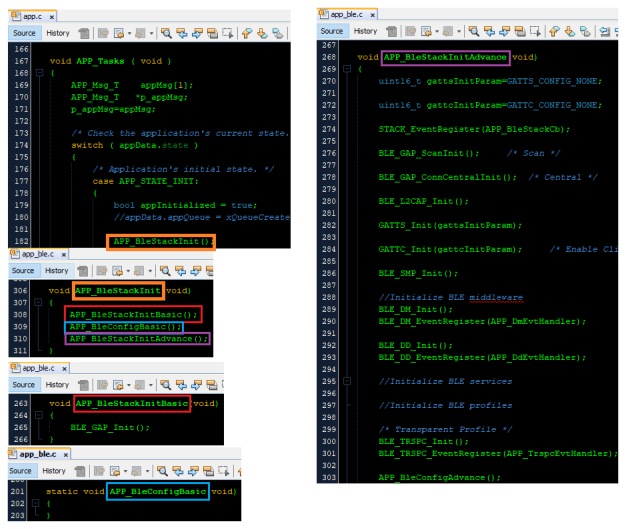
| Source Files | Usage |
|---|---|
app.c | Application State machine, includes calls for Initialization of all BLE stack (GAP,GATT, SMP, L2CAP) related component configurations |
app_ble\app_ble.c | Source Code for the BLE stack related component configurations, code related to function
calls from app.c |
app_ble\app_ble_handler.c | All GAP, GATT, SMP and L2CAP Event handlers |
app_ble\app_trspc_handler.c | All Transparent UART Client related Event handlers |
config\default\ble\profile_ble\ble_trspc\ble_trspc.c | All Transparent Client Functions for user application |
app.c is autogenerated and has a state machine
based Application code sample, users can use this template to develop their
applicationHeader Files
ble_gap.h: The header file contains BLE GAP functions and is automatically included in theapp.cfileble_trspc.h: The header file associated with APIs and structures related to BLE Transparent Client functions for application user.
Function Calls
- MCC generates and adds the code to initialize the BLE Stack GAP, GATT, L2CAP and SMP in
APP_BleStackInit()function
APP_BleStackInit()is the API that will be called inside the Applications Initial State --APP_STATE_INITinapp.c
User Application Development
Include
- Include the user action. For more information, refer to User Action from Related Links.
-
definitions.hin all the files where UART will be used to print debug information.Note:definitions.his not specific to just UART peripheral, instead it must be included in all application source files where peripheral functionality will be exercised.
Start Scanning
// Scanning Enabled
BLE_GAP_SetScanningEnable(true, BLE_GAP_SCAN_FD_ENABLE, BLE_GAP_SCAN_MODE_OBSERVER, 1000);
// Output the status string to UART
SERCOM0_USART_Write((uint8_t *)"Scanning \r\n", 11);
This API is called in the Applications initialstate - APP_STATE_INIT in
app.c. Scan duration is 100 secs
Scan Results and initiating a BLE Connection
-
BLE_GAP_EVT_ADV_REPORTevent is generated upon finding Advertisements on legacy channels -
BLE connection can be initiated by using the API
BLE_GAP_CreateConnection(&createConnParam_t);
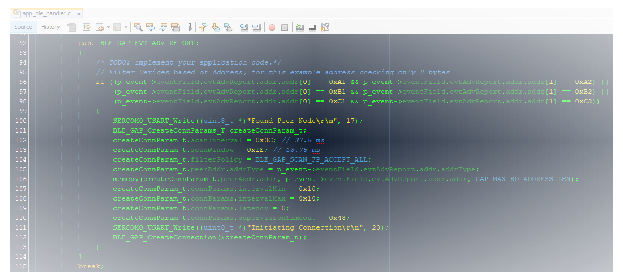
  // code snippet to filter scan results and initiate connection
  // Filter Devices based of Address, for this example address checking only 2 bytes
  if ((p_event->eventField.evtAdvReport.addr.addr[0] == 0xA1 && p_event->eventField.evtAdvReport.addr.addr[1] == 0xA2) ||
      (p_event->eventField.evtAdvReport.addr.addr[0] == 0xB1 && p_event->eventField.evtAdvReport.addr.addr[1] == 0xB2) ||
      (p_event->eventField.evtAdvReport.addr.addr[0] == 0xC1 && p_event->eventField.evtAdvReport.addr.addr[1] == 0xC2))
  {
      SERCOM0_USART_Write((uint8_t *)"Found Peer Node\r\n", 17);
      BLE_GAP_CreateConnParams_T createConnParam_t;
      createConnParam_t.scanInterval = 0x3C; // 37.5 ms
      createConnParam_t.scanWindow = 0x1E; // 18.75 ms
      createConnParam_t.filterPolicy = BLE_GAP_SCAN_FP_ACCEPT_ALL;
      createConnParam_t.peerAddr.addrType = p_event->eventField.evtAdvReport.addr.addrType;
      memcpy(createConnParam_t.peerAddr.addr, p_event->eventField.evtAdvReport.addr.addr, GAP_MAX_BD_ADDRESS_LEN);
      createConnParam_t.connParams.intervalMin = 0x10;
      createConnParam_t.connParams.intervalMax = 0x10;
      createConnParam_t.connParams.latency = 0;
      createConnParam_t.connParams.supervisionTimeout = 0x48;
      SERCOM0_USART_Write((uint8_t *)"Initiating Connection\r\n", 23);
      BLE_GAP_CreateConnection(&createConnParam_t);
  }
Connected and Disconnected Events
-
In
app_ble_handler.cBLE_GAP_EVT_CONNECTEDevent will be generated when a BLE connection is completed.
Connection Handler
-
Connection handle associated with the peer peripheral device needs to be saved for data exchange after a BLE connection.
-
p_event->eventField.evtConnect.connHandlehas this information -
In Multilink application, unique connection handler's will be generated for all the peripheral links
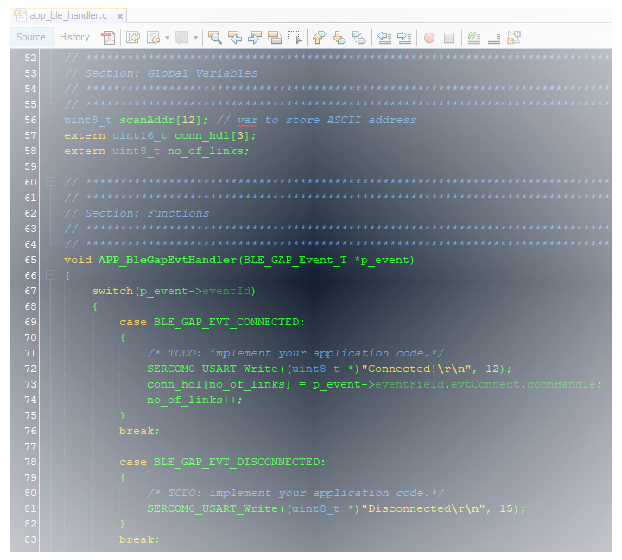
// Global Variables
uint8_t scanAddr[12]; // var to store ASCII address
extern uint16_t conn_hdl[3];
extern uint8_t no_of_links;

// Connected Event
SERCOM0_USART_Write((uint8_t *)"Connected!\r\n", 12);
conn_hdl[no_of_links] = p_event->eventField.evtConnect.connHandle;
no_of_links++;

// Disconnected Event
SERCOM0_USART_Write((uint8_t *)"Disconnected\r\n", 15);
Scan Timeout Event
-
In
app_ble_handler.c,BLE_GAP_EVT_SCAN_TIMEOUTevent is generated when BLE Scan duration expires.SERCOM0_USART_Write((uint8_t *)"Scan Completed! \r\n", 18);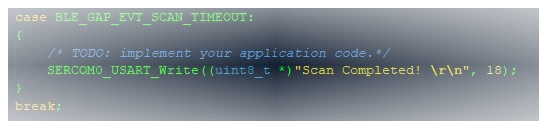
Transmit Data
-
Add "
APP_MSG_UART_CB" to the generatedAPP_MsgId_T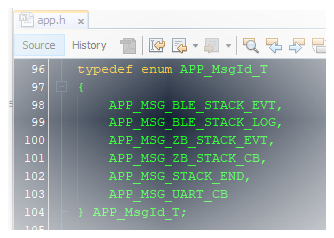
BLE_TRSPC_SendData(conn_hdl , 1,
            &data);
is the API to be used for sending data towards the central device.Note: The precompiled application example uses a UART callback to initiate the data transmission upon receiving a character on UART.
Example Implementation for Transmitting the received data over UART using the
BLE_TRSPC_SendData API
uint16_t conn_hdl[3] = {0xFFFF, 0xFFFF, 0xFFFF};// connection handle info captured @BLE_GAP_EVT_CONNECTED event
uint8_t no_of_links;// No of connected peripheral devices
uint8_t i = 0;// link index
uint8_t uart_data;
void uart_cb(SERCOM_USART_EVENT event, uintptr_t context)
{
  APP_Msg_T   appMsg;
  // If RX data from UART reached threshold (previously set to 1)
  if( event == SERCOM_USART_EVENT_READ_THRESHOLD_REACHED )
  {
    // Read 1 byte data from UART
    SERCOM0_USART_Read(&uart_data, 1);
    appMsg.msgId = APP_MSG_UART_CB;
    OSAL_QUEUE_Send(&appData.appQueue, &appMsg, 0);
  }
}
void APP_UartCBHandler()
{
    // Send the data from UART to connected device through Transparent service
    BLE_TRSPC_SendData(conn_hdl[i], 1, &uart_data);
    i++;
    if(i==no_of_links) i = 0; //reset link index
}

////////////////////////////////////////////////////////////////////////////////////
// Register call back when data is available on UART for Peripheral Device to send
// Enable UART Read
SERCOM0_USART_ReadNotificationEnable(true, true);
// Set UART RX notification threshold to be 1
SERCOM0_USART_ReadThresholdSet(1);
// Register the UART RX callback function
SERCOM0_USART_ReadCallbackRegister(uart_cb, (uintptr_t)NULL);
////////////////////////////////////////////////////////////////////////////////////

//If msg received in Queue, handle the Queue message based on msgID
if (OSAL_QUEUE_Receive(&appData.appQueue, &appMsg, OSAL_WAIT_FOREVER))
  {
    if(p_appMsg->msgId==APP_MSG_BLE_STACK_EVT)
    {
     // Pass BLE Stack Event Message to User Application for handling
     APP_BleStackEvtHandler((STACK_Event_T *)p_appMsg->msgData);
     }
     else if(p_appMsg->msgId==APP_MSG_BLE_STACK_LOG)
     {
     // Pass BLE LOG Event Message to User Application for handling
     APP_BleStackLogHandler((BT_SYS_LogEvent_T *)p_appMsg->msgData);
      }
      else if(p_appMsg->msgId==APP_MSG_UART_CB)
      {
       // Transparent UART Client Data transfer Event
       APP_UartCBHandler();
       }
  }
app.c
app.c
app.c
Receive Data
-
BLE_TRSPC_EVT_RECEIVE_DATAis the event generated when data is sent from central device -
Users need to use the
BLE_TRSPC_GetDataLength(&data_len)API to extract the length of application data received -
BLE_TRSPC_GetData(&conn_hdl, data);API is used to retrieve the data,conn_hdlis the value obtained from Connection Handler sectionNote:BLE_TRSPC_Event_T p_eventstructure stores the information about BLE transparent UART callback functions.
Example Implementation for printing the received data from peripheral device over UART
  /* TODO: implement your application code.*/
    uint16_t data_len;
    uint8_t *data;
    // Retrieve received data length
    BLE_TRSPC_GetDataLength(p_event->eventField.onReceiveData.connHandle, &data_len);
    // Allocate memory according to data length
    data = OSAL_Malloc(data_len);
    if(data == NULL)
    break;
    // Retrieve received data
    BLE_TRSPC_GetData(p_event->eventField.onReceiveData.connHandle, data);
    // Output received data to UART
    SERCOM0_USART_Write(data, data_len);
    // Free memory
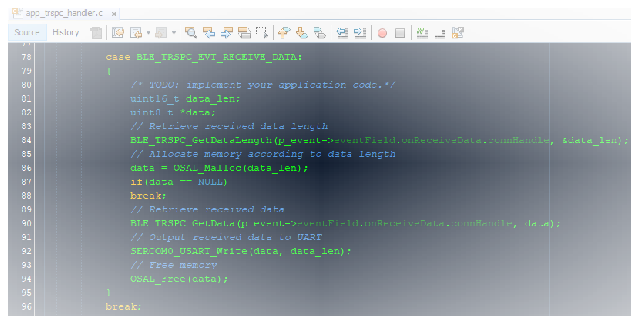
    OSAL_Free(data);