
4.9 Setting up ASCII Logs
Click on Edit → ASCII logs.
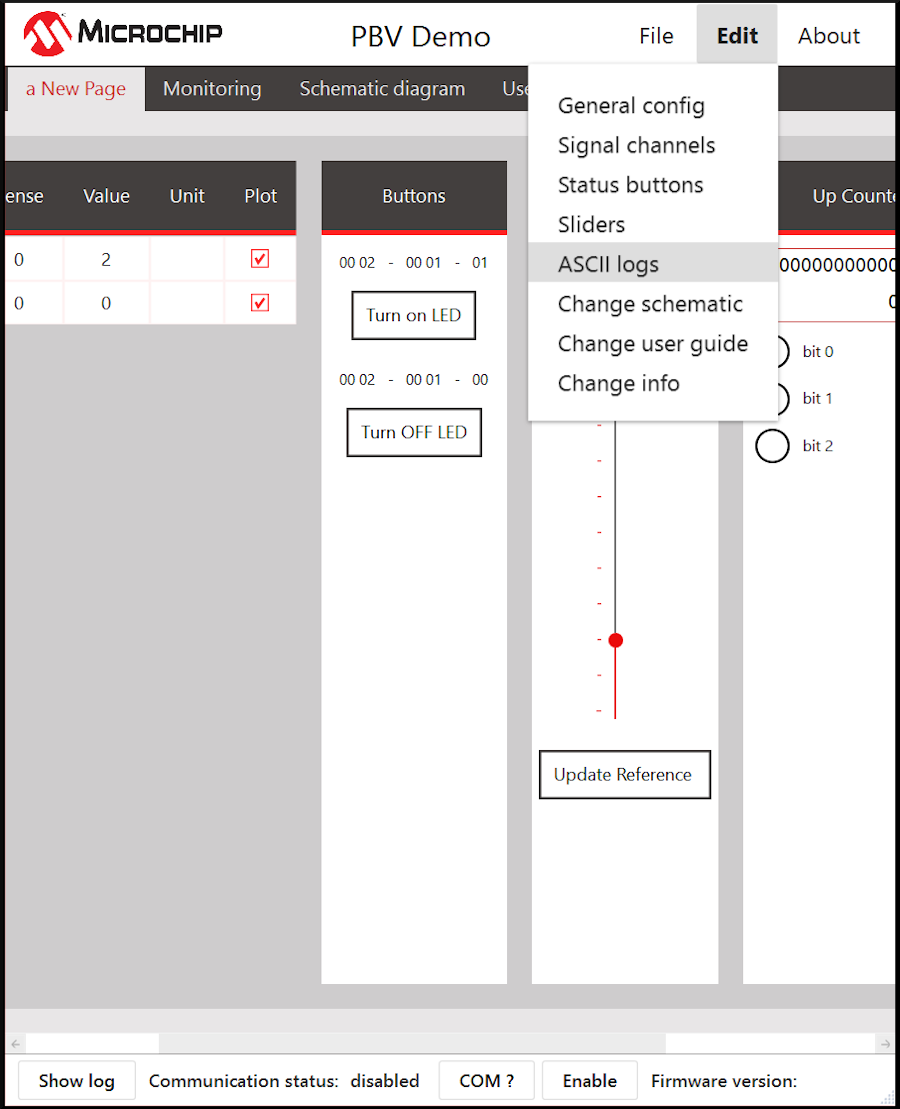
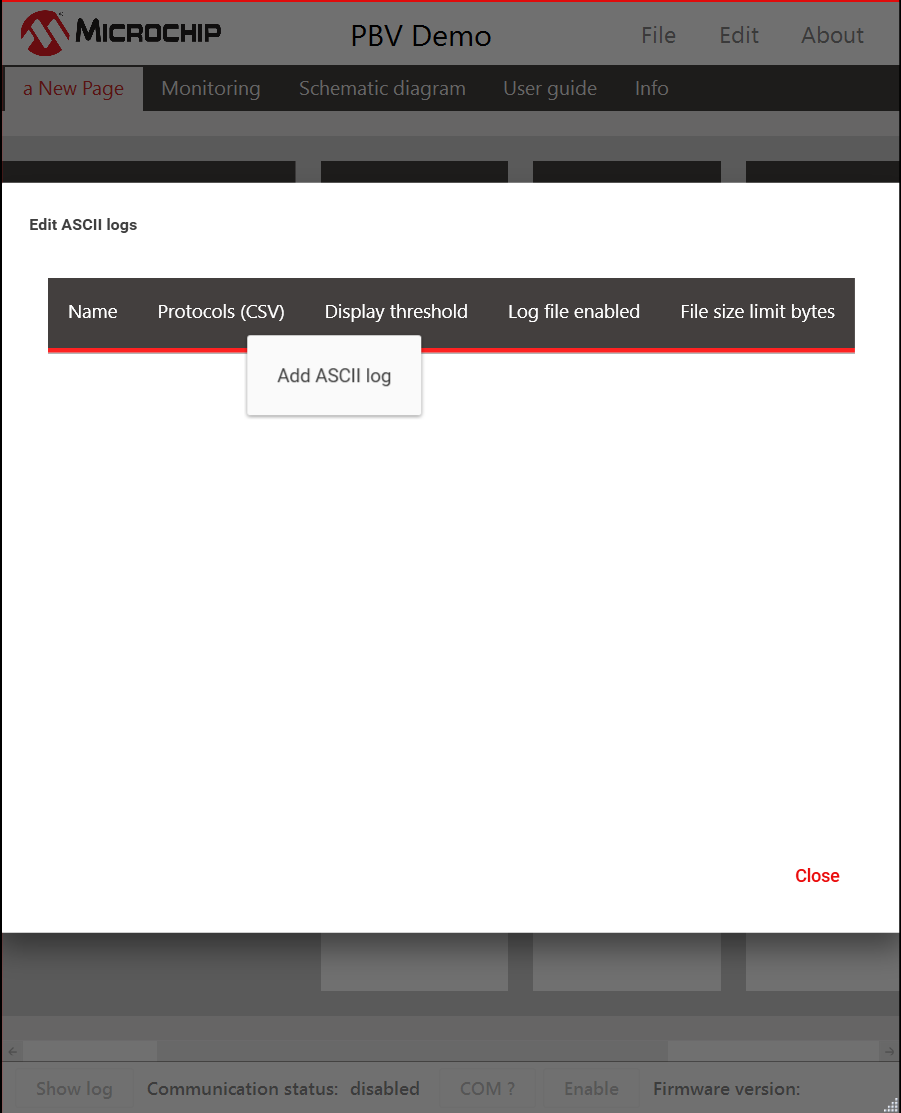
The window will appear. Right-click to get the option Add ASCII log. The ASCII log configuration settings will appear. All required settings can be seen in Table 4-6.
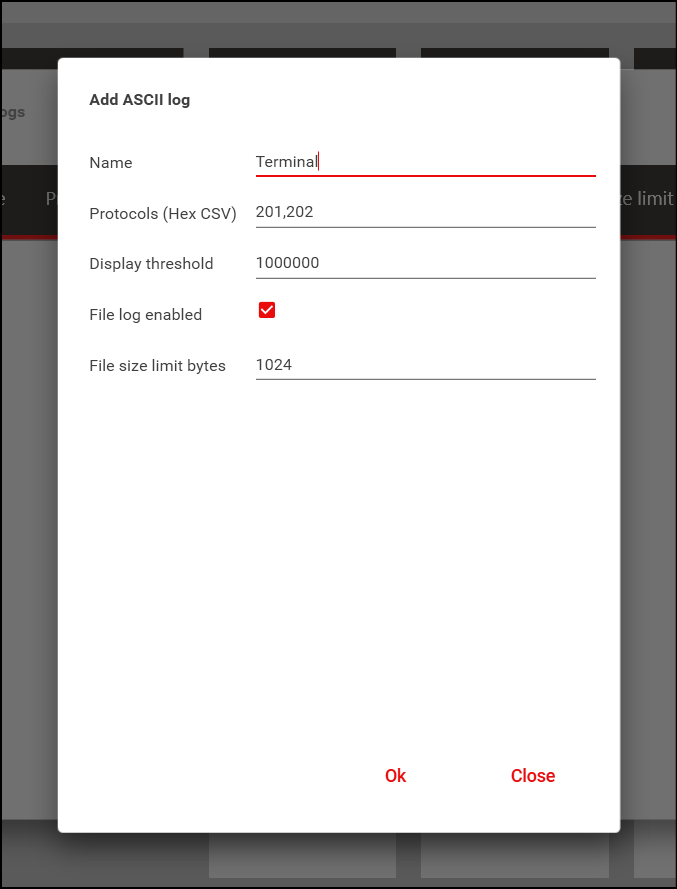
| Name | Name of the Tab |
|---|---|
| Protocols (HEX CSV) | Protocol IDs linked to the Log page. In this example, messages received from 0x201 and 0x202 will be logged on this page. |
| Display Threshold | Number of Characters to be displayed before they are overwritten |
| File Log Enabled | Enabling this would log the data into a file. File will be saved in C:\Users\<UserName>\AppData\Local\MicrochipPowerboardVisualizerAsciiLogs The file name is <Name>_<date>_<time>.text |
| File Size Limit Bytes | File size limit. Additional data would be overwritten. |