4.7 Setting Up Sliders
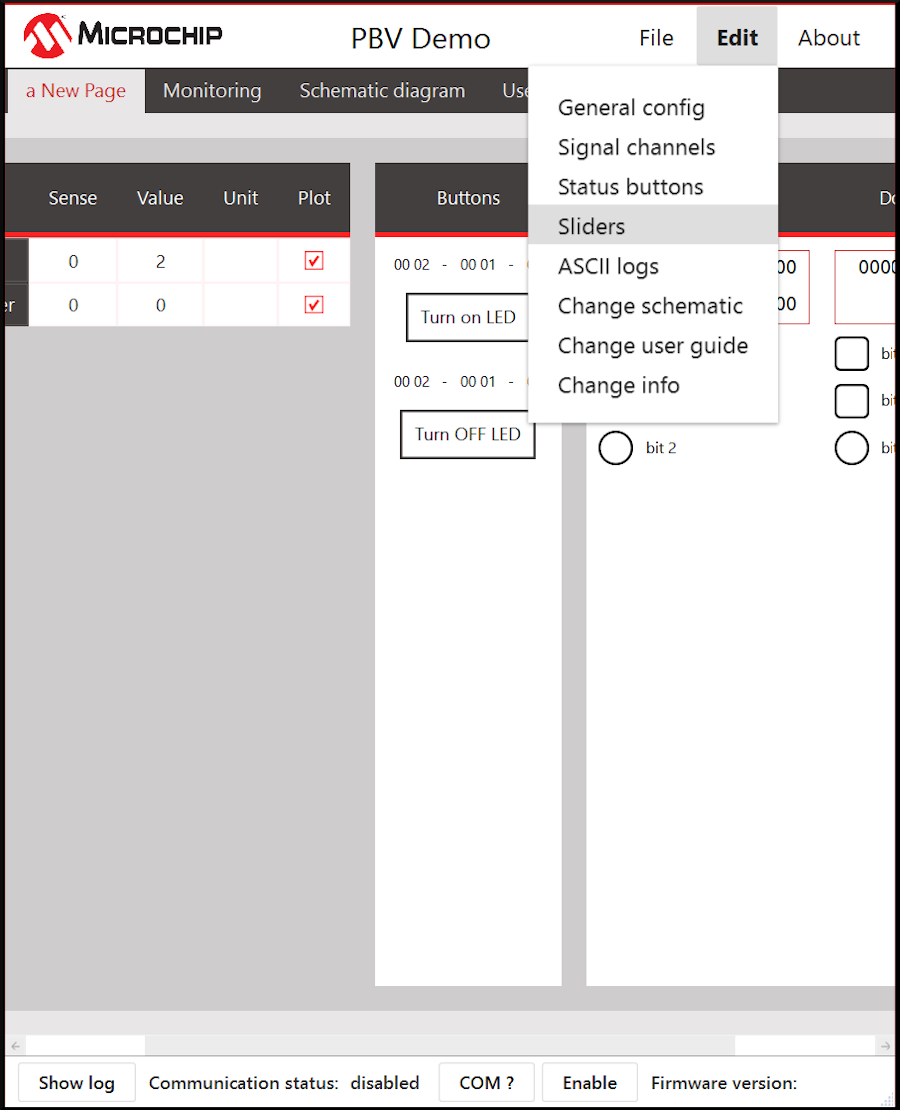
Click Edit → Sliders to configure a slider.
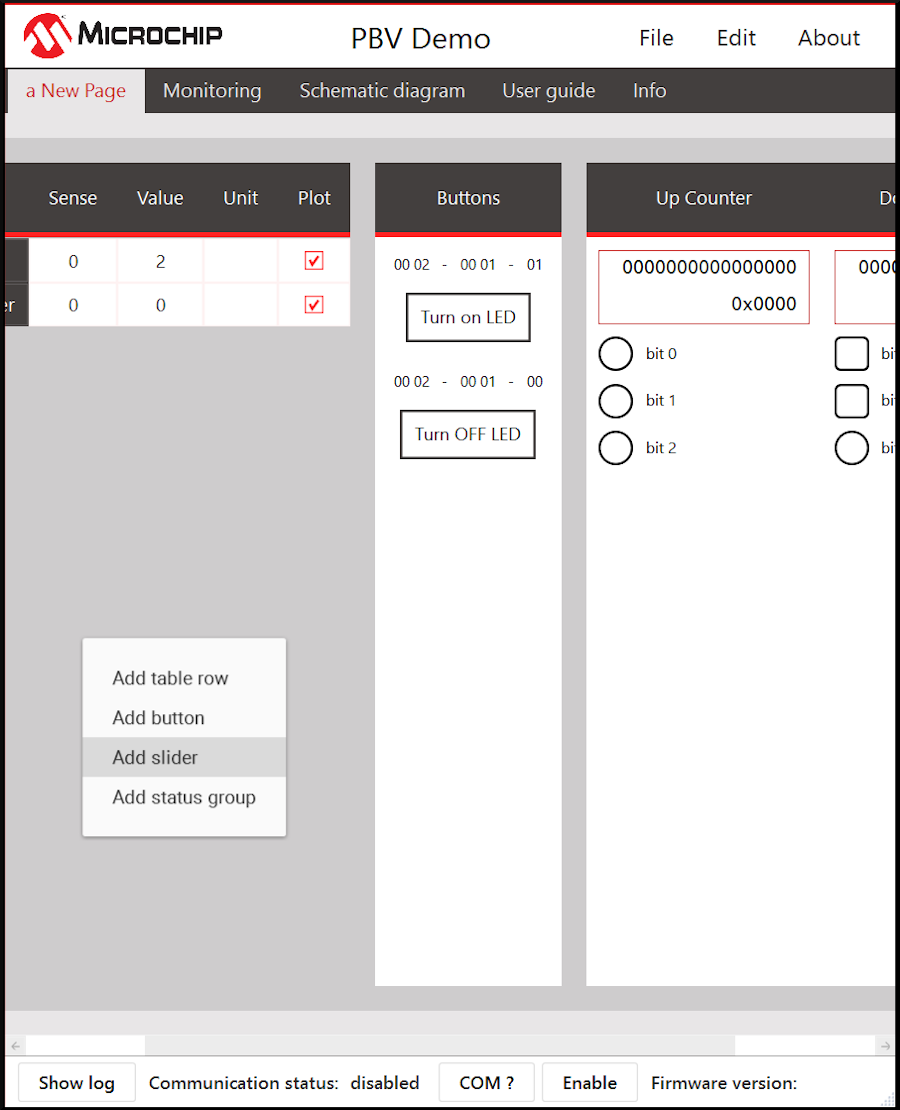
Right-click the top row and click Add slider.
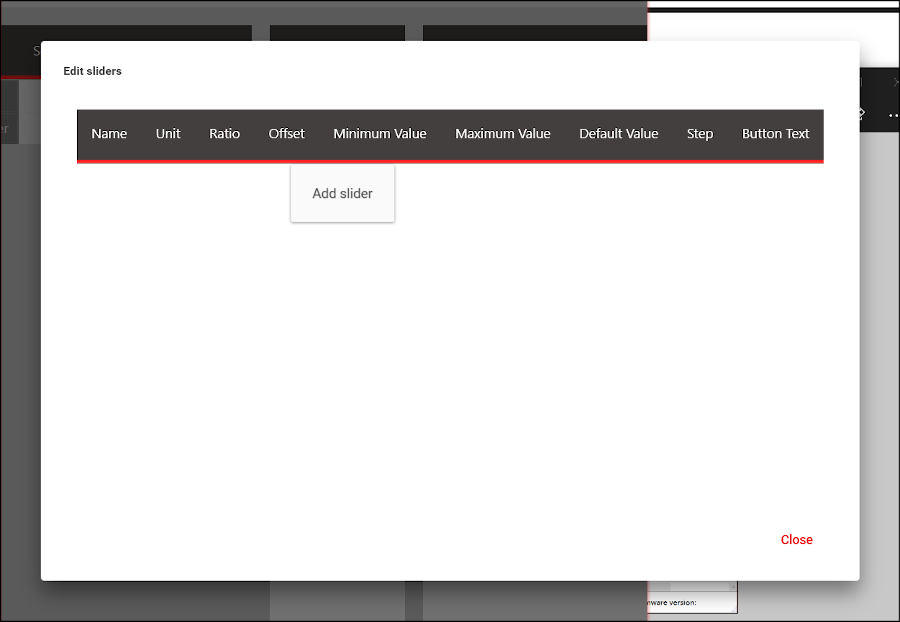
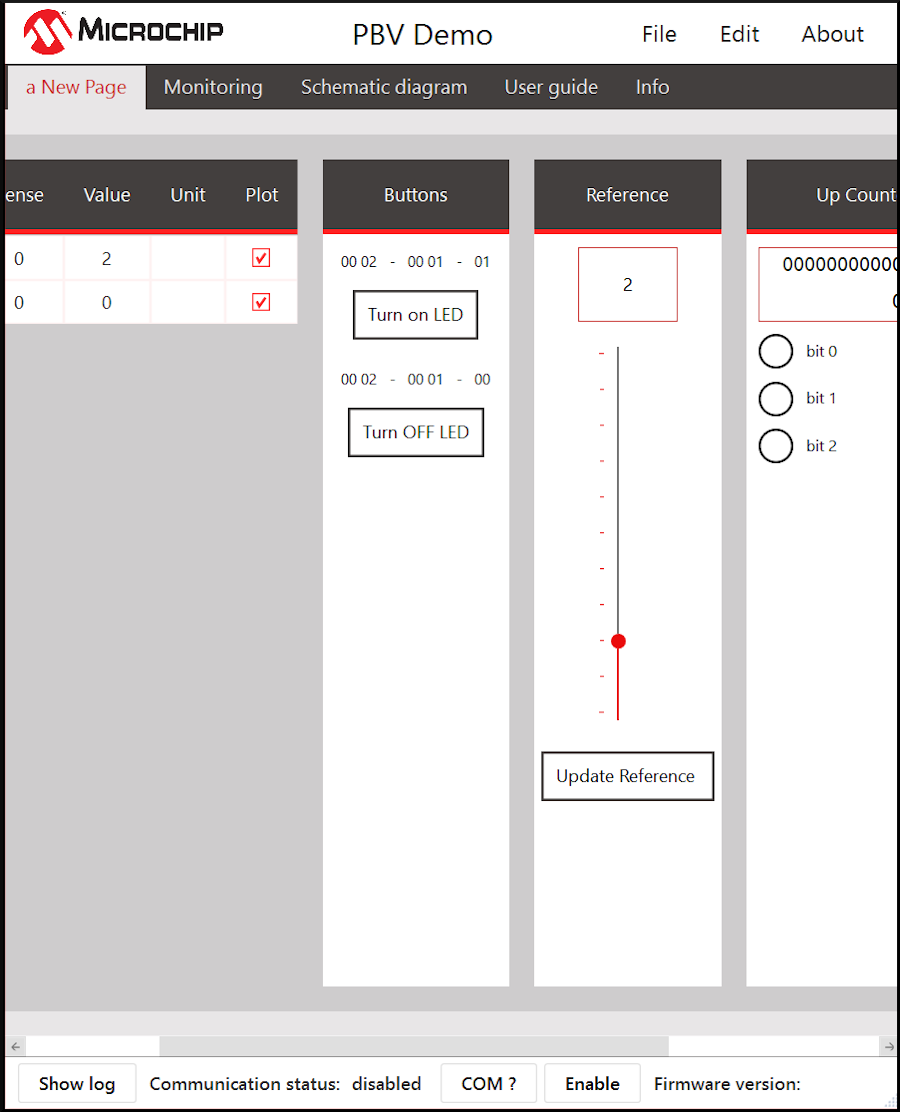
All required slider settings are shown in Table 4-5.
| Field |
Description |
|---|---|
|
Name |
Name of the slider |
|
Unit |
Unit of the value |
|
Scaling/Offset |
Data sent to embedded system = (Slider Value * Scaling) + Offset |
|
Minimum Value |
Minimum value of the slider |
|
Maximum Value |
Maximum value of the slider |
|
Step |
Resolution of the slider values |
|
Button Text |
Text to display at the bottom of the slider |
| Auto Send after Change Checkbox | Clicking this would automatically send data whenever slider value is changed. If this is unchecked, then clicking the button sends the message. |
| Send Raw Message Checkbox | Enabling this would allow users to override data length field in Message frame. When kept unchecked, the length is calculated automatically (recommended). |
|
Raw Data Message |
The actual data to be sent. The data would then be framed as per the defined framing strategy. In Figure 4-21, 0002 is the protocol ID. 0004 is the number of bytes, automatically calculated and appended to the message. 00DD are two additional bytes that are added to the message. [value] is what will be calculated (i.e., slider value * scaling + offset. [value] is two bytes.) |