3.4 Installing Harmony 3 Dependencies
This section explains how to install the correct versions of the required Harmony 3 component dependencies. The following table summarizes the components and versions that will be installed.
|
Harmony Components to be Cloned with MCC Content Manager |
Version |
|---|---|
|
wireless_system_rnwf |
3.1.0 |
|
wireless_wifi |
3.12.2 |
|
csp | 3.23.0 |
| core | 3.15.5 |
|
wireless_ble | 1.5.0 |
|
wireless_pic32cxbz_wbz |
1.6.0 |
|
wireless_system_pic32cxbz_wbz | 1.8.0 |
|
CMSIS_5 | 5.9.0 |
|
FreeRTOS-Kernel | 11.2.0 |
| wolfssl | 5.4.0 |
| crypto | 3.8.2 |
Refer WINCS02 Application Developer’s Guide to understand MPLAB® Harmony v3 framework and WINCS02IC Service Implementation.
-
Open the “ble_wifi_combo_oob” project in MPLAB X IDE (version 6.25 or later) by selecting File > Open Project . Navigate to the project directory and select
<project_path>\firmware\ble_wifi_combo_oob.Xto launch the project.Figure 3-12. Opening MCC Project 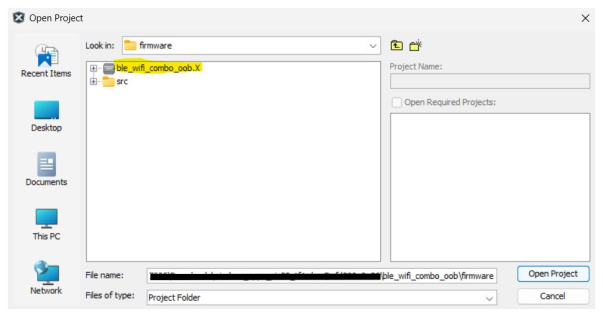
- Open MCC Content Manager after opening the project. It appears in IDE as
below image.
Figure 3-13. Opening Content Manager 
- In the search bar, type the name of
the component, and select the appropriate version (based on Harmony
Components). Follow the same procedure for all the listed components and
click Apply. It automatically detects any dependencies as well.
Figure 3-14. Installing Harmony3 Dependencies 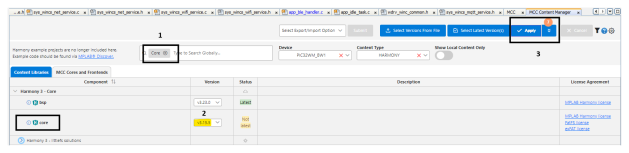
- Close the MCC Content Manager window after installation is complete.
- Open MPLAB Code Configurator as shown in the image below.
Figure 3-15. Opening MCC 
- In the “MCC Content Manager” Window,
click on Finish to install Required Content (if prompted). It takes quite
some time to install the required components. To check the download status, click
the drop-down button of the respective component.
Figure 3-16. Install Required Content and Optional Content 
- When all the requirements for Harmony
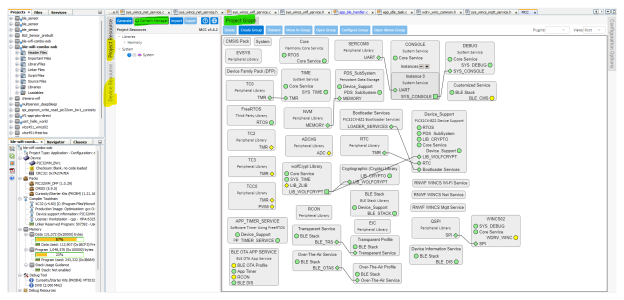
Components are matched, the MCC will load the Project graph. To configure, click on
the respective component displayed in the Project Graph or Project Resources.
Figure 3-17. OOB Demo Project Graph