
3.5 Creating a New MCC Harmony Project
This section describes the steps to create a new MCC Harmony v3 project using MPLAB® X IDE.
- The following figure illustrates the
opening window of the MPLAB X IDE.
Figure 3-18. MPLAB X IDE Opening Window 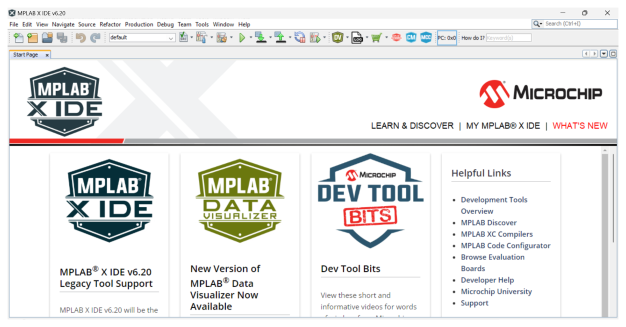
- Open MPLAB X IDE.
- To create a new project, go to File>New Project.
Figure 3-19. New Project 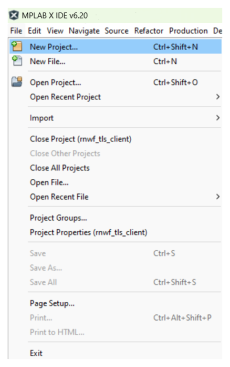
- In the New Project pop-up
window, select Microchip Embedded in the “Categories” pane, then choose
Application Project(s) in the “Projects” pane.
- Click Next to continue.
Figure 3-20. Choose Project 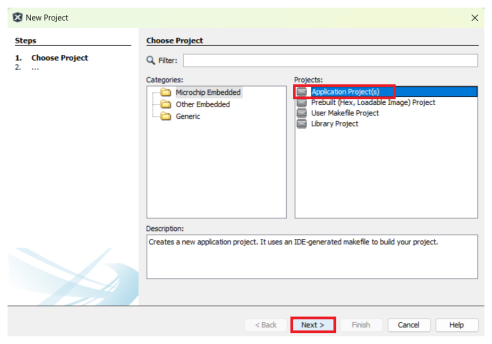
- In Select Device window, from
the “Device” drop-down list, select the device.
- Click Next to continue.
Figure 3-21. Select Device 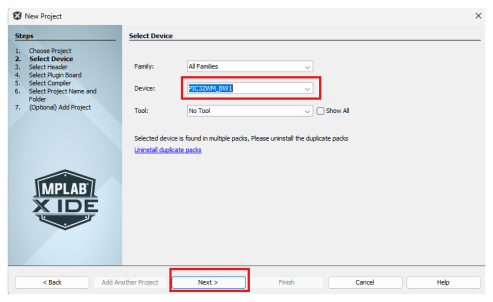
- In Select Compiler window,
from the “Compiler Toolchains” pane, select the latest supported compiler.
- Click Next to continue.
Figure 3-22. Select Compiler 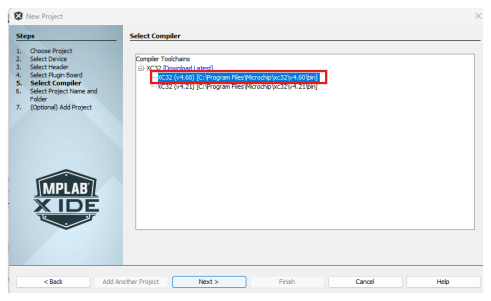
- In Select Project Name and
Folder window, perform the following steps:
- In the “Project Name” field, enter the Project Name.
- In the “Project Location” field, click Browse and navigate to the Project Location.
- Click Finish to continue.
Figure 3-23. Select Project Name and Folder 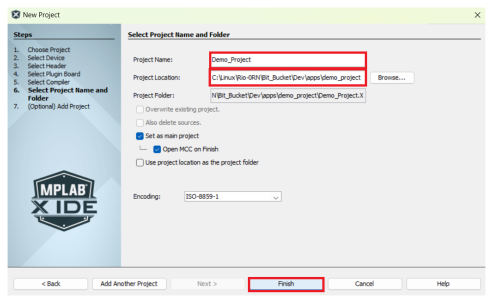
- The MPLAB X Code Configurator Content
Manager launches automatically.
- The Project Graph
window of the configurator displays predefined components.
Figure 3-24. Project Graph 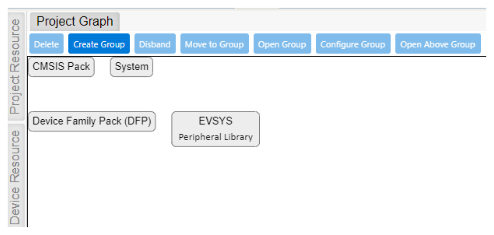
- The Project Graph
window of the configurator displays predefined components.