3.8 MCC Harmony Component Configurations for the
OOB Demo
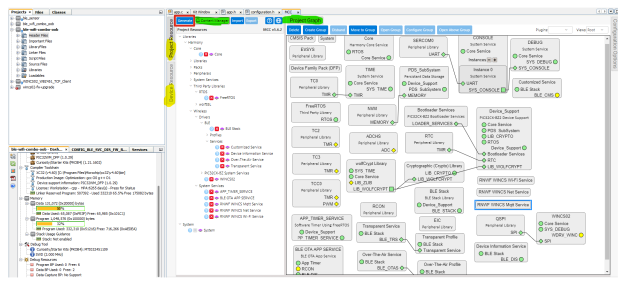
This section describes the expected MCC Project Graph layout and the required component
configurations. Verify that the Project Graph window includes all components as
illustrated in the Figure 3-50 OOB Demo Project
Graph.
Verify Following Harmony3 Component Configurations
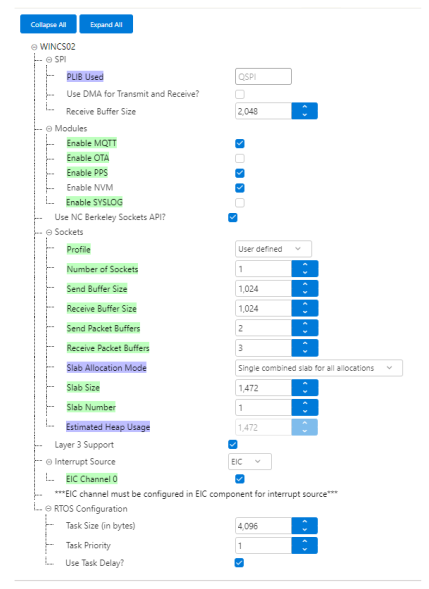
WINCS02 Driver
Component: Click the WINCS02 component in the Project Graph
and verify that the configurations match the settings shown below.Figure 3-31. WINCS02 Component
Configuration
QSPI Peripheral
Library: Click the QSPI component in the Project Graph and
verify that the configurations match the settings shown below.Figure 3-32. QSPI Component
Configuration
SERCOM0 Peripheral
Library: Click the SERCOM0 component in the Project Graph and
verify that the configurations match the settings shown below.Figure 3-33. SERCOM0 Component
Configuration
Core: Click the
Core component in the Project Graph and verify that the
configurations match the settings shown below.Figure 3-34. Core Component
Configuration
FreeRTOS: Click the
FreeRTOS component in the Project Graph and verify that the
configurations match the settings shown below.Figure 3-35. FreeRTOS Component
Configuration
Figure 3-36. FreeRTOS Component
Configuration
Figure 3-37. FreeRTOS Component
Configuration
System: Click the
System component in the Project Graph and verify that the
configurations match the settings shown below.
Note: Since pins PB10, PB11, PB12 and PB13 on the PIC32WM-BW1 module have a
dedicated SPI functionality for the WINCS02’s SPI connection with
PIC32CX-BZ2 host, select DIRECT option from drop-down next to QSPI
Direct (High Speed) Pin Enable (QSPI_HSEN) configuration and do not need
to be configured via Pin Setting MCC plug in.
Figure 3-38. System Component
Configuration
Figure 3-39. System Component
Configuration
Device Support: Click
the Device Support component in the Project Graph and verify that the
configurations match the settings shown below.Figure 3-40. Device Support
Component Configuration
Enable BLE Provisioning using Customized Service:
From device resources go to Wireless>Drivers>BLE>Services and select
Customized Service. Accept suggestions for the inclusion of all dependent
Harmony v3 components. The configuration is depicted as follows.
Customized Service:
Refer configurations as below:Figure 3-41. Customized Service Component Configuration
Figure 3-42. Cutsomized Service Component Configuration
BLE Stack: Refer the
BLE Stack component configurations as shown below.Figure 3-43. BLE Stack
Component Configuration
Figure 3-44. BLE Stack
Component Configuration
Figure 3-45. BLE Stack
Component Configuration
WINCS02 Host Services: The host system service for WINCS02 uses Wi-Fi
driver to handle all the asynchronous events and notifies the application
using the registered callbacks. The following services are implemented in
the host system service:
Wi-Fi System Service
MQTT System Service
Net Socket System Service
For more details on modifying the Wi-Fi Service Configurations, MQTT
System Service Configuration and Net Socket Service Configuration through
MCC, refer to the WINCS02 Application Developer’s guide under the
Referenced Documentation section from Related Links.
RNWF WINCS Wi-Fi
Service: Click the RNWF WINCS Wi-Fi Service component in the
Project Graph and verify that the configurations match the settings shown
below.Figure 3-46. RNWF WINCS Wi-Fi
Service Component Configuration
RNWF WINCS Mqtt
Service: Click the RNWF WINCS MQTT Service component in the
Project Graph and verify that the configurations match the settings shown
below.Figure 3-47. RNWF WINCS Mqtt
Service Component Configuration
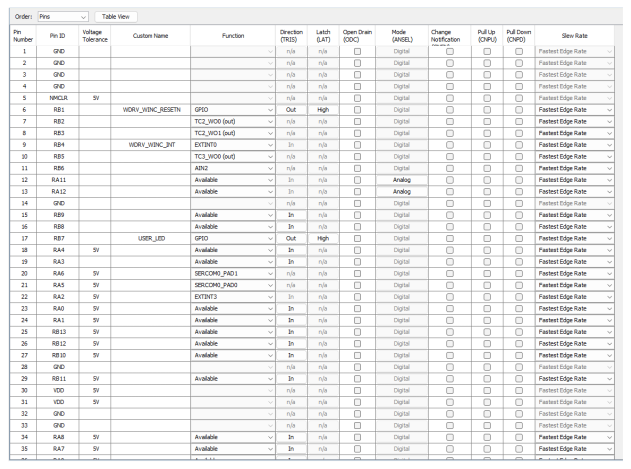
Pin Setting Plugin
Configs: From the Plugins menu, select Pin Configuration. Refer to
the following figure for the configuration layout.
Note:
Users do not need
to configure the PIC32WM-BW1 module pins PB10, PB11, PB12, and
PB13 for SPI signals like CS, CLK, MISO, and MOSI in the Pin
Configuration MCC Plugin as those pins are being used for their
dedicated functionality.
Configure WINCS02
RST (PB1) and INT (PB4) signals to communicate with the
host.Figure 3-48. Pin
Configuration
Figure 3-49. Pin
Configuration
MCC Code (Re)Generation
With these configurations, now generate the code by clicking the Generate
button as illustrated below:Figure 3-50. Project Graph
Note:
Select Close the merge window to maintain the modifications made for
the application code development by resolving merge suggestions
appropriately for the updated configurations.
“sys_wincs_system_service.c” and
“sys_wincs_system_service.h”
“sys_wincs_mqtt_service.h”
“sys_wincs_wifi_service.c”
“tasks.c”
Merge the diff of the generated files earlier in your project folder location
with the respective file from the above-mentioned list available under the
GitHub OOB Demo directory.
In
“app_user_edits.c”, make sure the following code line is
commented
#error User action required - manually edit files as described here
Building and Programming OOB
Demo
Switch to MPLAB X IDE
window and Build Project. The project must compile successfully.
Choose the correct
compiler version, as suggested in Tool Chain in Getting Started with
Software Development from Related Links.