
4.1.1.4 Bluetooth®LE Connection
This section explains how to enable scan and connect functionality on the BLE Central Device (PIC32WM-BW1). To establish a successful BLE connection, the Advertiser is required to broadcast advertisement packets across the three primary advertisement channels (or a subset of these channels). This allows the devices scanning for advertisers to find and read their advertisement data, the scanner can initiate a connection if advertiser allows it.
- Advertiser (Transmitting Connectable Adv)
- Scanner
Users can choose to either run the precompiled Application Example hex file provided on the PIC32WM-BW1 Curiosity Board or follow the steps to develop the application from scratch.
It is recommended to follow the examples in sequence to understand the basic concepts before progressing to the advanced topics.
Hardware Requirement
| S. No. | Tool | Quantity |
|---|---|---|
| 1 | PIC32WM-BW1 Curiosity Board | 2 |
| 2 | USB Type-C™ cable | 2 |
Software Requirement
- To install Tera Term tool, refer to the Tera Term web page listed in the Reference Documentation from Related Links.
Programming the Precompiled Hex File or Application Example
Using MPLAB® X IPE:
- Central Device – Precompiled
.hexfile is located in<Harmony Content Path>\wireless_apps_pic32_bw1\apps\ble\central\central_conn\hexfolder. - Peripheral Device – Precompiled
.hexfile is located in<Harmony Content Path>\wireless_apps_pic32_bw1\apps\ble\peripheral\peripheral_Connect\hexfolder. - For detailed steps, refer to
Programming a Device in MPLAB® IPE in Reference
Documentation from Related Links.Note: Ensure to choose the correct Device and Tool information.
Using MPLAB® X IDE:
- Perform the following the steps mentioned in Running a Precompiled Example. For more information, refer to Running a Precompiled Application Example from Related Links.
- Central Device – Open and program the
application
central_conn.Xlocated in<Harmony Content Path>\wireless_apps_pic32_bw1\apps\ble\central\central_conn\firmware. - Peripheral Device – Open and program the
application
BLE_Connect.Xlocated in<Harmony Content Path>\wireless_apps_pic32_bw1\apps\ble\peripheral\peripheral_Connect. -
For more details on finding the Harmony content path, refer to Installing the MCC Plugin from Related Links.
Testing
- Users must use two PIC32WM-BW1 Curiosity Board configured as Peripheral and Central device, to experience this demo.
- Board 1 – PIC32WM-BW1 Curiosity Board Programmed with “
BLE_Connect” application. Open Tera Term and configure as mentioned below:Terminal Settings:
- Baud Rate/Speed – 115200
- Parity – None
- Data Bits – 8
- Stop Bits – 1
- Flow Control – None
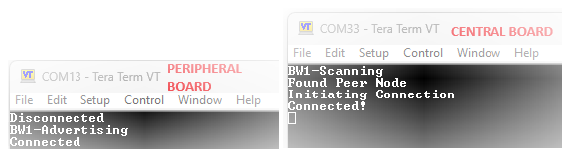
- Reset the board, Upon reset, “BW1-Advertising” message is displayed on the TeraTerm. It will start connectable, scannable, undirected BLE advertisement.
- Board 2 – PIC32WM-BW1 Curiosity Board Programmed with “
central_conn” application. Open TeraTerm and configure as mentioned below:Terminal Settings:
- Baud Rate/Speed – 115200
- Parity – None
- Data Bits – 8
- Stop Bits – 1
- Flow Control – None
- Reset the board. Upon reset, “BW1-Scanning” message is displayed on the Tera Term.
- Central device (Board 2) will start scanning for nearby peripheral devices to connect.
Upon finding peripheral device with public address {0xA1, 0xA2, 0xA3, 0xA4, 0xA5, 0xA6}
message “Found Peer Node” will be displayed and a connection request will be initiated
“Initiating connection”. Note: Scanner is configured to scan only for 100 seconds, user must ensure the peer device is advertising.
- After connection establishment, both the peripheral device (Board1) and central device (Board2) will display “Connected!” message on respective terminal windows
Project Graph
- Verify if the Project Graph window has
all the expected configuration as illustrated in the following figure.
Figure 4-28. Project Graph 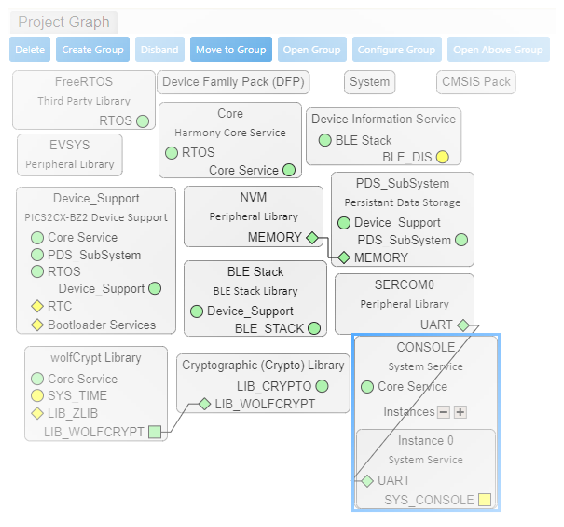
Verifying Scan, Connection and Transparent Profile Configuration
-
Select BLE Stack component in project graph, to open component configuration and configure as illustrated in the following figure.
Figure 4-29. BLE Stack Configuration 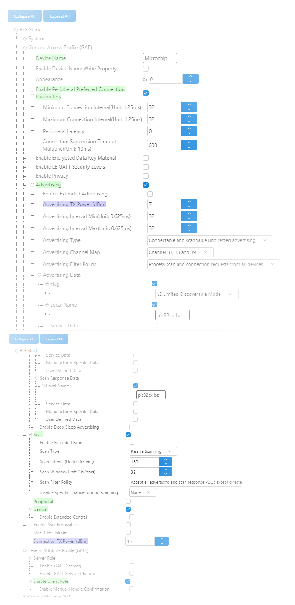
Generating a Code
For more details on code generation, refer to MPLAB Code Configurator (MCC) Code Generation from Related Links.
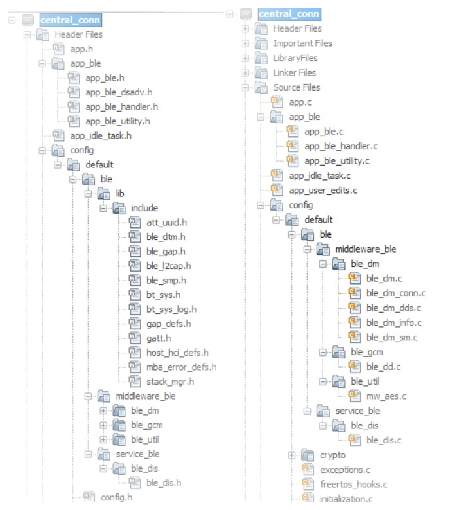
Files and Routines Automatically generated by the MCC
initialization.c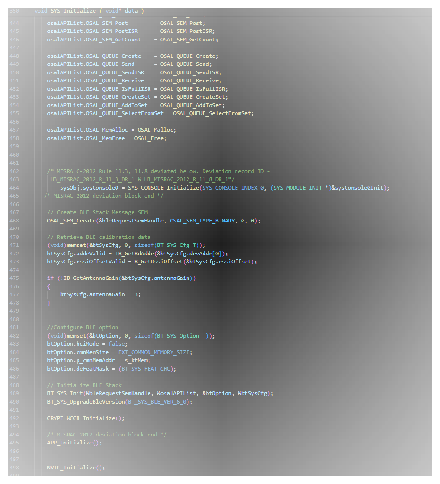
app_ble.c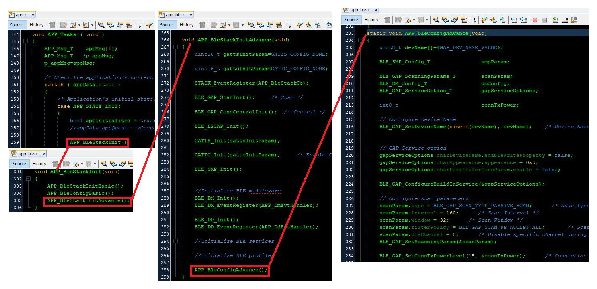
| Source Files | Usage |
|---|---|
app.c | Application State machine, includes calls for Initialization of all BLE stack (GAP,GATT, SMP, L2CAP) related component configurations |
app_ble\app_ble.c | Source code for the BLE stack related component configurations,
code related to function calls from app.c |
app_ble\app_ble_handler.c | GAP, GATT, SMP and L2CAP event handlers |
Note:app.cis autogenerated and has a state machine based Application code sample. Users can use this template to develop their application.
Header Files
ble_gap.h: This header file contains BLE GAP functions and is automatically included in theapp.cfile
Function Calls
MCC generates and adds the code to initialize the BLE Stack GAP, GATT, L2CAP and SMP in
APP_BleStackInit() function
-
APP_BleStackInit()is the API that will be called inside the Applications Initial State (APP_STATE_INIT) inapp.c.
User Application Development
-
Include
- Include the user action. For more information, refer to User Action from Related Links.
-
definitions.hin all the files where UART will be used to print debug information
Note:definitions.his not specific to just UART peripheral, instead it must be included in all application source files where peripheral functionality will be exercised -
Start Scanning
// Scanning Enabled
BLE_GAP_SetScanningEnable(true, BLE_GAP_SCAN_FD_ENABLE, BLE_GAP_SCAN_MODE_OBSERVER, 1000);

// Output the status string to UART
SERCOM0_USART_Write((uint8_t *)"BW1-Scanning \r\n", 14);
This API is called in the application’s initial state –APP_STATE_INITinapp.c. Scan duration is 100 secs.Figure 4-33. app.c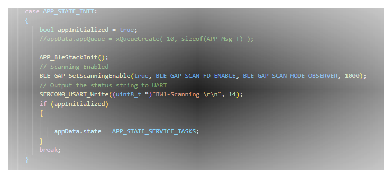
-
Scan Results and initiating a BLE connection
-
BLE_GAP_EVT_ADV_REPORTevent inapp_ble_handler.cis generated upon finding advertisements on legacy channels -
BLE connection can be initiated by using the API
BLE_GAP_CreateConnection(&createConnParam_t);
  // Filter Devices based of Address, for this example address checking only 2 bytes
if (p_event->eventField.evtAdvReport.addr.addr[0] == 0xA1 && p_event->eventField.evtAdvReport.addr.addr[1] == 0xA2)
{
SERCOM0_USART_Write((uint8_t *)"Found Peer Node\r\n", 17);
     BLE_GAP_CreateConnParams_T createConnParam_t;
     createConnParam_t.scanInterval = 0x3C; // 37.5 ms
     createConnParam_t.scanWindow = 0x1E; // 18.75 ms
     createConnParam_t.filterPolicy =BLE_GAP_SCAN_FP_ACCEPT_ALL;
     createConnParam_t.peerAddr.addrType = p_event->eventField.evtAdvReport.addr.addrType;
     memcpy(createConnParam_t.peerAddr.addr, p_event->eventField.evtAdvReport.addr.addr, GAP_MAX_BD_ADDRESS_LEN);
     createConnParam_t.connParams.intervalMin = 0x10; // 20ms
     createConnParam_t.connParams.intervalMax = 0x10; // 20ms
     createConnParam_t.connParams.latency = 0;
     createConnParam_t.connParams.supervisionTimeout = 0x48; // 720ms
     SERCOM0_USART_Write((uint8_t *)"Initiating Connection\r\n", 23);
     BLE_GAP_CreateConnection(&createConnParam_t);
}
Figure 4-34. app_ble_handler.c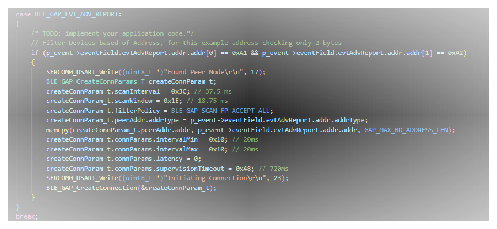
-
-
Connected and Disconnected Events
-
All the possible GAP, GATT, SMP and L2CAP Event handlers are available in file
app_ble_handler.c, users can implement application code to denote connection state here.BLE_GAP_EVT_CONNECTEDevent is generated after a successful BLE connection with peripheral deviceSERCOM0_USART_Write((uint8_t *)"Connected!\r\n", 12); SERCOM0_USART_Write((uint8_t *)"Disconnected\r\n", 15);
Figure 4-35. app_ble_handler.c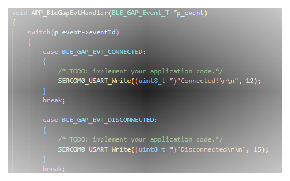
-
-
Scan Timeout Event
-
In
app_ble_handler.cBLE_GAP_EVT_SCAN_TIMEOUTevent is generated when BLE Scan duration expires.SERCOM0_USART_Write((uint8_t *)"Scan Completed \r\n", 17);
Figure 4-36. app_ble_handler.c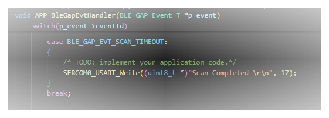
-