
6.3.7.1 BLE OTA DFU Demo Step-by-Step Process
To successfully upgrade the device firmware over Bluetooth® LE,
follow this detailed step-by-step process. This section includes everything from
preparing the firmware image to verifying the update on the target device, ensuring a
smooth and reliable OTA DFU experience.
- To perform the OTAU, you must store the upgradable firmware bin file created in
Upgradable Image (
.bin) File Generation in the MBD application. For more details, see Upgradable Image (.bin) File Generation from Related Links. - Send the upgradable bin file to the mobile device via email.
- Save the firmware image received via email into the MBD application.
- On iOS® mobile, perform the following steps:
- Open the email application and locate the email containing the
.binfile attachment. - Tap on the
.binfile attachment to preview it.Figure 6-88. Email Attachment OTA Package ( .bin) File – iOS® Mobile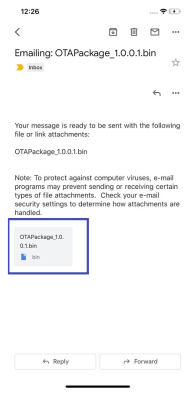
- Tap the Share icon (usually a square with an arrow
pointing up).
Figure 6-89. Sharing ( .bin) File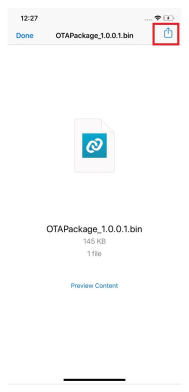
- In the share sheet, select Save to Files (with a folder
icon).
Figure 6-90. Save to Files – iOS® Mobile 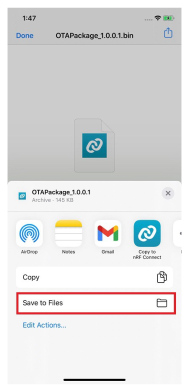
- In the next window, locate and tap the MBD application icon.
- Tap the Save button at the top right to confirm.
Figure 6-91. Saving the File to MBD Application – iOS® Mobile 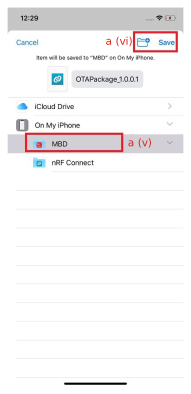
- The MBD application will import the
.binfile and make it available for OTA DFU.
- Open the email application and locate the email containing the
- On Android® mobile, perform the following steps:
- Open the email application and locate the email containing the
.binfile attachment. - Tap on the
.binfile attachment to download it.Figure 6-92. Email Attachment OTA Package ( .bin) File – Android® Mobile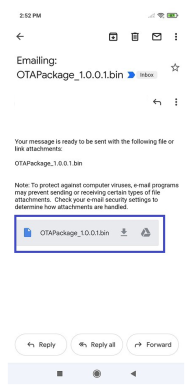
- After downloading, tap the file and select “Open with” or “Share.”
- Choose the Microchip Bluetooth Data (MBD) application
from the list of available applications.
Figure 6-93. Open ( .bin) File with MBD Application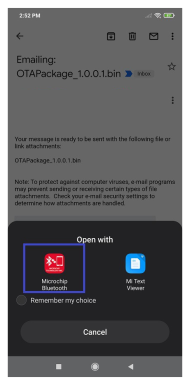
- The MBD application will import the
.binfile and make it available for OTA DFU.Figure 6-94. Saving the File to MBD Application – Android® Mobile 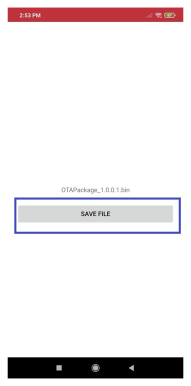
- Open the email application and locate the email containing the
- On iOS® mobile, perform the following steps:
- Open the MBD application on the mobile device.Important: Turn ON Bluetooth® on the mobile device.
- Select the OTA DFU tab in the MBD application.
Figure 6-95. Selecting OTA DFU 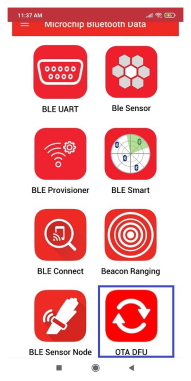
- Power on the OTA-capable target device (PIC32WM-BW1 Curiosity Board) after programming it using Programming the Current Application Image using MPLAB® X IDE. For more details, see Programming the Current Application Image using MPLAB® X IDE from Related Links.
- The PIC32WM-BW1 Curiosity Board starts advertising over BLE.
- In the MBD application, tap the SCAN button.
Figure 6-96. Scanning OTA Devices List 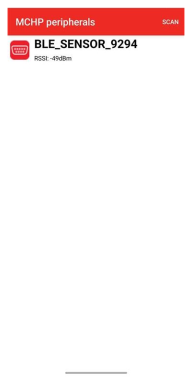
-
The target device appears in the scanned list as “BLE_SENSOR_[last_4_digits_of_MAC]”. Select the intended device from the scanned list. When prompted to pair the device, click on Pair or Yes.
Note: The MBD application connects to the OTA target device, and a “Connected” message appears briefly.Figure 6-97. Pair Bluetooth® Device 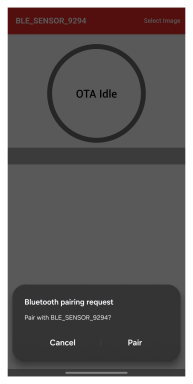
- Tap the Select Image option to choose the available firmware file in the
MBD application.
Figure 6-98. Select Image ( .bin) File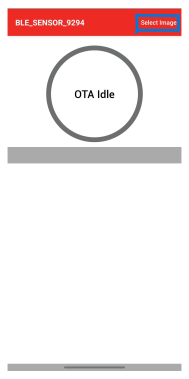
- The screen displays the OTAU firmware image file that is copied in steps (1 and
2).
- Tap on the image to select it.
Figure 6-99. Selecting ( .bin) File from Steps (1 and 2)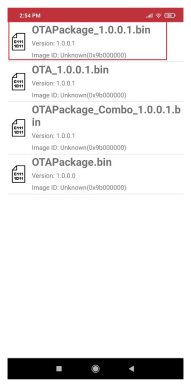
- Confirm the firmware version and tap the OK button.
Figure 6-100. Firmware Confirmation 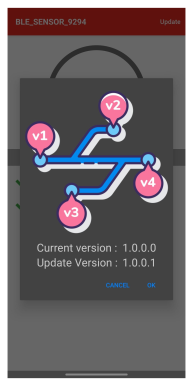
- This action initiates the firmware update, and the MBD application displays the
progress. The process takes a few seconds to complete.
Figure 6-101. Device Firmware Version Update in Progress 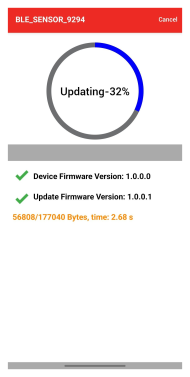
- After the image transfer is complete, the MBD application displays an OTA
update successfully message. Tap OK in the MBD application to
continue.
Figure 6-102. OTA Update Successful Message 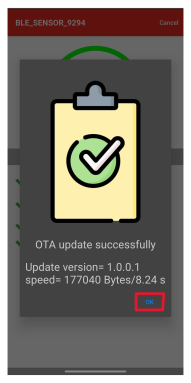
- The device starts performing the authentication of the new image.
Figure 6-103. OTA Firmware Validation 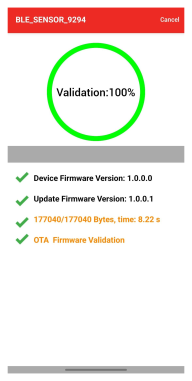
- The device starts performing the authentication of the new image.
- If validation is successful, the system reboots automatically. On boot-up, the device authenticates the new image in slot 1 and then copies the new image to slot 0. The new image now runs from slot 0.
- To verify whether the running image on the target is the newly upgraded image, repeat steps 4 to 9 and check the current version displayed in the MBD application.