
6.3.6.6 Upgradable Image (.bin) File
Generation
To generate an upgradable .bin image for BLE OTA DFU, the user must use the
SignFirmware and OTA scripts integrated into the MPLAB® X project.
For more details, see Project Properties Configuration for Current/Running
Firmware from Related Links. The OTA window in project properties helps the
user to configure and generate the .bin file for BLE OTA upgrades.
The following steps describe how to generate an upgradable
.bin image
for OTA DFU using MPLAB X IDE: - After making the new upgradable
application, ensure the new upgradable image has a version number different from
the currently running image. The user must ensure to update the version in
both:
- Device Information
Service (DIS) in the new firmware source code. For more details, see
Verifying Configurations from Related Links. Ensure
BLE_SENSOR_VERSIONmacro inapp.chas the desirable firmware version. Clean and build the project. Do not program/Flash the device. - In the “Firmware Rev:” field in the SignFirmware properties window. For example, if the current version is 1.0.0.0, set the new image version to 1.0.0.1 in both locations.
- Device Information
Service (DIS) in the new firmware source code. For more details, see
Verifying Configurations from Related Links. Ensure
- Open the SignFirmware properties window (see Step 1 of Project
Properties Configuration for Current/Running Firmware from Related
Links).
- In the “Firmware Rev:”
filed, change the firmware version as per the requirement and then click
Apply.
Figure 6-85. Firmware Revision Update 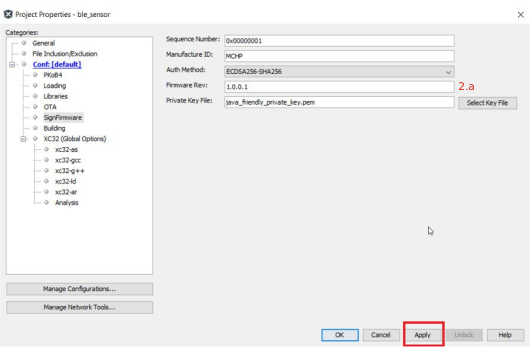
- Compile the project to generate the updated firmware image.
- In the “Firmware Rev:”
filed, change the firmware version as per the requirement and then click
Apply.
- Open the OTA properties window
(see Step 1 of Project Properties Configuration for Current/Running
Firmware from Related Links).
- Configure the following
options in the OTA window:
Figure 6-86. OTA Window – Create OTA File 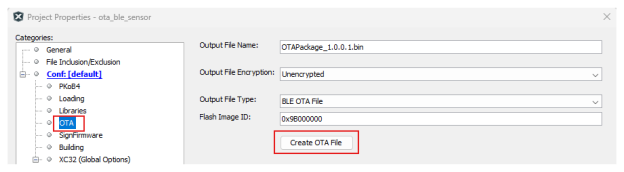
- Enter the name of the output file name. In the “Output File
Name:” filed, type
OTAPackage.bin. - From the “Output File Encryption:” drop-down list, select Unencrypted.
- From the “Output File Type:” drop-down list, select BLE OTA File for BLE based OTAU.
- Enter the Flash image ID. In the “Flash Image ID:” field, type 0x9B000000. For more details, see Step 2 of Pull-in MCC Components for OTA from Related Links.
- Enter the name of the output file name. In the “Output File
Name:” filed, type
- After configuring, click Create OTA File to proceed.
- After clicking Create
OTA File, this action creates the upgradable
.binimage with the selected “Output File Name:” in the.Xproject folder. The OTAU manager stores this image to send to the OTAU target.Figure 6-87. Created OTA File 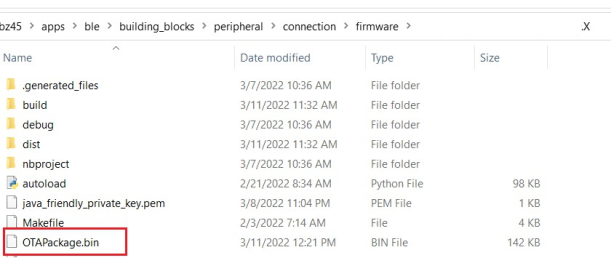
- Configure the following
options in the OTA window: