
7.5.3 Multichip Simulation
System designs are typically divided into functional modules, which several Actel devices implement. To check the functionality of the system, you must simulate all Actel devices together. You can use ViewSim and Designer to perform multichip simulation. Use the following procedure to perform a multichip simulation of an Actel design:
- Create a top-level schematic and instantiate the individual chip
designs. This example assumes there are three designs with instance names “chip1,”
“chip2,” and “chip3.” The name of the top-level schematic is “top.” Figure 4-6
depicts the directory structure for this example. Names written in normal text
represent file names and those in bold text represent directory names.
Figure 7-6. Directory Structure for Multichip Simulation 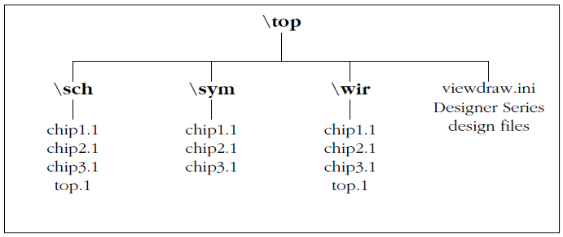 Note: This example only contains single-sheet schematics for each design. Similar procedures apply to multiple-sheet designs.
 - Place-and-route your design in Designer. Refer to the Designer User’s Guide for information about using Designer.
- Extract timing information for your design. Choose the Export
command from the File menu or click Back Annotate. The back-annotate dialog box is
displayed. Create a “chip1.sdf ” file by choosing the GENERIC option from the CAE
pull-down menu. Click OK. Repeat for
chip2.sdfandchip3.sdf. - Back annotate your delays. Make sure
you are in the
\topdirectory and type thedel2vl chip1command at the prompt:The application reads the
chip1.sdffile and generates achip1.dtbfile and achip1.vsmfile. Repeat for thechip2.sdfandchip3.sdffiles. - Create a “top.dtb” file for the
top-level schematic. The top-level DTB file should include the following
lines:
.ba
c chip1
a dtb=chip1.dtb c chip2
a dtb=chip2.dtb c chip3
a dtb=chip3.dtb
.ab
The “c” lines above specify instance names, such as “chip1.” If you have not labeled an instance, you can use the default handle name of an instance, “$1I38” as it appears in your top-level schematic. Also, the individual DTB files should reside in the top-level design directory, “top.”
- Run ViewVSM on
top.dtb. Reference thetop.dtbfile in the VSM pop-up dialog box. The VSM program processes the DTB files for each chip and creates thetop.vsmfile with back-annotated postlayout timing delays. - Simulate
top.vsm. Invoke ViewSim from the Dashboard. Typetop.vsmin the Design Name box and click OK.
For more information about performing simulation with ViewSim, see the Innoveda documentation.