This section explains how to create a peripheral device with custom profile and control.
The GREEN LED and user button on the WBZ351 Curiosity board shall be used to enable or disable the LED status. The
peripheral device will be the WBZ351 Curiosity board and the
central device can either be a smartphone with a Light Blue app or another WBZ351 Curiosity board. The instructions mentioned below are
applicable for a BLE peripheral device.
Users can choose to either run the precompiled Application Example hex file provided on
the WBZ351 Curiosity Board or follow the steps to develop the
application from scratch.
It is recommended to follow the examples in sequence to understand the basic concepts
before progressing to the advanced topics.
Recommended Readings
Getting Started with Application Building Blocks – See Building
Block Examples from Related Links.
Getting Started with Peripheral Building Blocks – See Peripheral
Devices from Related Links.
See BLE Connection from
Related Links.
BLE Software Specification – See MPLAB®
Harmony Wireless BLE in Reference Documentation from Related
Links.
Hardware Requirement
Table 5-26. Hardware Prerequisites
S. No.
Tool
Quantity
1
WBZ351 Curiosity Board
1
2
Micro USB Cable
1
3
Android/iOS Smart
phone
1
SDK Setup
Refer to Getting Started with Software Development from Related Links.
Software
To install Tera Term tool, refer to the Tera Term web page in Reference
Documentation from Related Links.
Smartphone App
Light Blue iOS/Android app available in stores
Programming the Precompiled Hex
File or Application Example
Using MPLAB® X IPE:
Import and program the
precompiled hex file: <Discover
Path>\wireless_apps_pic32cxbz3_wbz35\apps\ble\building_blocks\peripheral\profiles_services\custom_service\hex\custom_service.X.production.signed.hex.
For detailed steps, refer to
Programming a Device in MPLAB® IPE in
Reference Documentation from Related Links.
Note: Ensure to choose the correct Device and
Tool information.
Using MPLAB® X IDE:
Perform the following the steps
mentioned in Running a Precompiled Example. For more information, refer
to Running a Precompiled Application Example from Related Links.
Open and program the application:
<Discover
                    Path>\wireless_apps_pic32cxbz3_wbz35\apps\ble\building_blocks\peripheral\profiles_services\custom_service\firmware\custom_service.X
.
For more details on how to find
the Discover path, refer to Download Application Example from Discover in
Running a Precompiled Application Example from Related Links.
Demo Description
This application enables users to control a GREEN LED on
the WBZ351 Curiosity board and read its status using a
central device. On reset, demo will print “[BLE] Device Initialized. Ready for
connection” which denotes the start of advertisements and then “[BLE] Connected to
Peer Device”: when connection is established. Application data to be sent to the
connected central device (smartphone or another WBZ351
Curiosity board) is entered in a terminal emulator like Tera Term.
Testing
Using a micro USB cable, connect
the Debug USB on the Curiosity board to a PC.
Program the precompiled hex file
or application example as mentioned.
Open Tera Term:
Set the “Serial Port” to
USB Serial Device.
Speed to 115200.
For more details on how to set the “Serial Port” and “Speed”, refer to
COM Port Setup in Running a Precompiled Application Example
from Related Links.
Press the Reset Switch on the
Curiosity board. This must be displayed in Tera Term.Figure 5-153. Tera Term
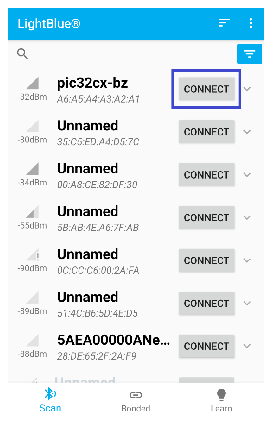
Launch the Light Blue mobile app
and search for the device name “pic32cx-bz” and press Connect.Figure 5-154. LightBlue® App
Figure 5-155. Tera Term
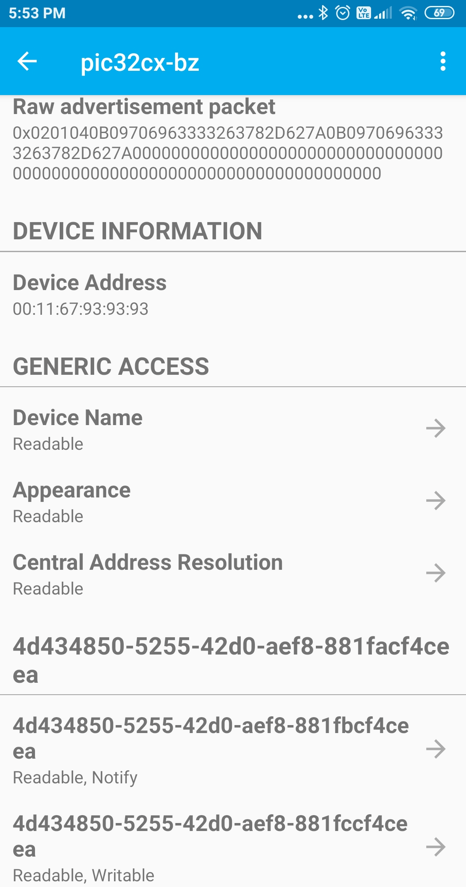
Once connected, basic information like Advertisement Data and Device
Information will be available.
Figure 5-156. LightBlue® App
Find the custom service with the
UUID: 4d434850-5255-42d0-aef8-881facf4ceea. Two characteristics will be
available with the custom service. The button characteristics with the
Readable/Notify property and GREEN LED characteristics with Readable/Writable
property.Figure 5-157. LightBlue® App
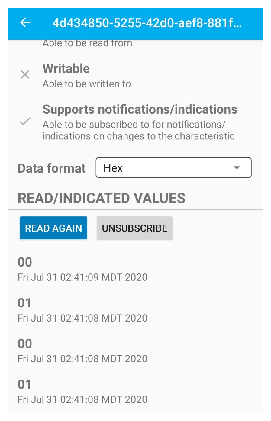
Click on the button
characteristics and press subscribe. Press the User button (USR-BTN2) on the
curiosity board. The Read Value in the app will give its current status.
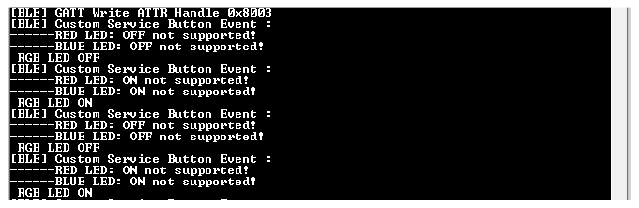
Pressing the button will also toggle the GREEN LED.Figure 5-158.
Figure 5-159.
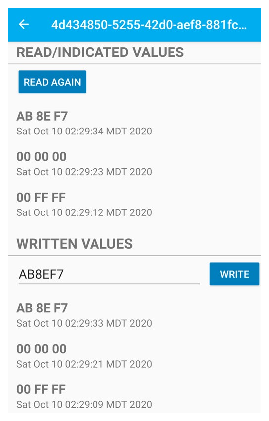
Go back and click on the GREEN LED characteristics which has a read/write
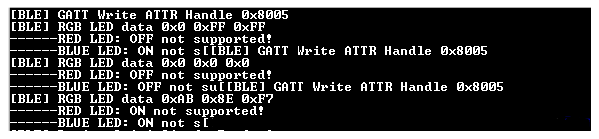
option. The write option changes the GREEN LED On/Off
status by writing a hex value in the form of XXXXXX. A value of 000000 will turn
OFF the LED and value of FFFFFF turns it ON. The read option will give the
current value stored for the GREEN LED.Figure 5-160.
Figure 5-161.
Figure 5-162.
Press back two times to disconnect the BLE connection. A disconnected device
will advertise again.Figure 5-163. Tera Term
Developing the Application from
Scratch using MCC
Follow the steps below to build the application manually:
Note:
It is recommended for the new users of the MPLAB Code Configurator to refer
MPLAB® Code Configurator (MCC) User’s Guide
in Reference Documentation from Related Links.
Create a new harmony project. For
more details, see Creating a New MCC Harmony Project from Related
Links.
Setup the basic components and
configuration required to develop this application, import component
configuration: <Discover
Path>\wireless_apps_pic32cxbz3_wbz35\apps\ble\building_blocks\peripheral\profiles_services\custom_service\firmware\custom_service.X\custom_service.mc4.
For more details on importing the component configuration, refer to
Importing Existing App Example Configuration from Related Links.
Note: Import and Export functionality of the Harmony
component configuration will help users to start from a known working setup
of the MCC configuration.
Accept dependencies or satisfiers
when prompted.
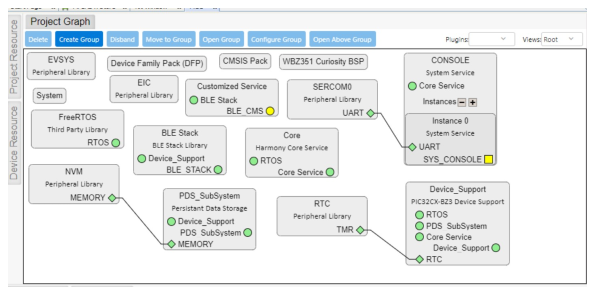
Verify if the project graph window has all the expected configuration as illustrated in the
following figure: Figure 5-164. Project Graph
Verify Custom Service Configuration
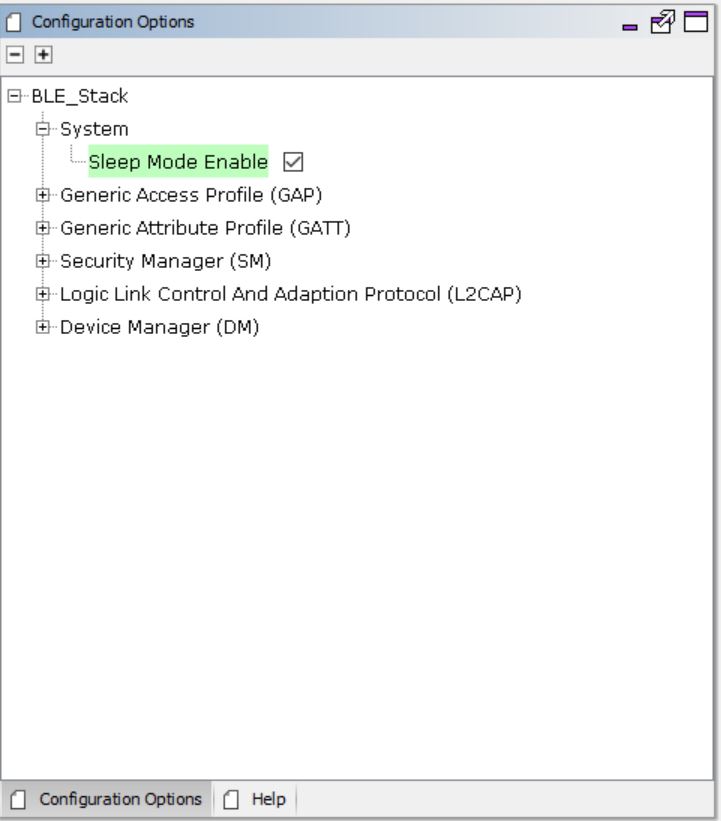
Select BLE Stack component the Project Graph and configure the
following in the Configuration Options panel.
Figure 5-165. BLE Stack
Configuration
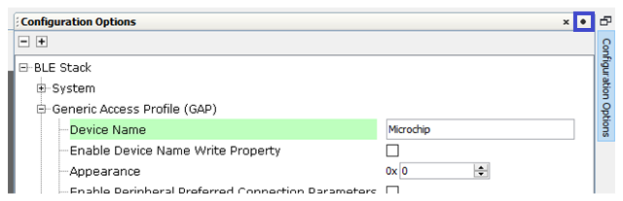
Note: If users cannot see the
Configuration Options panel in the right-hand side of the MPLAB X IDE, it
might be minimized. Hover the cursor towards the Configuration Options side
tab and click the “dot” on the top right-hand corner to pin it (see the
following figure).Figure 5-166. Configuration
Panel
.
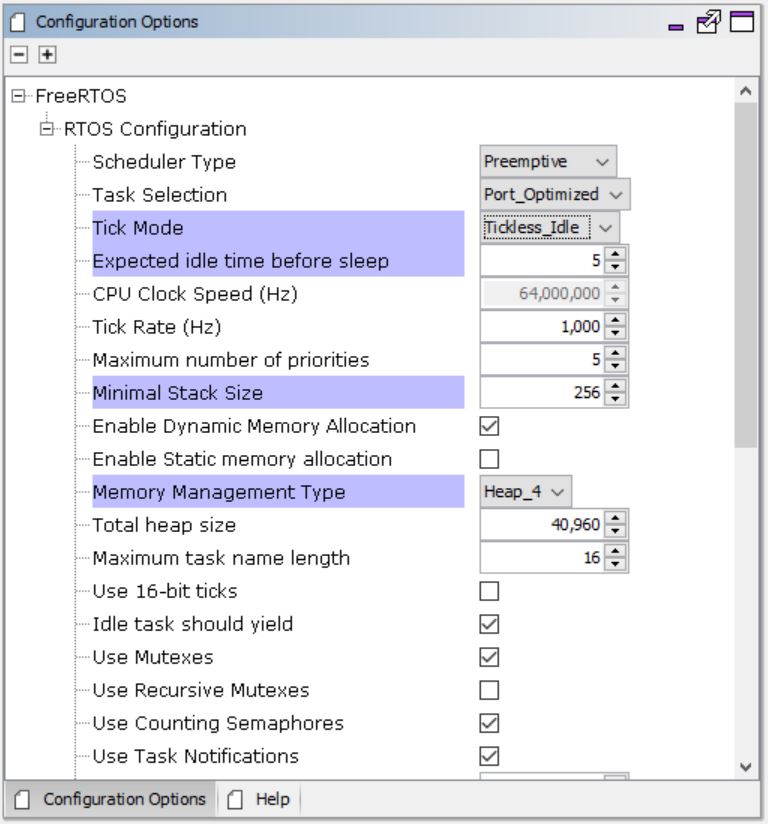
Select the FreeRTOS component in the Project Graph and configure the following.Figure 5-167. FreeRTOS
Configuration
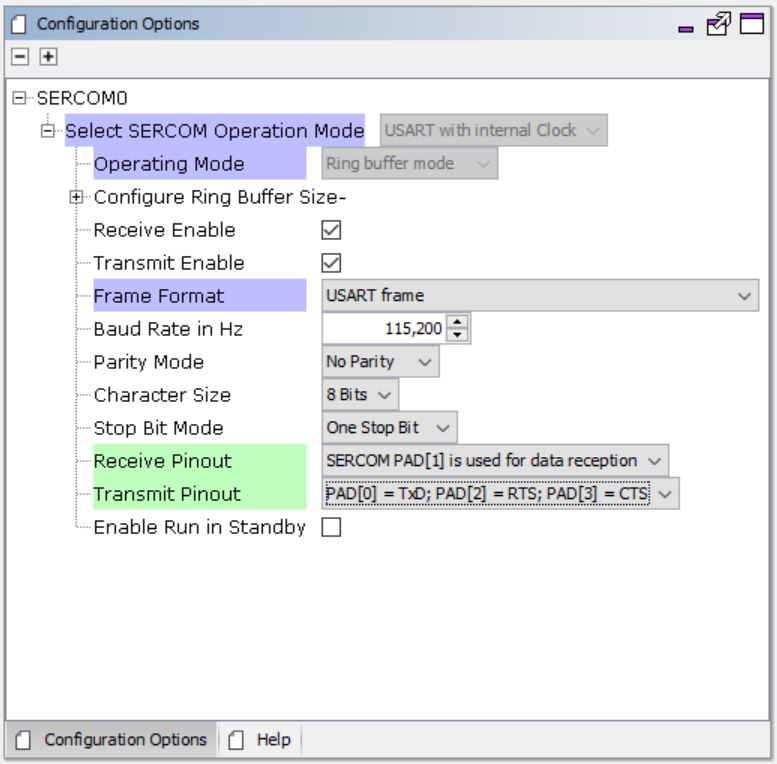
Select the SERCOM0 component in the Project Graph and configure the following.Figure 5-168. SERCOM0
Configuration
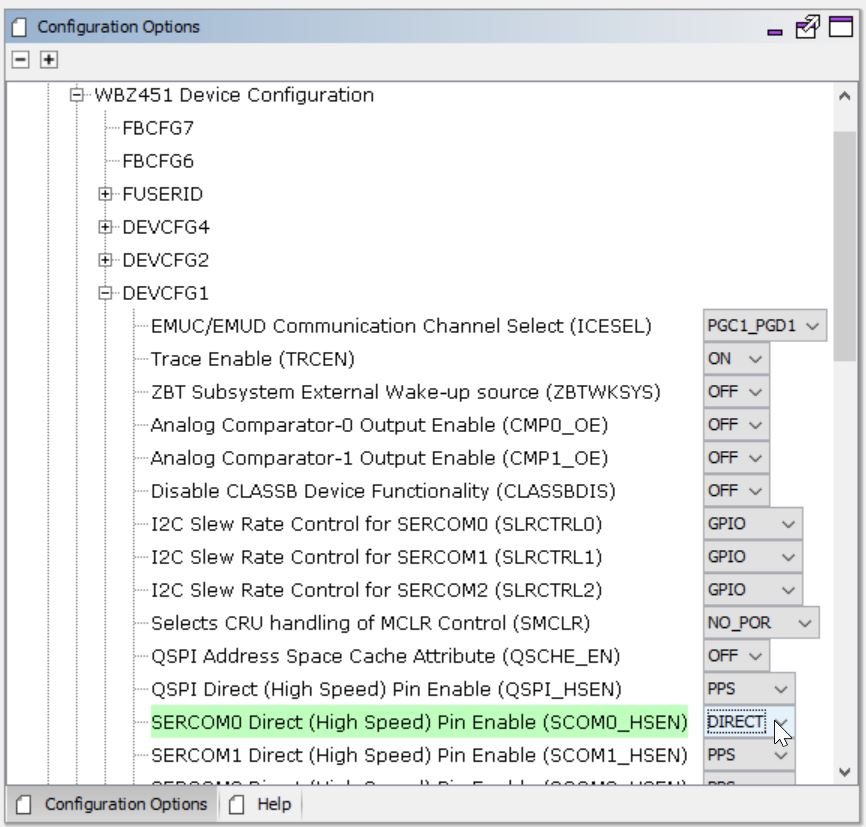
Select the System component in the Project Graph and configure the following.Figure 5-169. System
Configuration
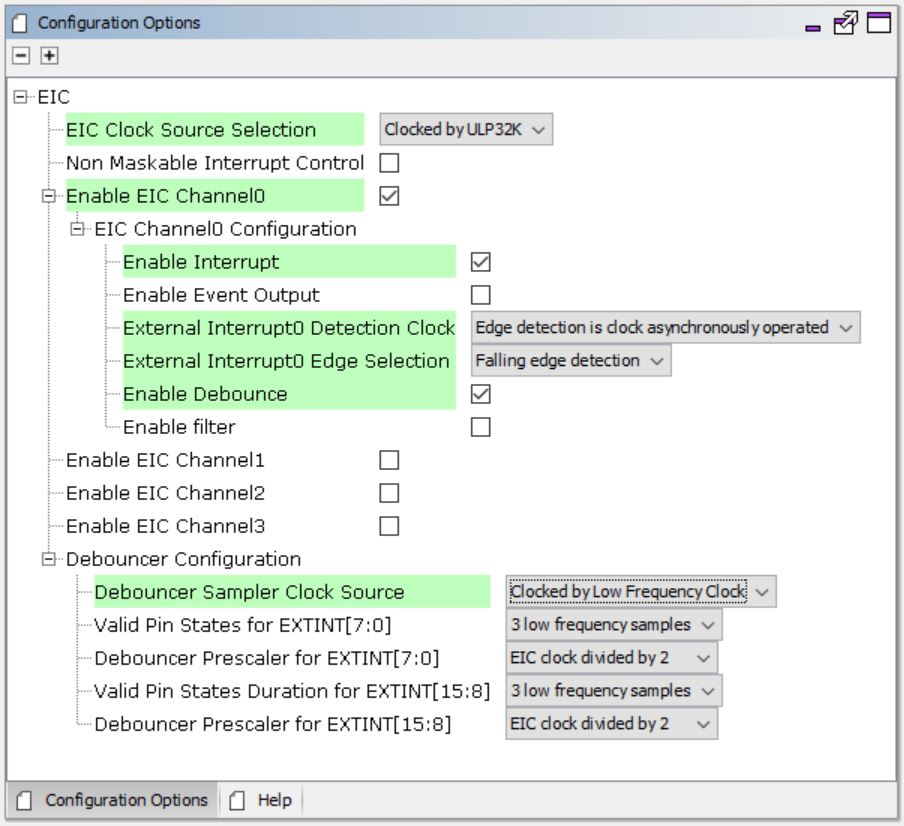
Select the EIC component in the Project Graph and configure the following.Figure 5-170. EIC
Configuration
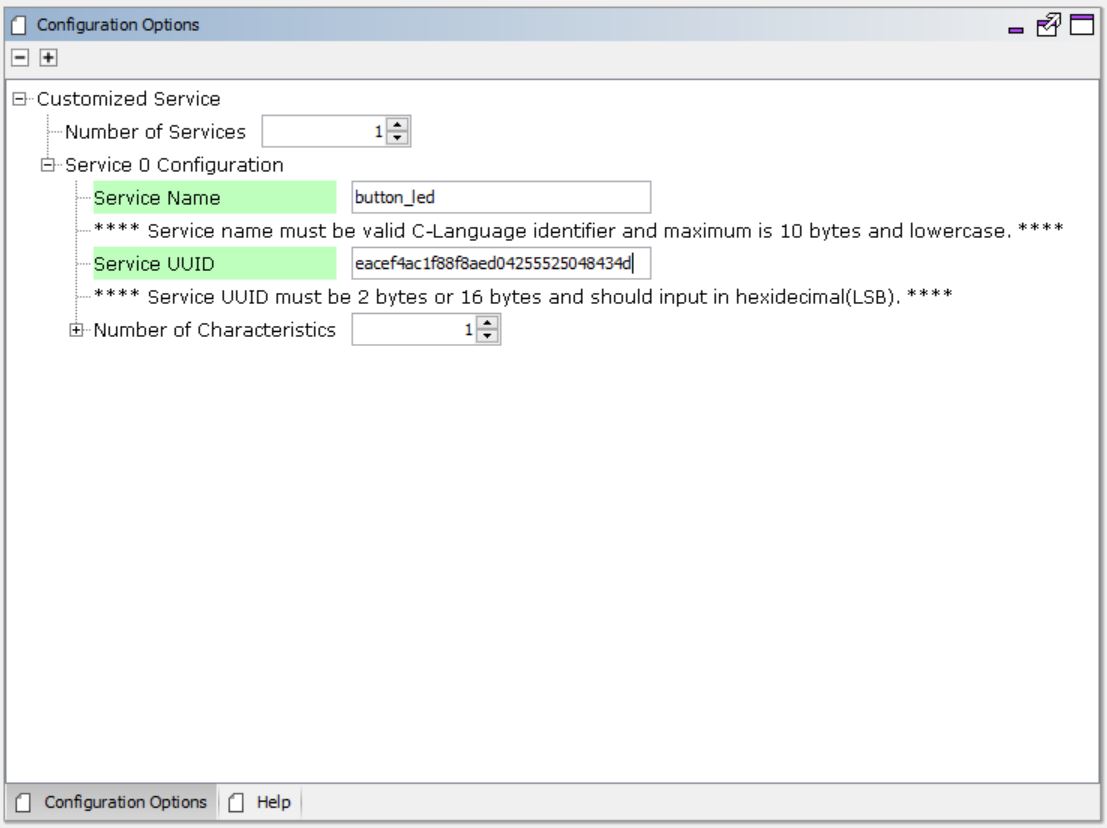
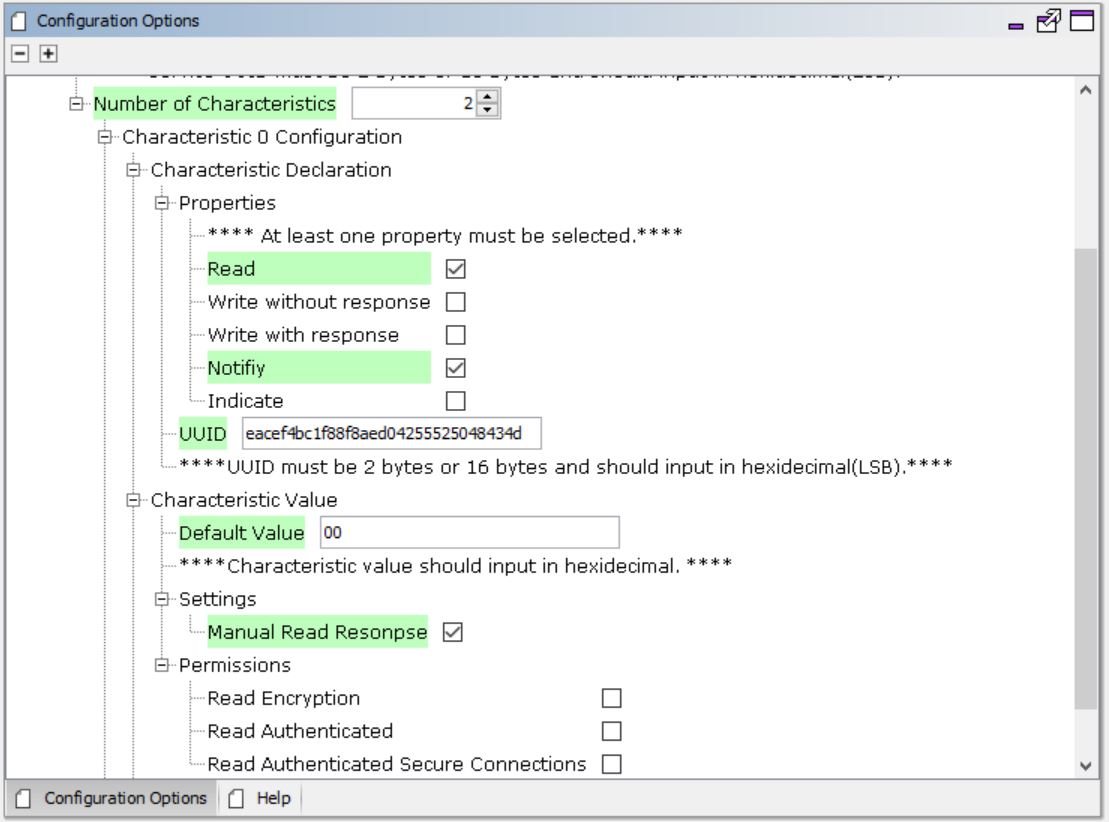
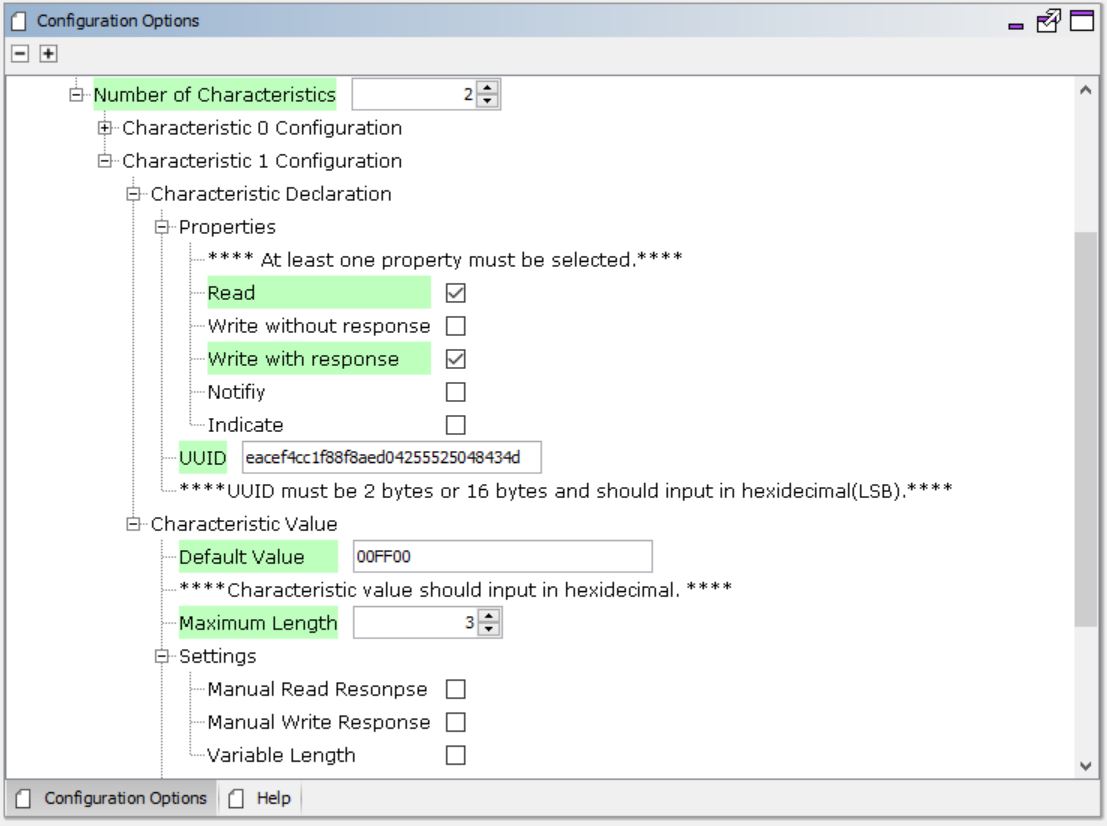
Select the Customized Service component in the Project Graph and configure the
following.Figure 5-171. Customized
Service ConfigurationFigure 5-172. Customized
Service ConfigurationFigure 5-173. Customized
Service Configuration
Verify the Clock Configuration as per the Low Power BLE Application Design. For more
details, refer to the Low Power BLE Application Design from Related
Links.
Generating a Code
For more details on code generation, refer to MPLAB Code Configurator (MCC) Code
Generation from Related Links.
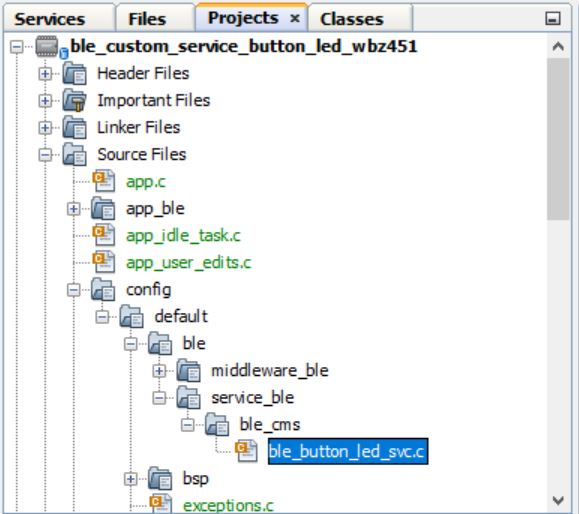
Files and Routines Automatically
Generated by the MCC
After generating the program source from the MCC interface by clicking Generate Code,
the BLE configuration source and header files can then be found in the following
project directories.Figure 5-174. Project
Files
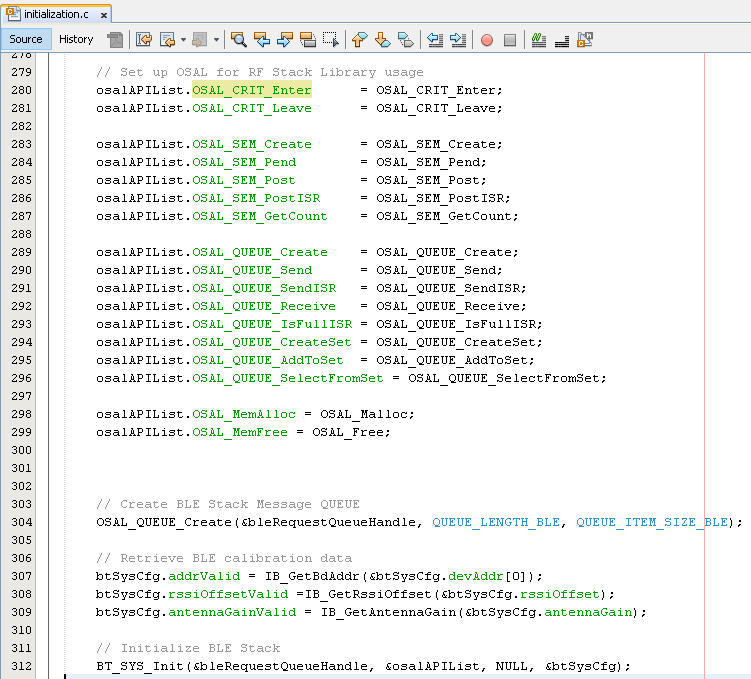
Initialization routines for OSAL, RF System, and BLE System are auto-generated by the
MCC. See OSAL Libraries Help in Reference Documentation from Related
Links. Initialization routine executed during program initialization can be found in
the project file.
Figure 5-175. initialization.c
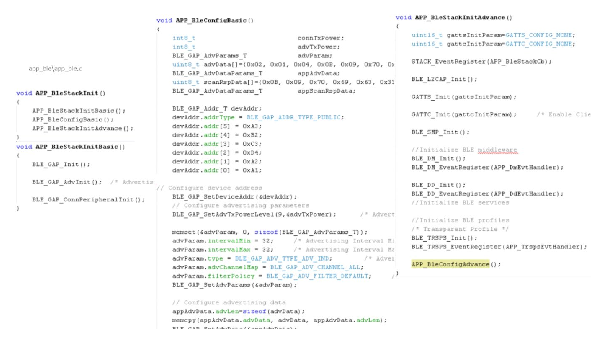
The BLE stack initialization routine executed during Application Initialization can be
found in project files. This initialization routine is automatically generated by
the MCC. This call initializes and configures the GAP, GATT, SMP, L2CAP and BLE
middleware layers.
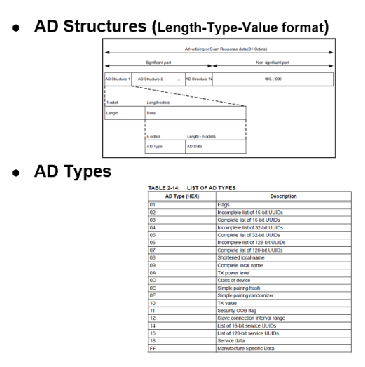
Figure 5-176.
Autogenerated, Advertisement Data FormatFigure 5-177. AD Structures and
Types
Table 5-27. Source Files
Source Files
Usage
app.c
Application State machine, includes calls for
Initialization of all BLE stack (GAP,GATT, SMP, L2CAP) related
component configurations
app_ble\app_ble.c
Source Code for the BLE stack related component
configurations, code related to function calls from
app.c
app_ble\app_ble_handler.c
All GAP, GATT, SMP and L2CAP Event
handlers
ble_button_led_svc.c
All Custom Service button GREEN LED configurations and functions
Note:app.c is autogenerated and has a state
machine-based application code. Users can use this template to develop their own
application.
User Application Development
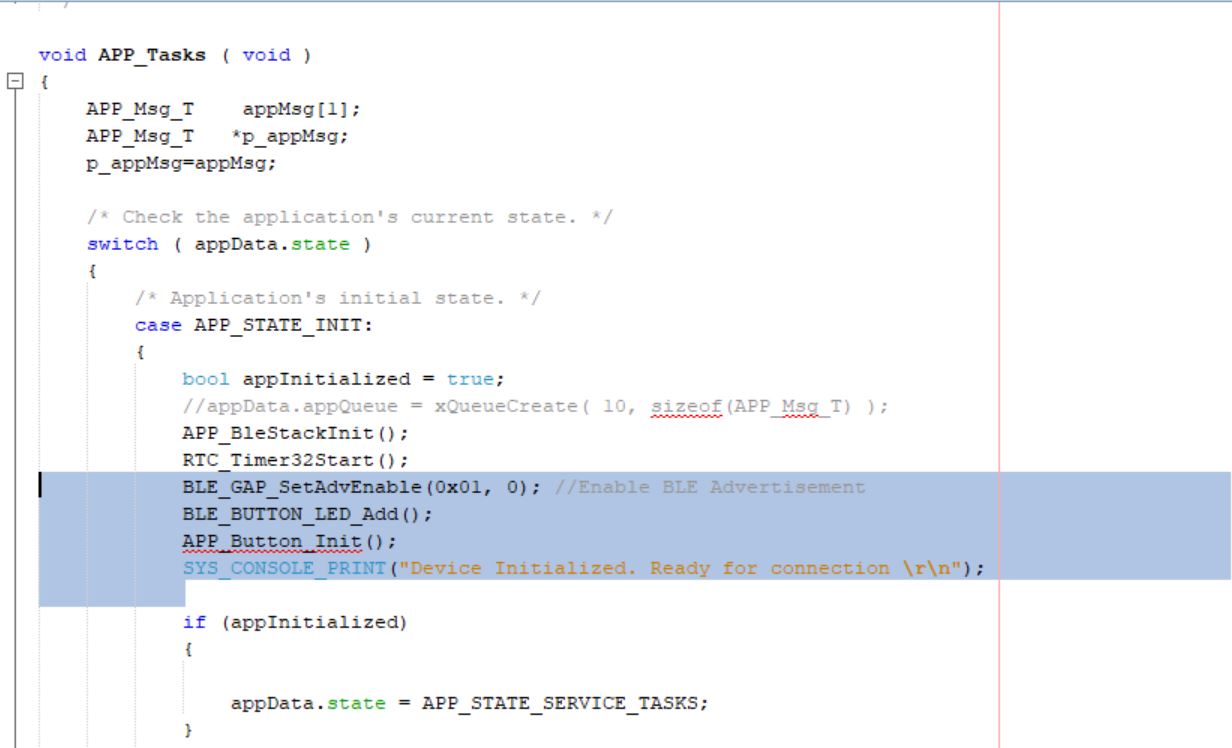
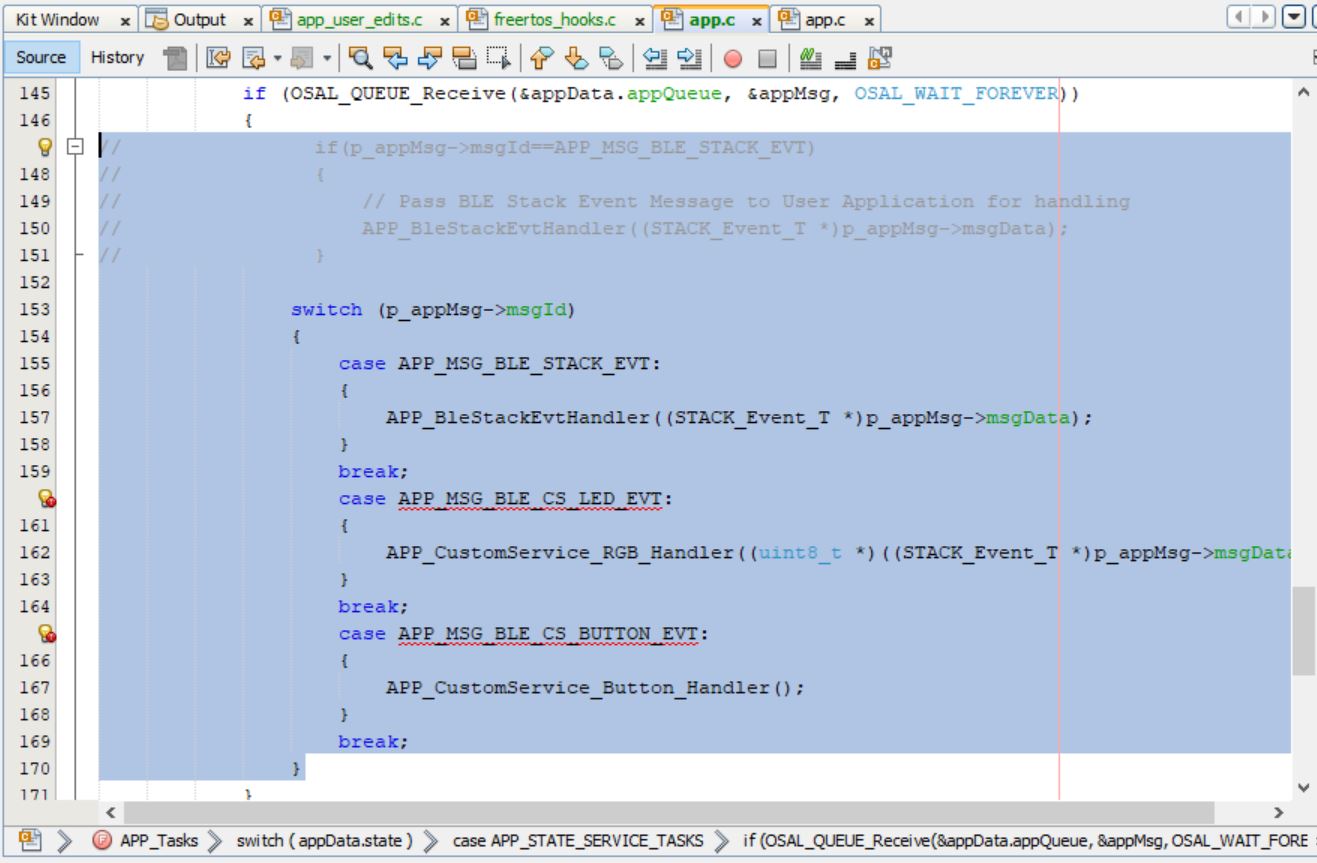
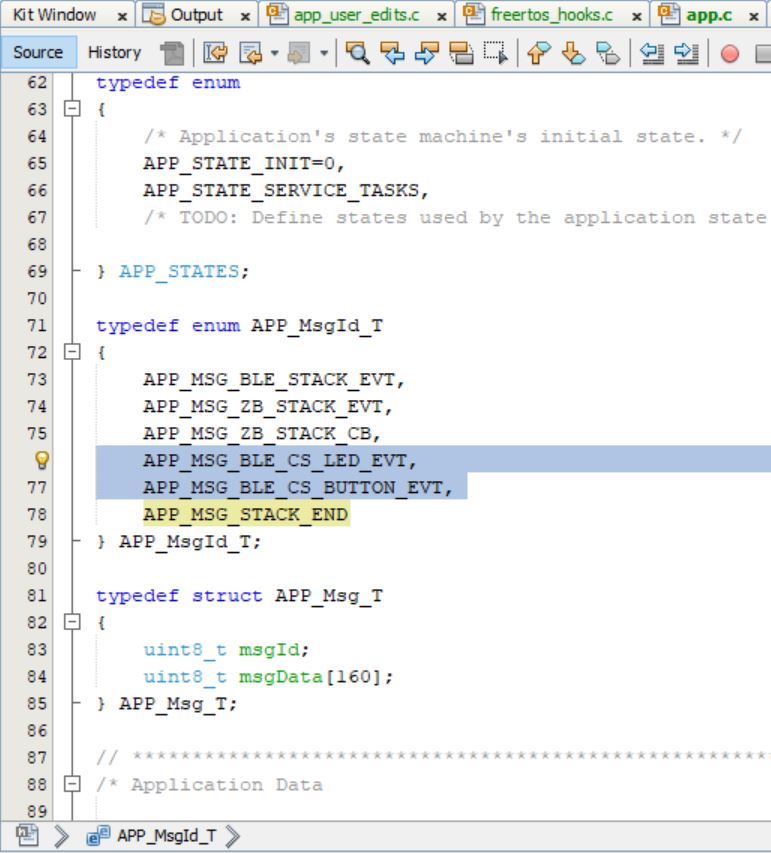
Add the code to enable advertisement, call the button external interrupt callback
functions and initialize custom service in APP_STATE_INIT of the
function APP_Tasks() in app.c
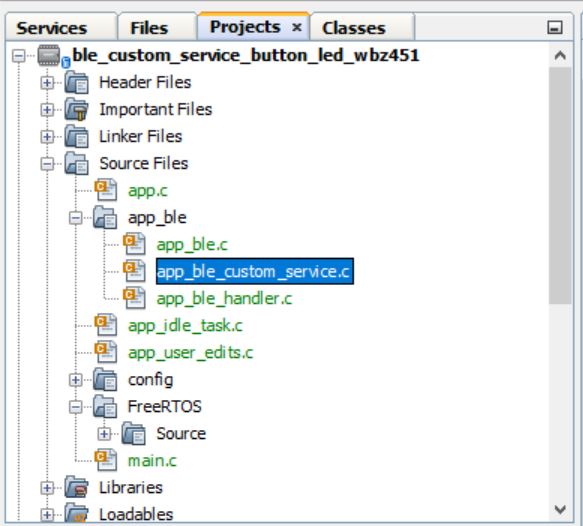
Add the custom service source and header files “<Discover
Path>\wireless_apps_pic32cxbz3_wbz35\apps\ble\building_blocks\peripheral\profiles_services\custom_service\firmware\src\app_ble_custom_service.c
and app_ble_custom_service.h and
app_ble_custom_service.h which has the supporting
functions for the button LED custom service file.
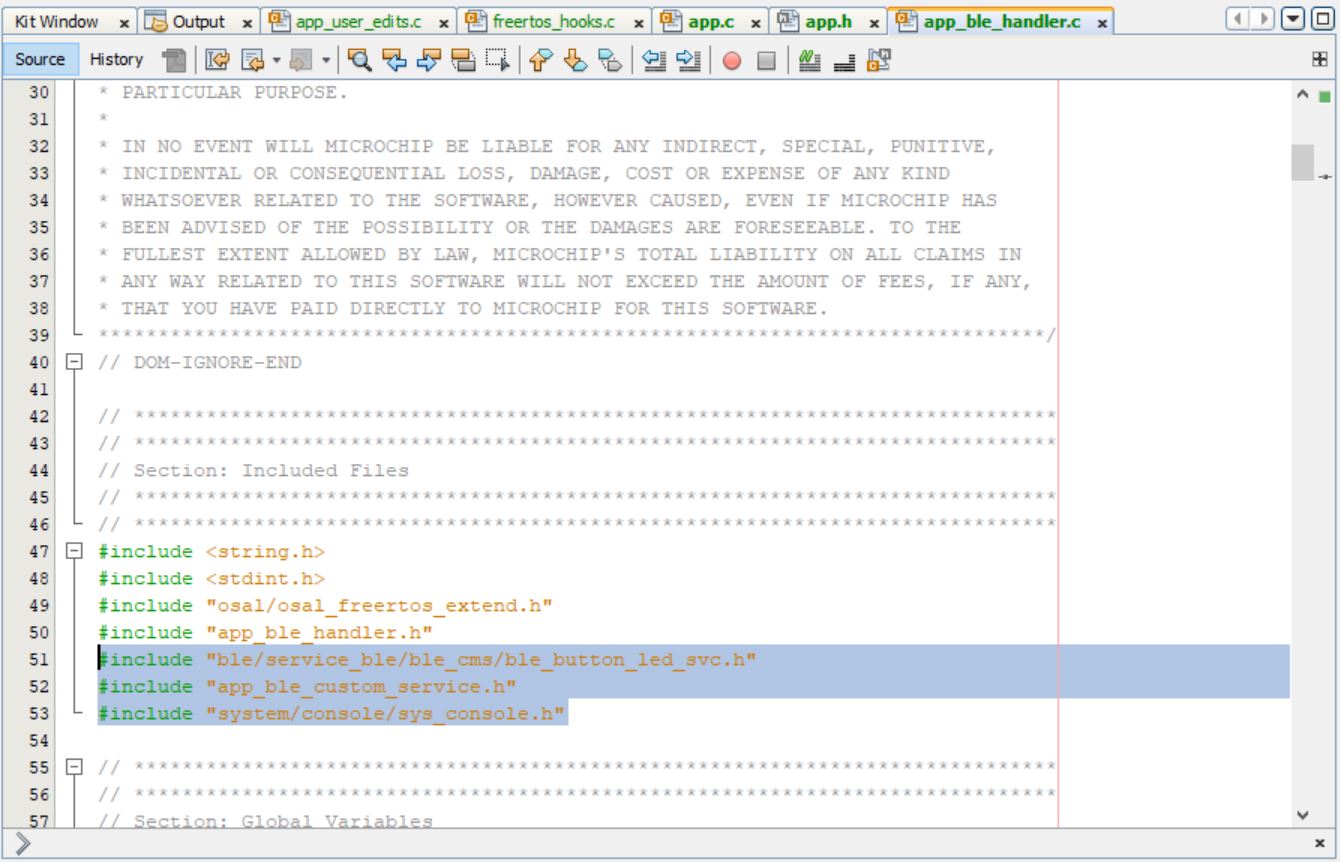
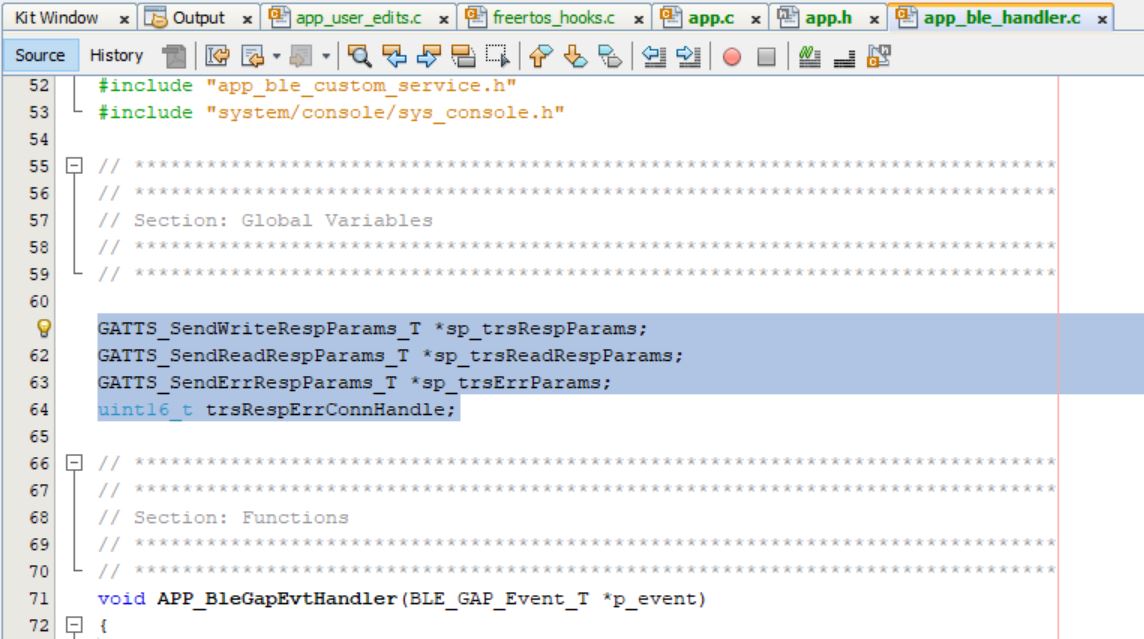
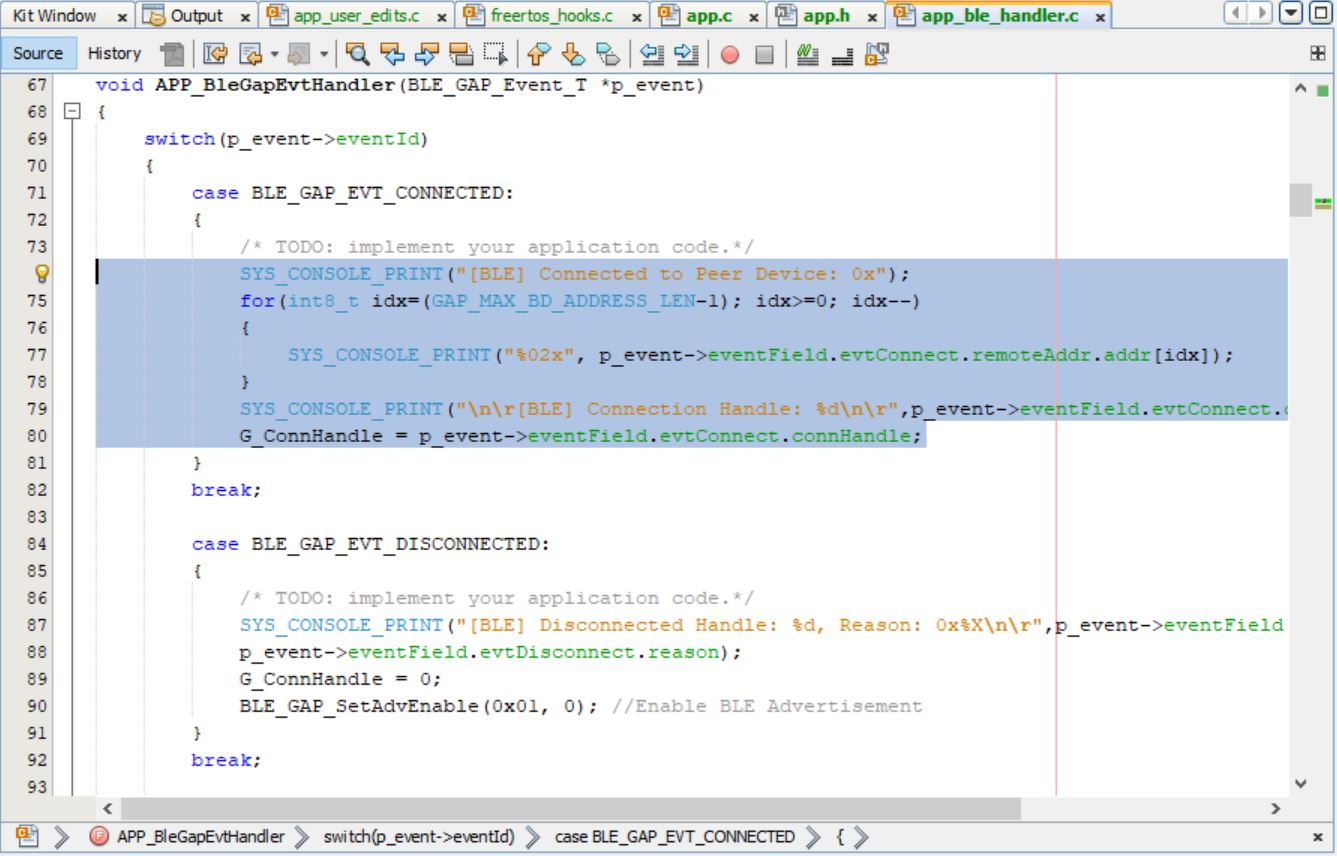
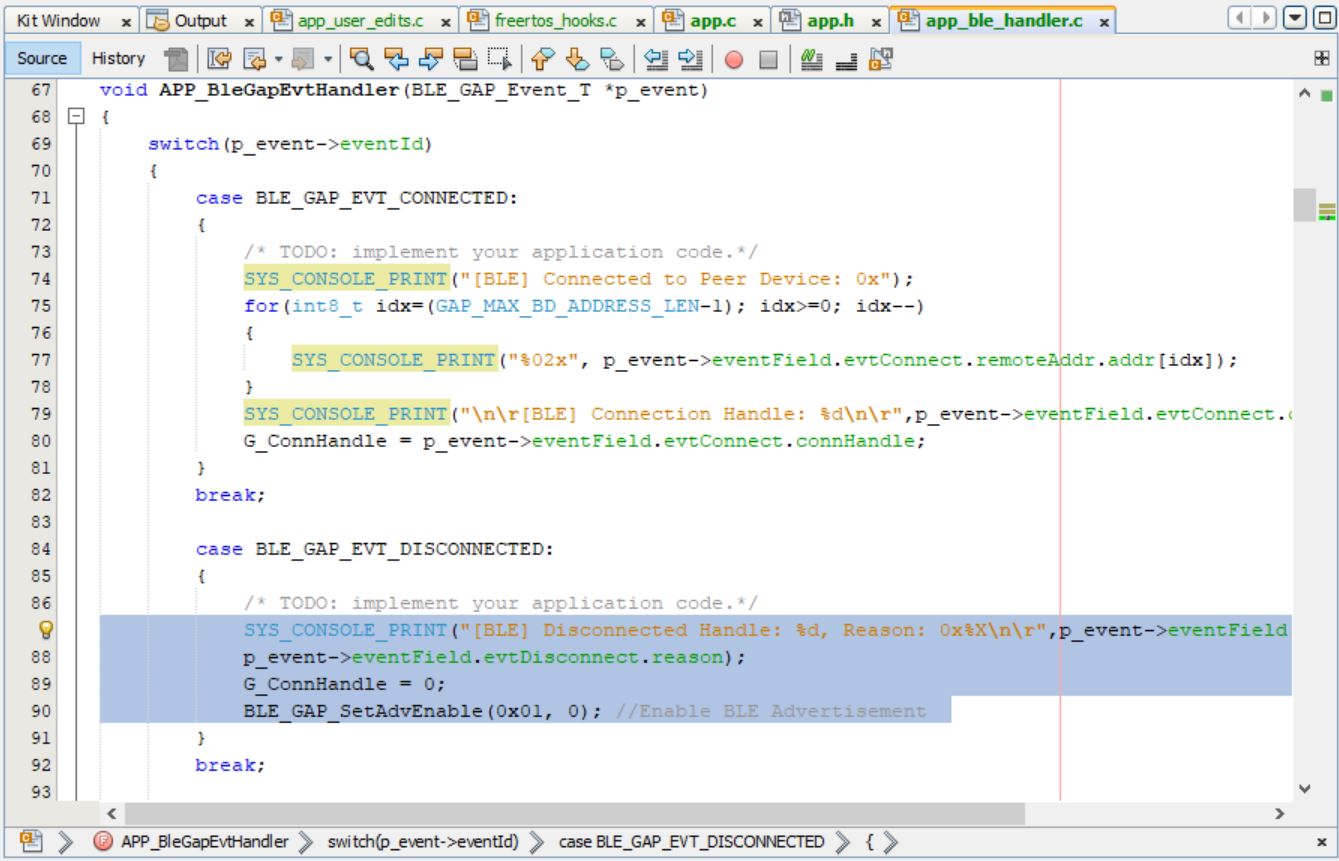
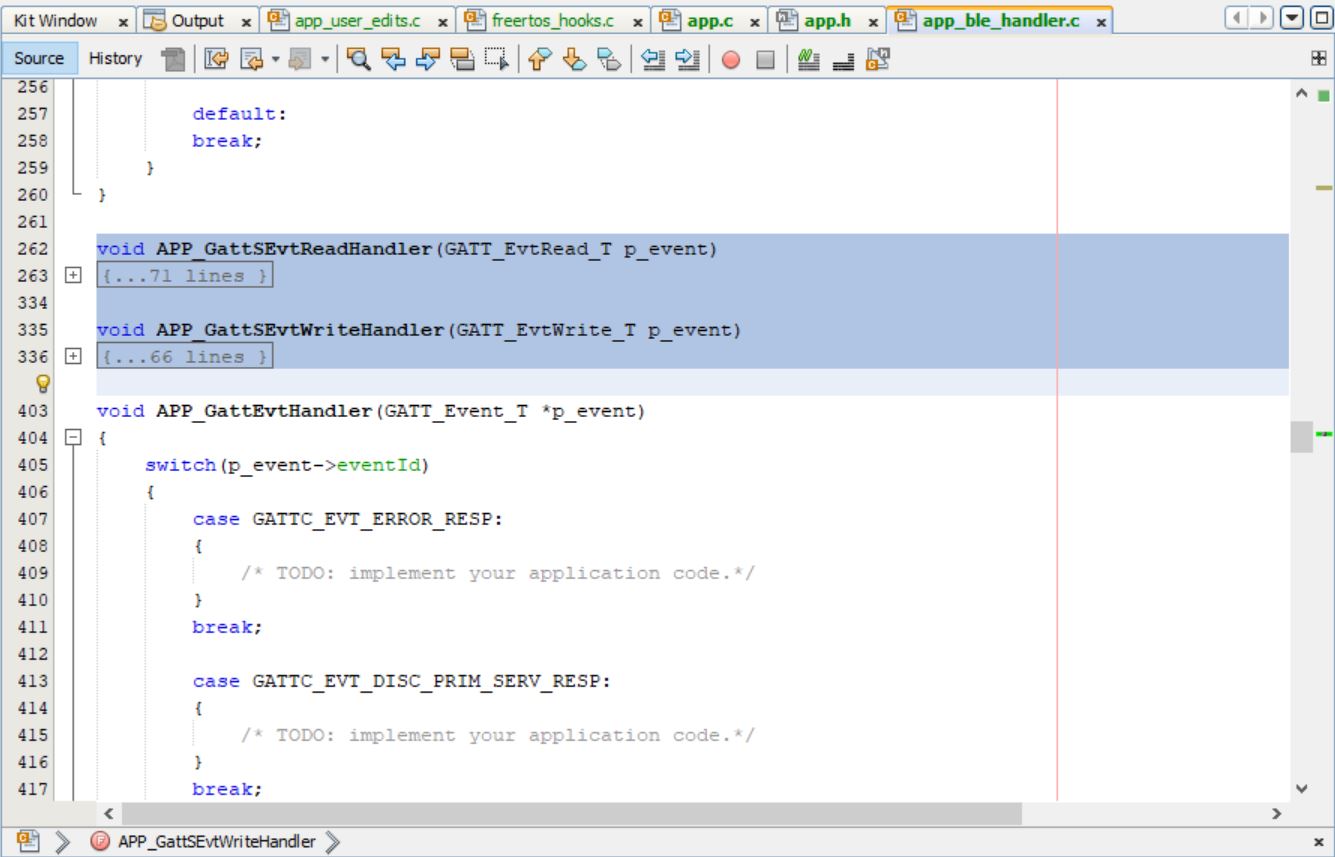
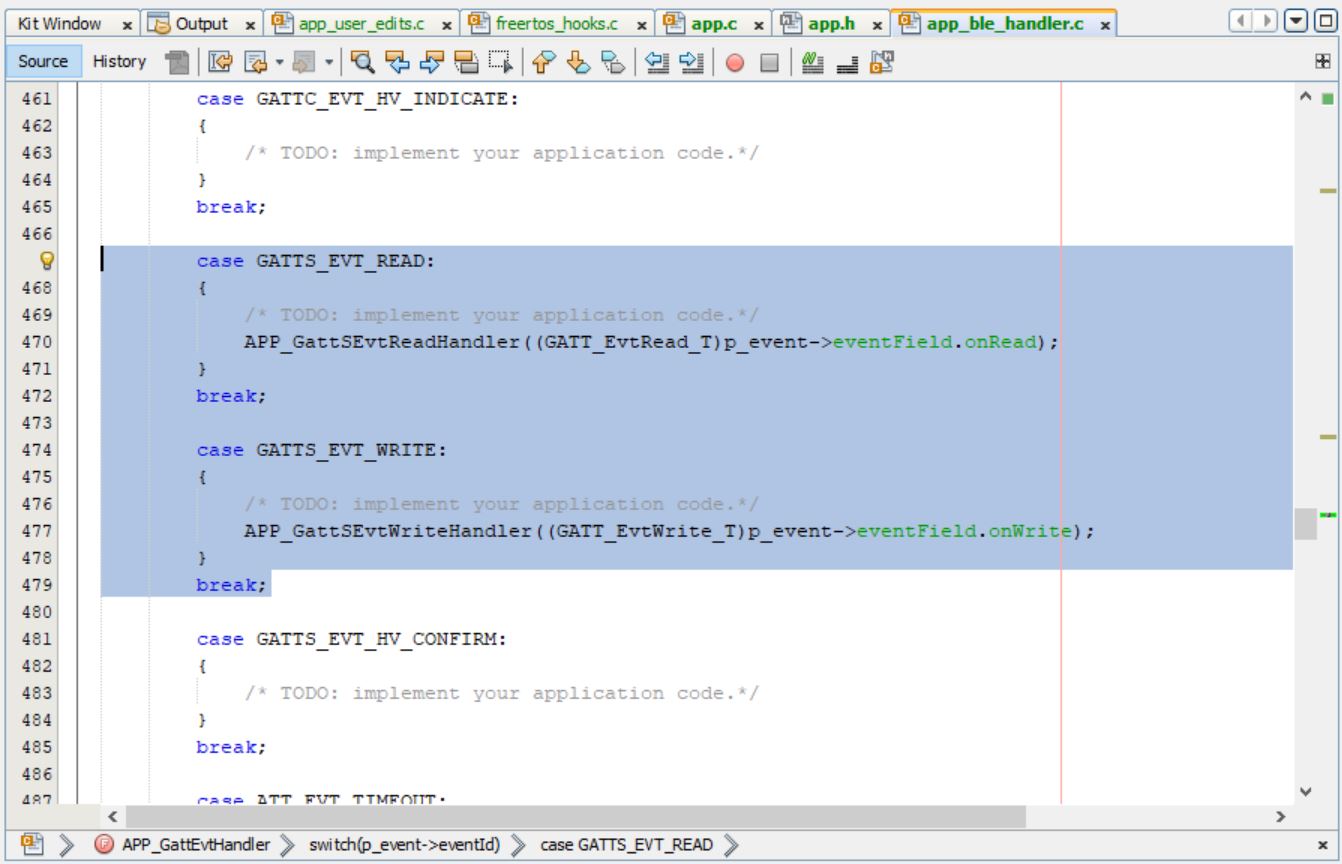
Figure 5-181. Project FilesAdd the required variables, functions and callback handlers for the GATT
read/write response in app_ble_handler.c along with the connect and
disconnect message information.
void APP_GattSEvtReadHandler(GATT_EvtRead_T p_event)
{

    uint8_t error = 0;
    uint16_t status;
    SYS_CONSOLE_PRINT("[BLE] GATT Read ATTR Handle 0x%X \r\n",p_event.attrHandle);

    if ((p_event.attrHandle <= BUTTON_LED_START_HDL) ||
        (p_event.attrHandle > BUTTON_LED_END_HDL))
    {
        /* Not BLE Custom Service characteristic. */
        return;
    }

        switch(p_event.attrHandle)
        {
            case BUTTON_LED_HDL_CHAR_0:                            /**< Handle of characteristic 0. */
            case BUTTON_LED_HDL_CCCD_0:                            /**< Handle of characteristic 0 CCCD . */
            case BUTTON_LED_HDL_CHAR_1:                            /**< Handle of characteristic 1. */
            case BUTTON_LED_HDL_CHARVAL_1:                         /**< Handle of characteristic 1 value. */
                error = ATT_ERRCODE_APPLICATION_ERROR;
                break;
            case BUTTON_LED_HDL_CHARVAL_0:                         /**< Handle of characteristic 0 value. */
//                SYS_CONSOLE_PRINT(" ATTR Handle Read 0x%X \r\n",p_event.attrHandle);
                break;
        }

    if ((p_event.readType == ATT_READ_REQ)
    || (p_event.readType == ATT_READ_BLOB_REQ))
    {
        if (!error)
        {
            sp_trsReadRespParams = (GATTS_SendReadRespParams_T *)OSAL_Malloc(sizeof(GATTS_SendReadRespParams_T));
            if (sp_trsReadRespParams == NULL)
            {
                return;
            }
            trsRespErrConnHandle = p_event.connHandle;
            sp_trsReadRespParams->responseType = ATT_READ_RSP;
            sp_trsReadRespParams->attrLength = 0x01;
            sp_trsReadRespParams->attrValue[0]= bleCSdata.rgbOnOffStatus;
//            sp_trsReadRespParams->attrLength = 0x03;
//            sp_trsReadRespParams->attrValue[0]= bleCSdata.RGB_LED.Red;
//            sp_trsReadRespParams->attrValue[1]= bleCSdata.RGB_LED.Green;
//            sp_trsReadRespParams->attrValue[2]= bleCSdata.RGB_LED.Blue;
            status = GATTS_SendReadResponse(p_event.connHandle, sp_trsReadRespParams);
            if (status == MBA_RES_SUCCESS)
            {
                OSAL_Free(sp_trsReadRespParams);
                sp_trsReadRespParams = NULL;
            }
        }
        else
        {
            sp_trsErrParams = (GATTS_SendErrRespParams_T *)OSAL_Malloc(sizeof(GATTS_SendErrRespParams_T));
            if (sp_trsErrParams == NULL)
            {
                return;
            }
            trsRespErrConnHandle = p_event.connHandle;
            sp_trsErrParams->reqOpcode = p_event.readType;
            sp_trsErrParams->attrHandle = p_event.attrHandle;
            sp_trsErrParams->errorCode = error;
            status = GATTS_SendErrorResponse(p_event.connHandle, sp_trsErrParams);
            if (status == MBA_RES_SUCCESS)
            {
                OSAL_Free(sp_trsErrParams);
                sp_trsErrParams = NULL;
            }
        }
    }
}
void APP_GattSEvtWriteHandler(GATT_EvtWrite_T p_event)
{
    uint8_t error = 0;
    uint16_t status;
    SYS_CONSOLE_PRINT("[BLE] GATT Write ATTR Handle 0x%X \r\n",p_event.attrHandle);

    if ((p_event.attrHandle <= BUTTON_LED_START_HDL) ||
        (p_event.attrHandle > BUTTON_LED_END_HDL))
    {
        /* Not BLE Custom Service characteristic. */
        error = ATT_ERRCODE_INVALID_HANDLE;
        return;
    }

        switch(p_event.attrHandle)
        {
            case BUTTON_LED_HDL_CHAR_0:                            /**< Handle of characteristic 0. */
            case BUTTON_LED_HDL_CHARVAL_0:                         /**< Handle of characteristic 0 value. */
            case BUTTON_LED_HDL_CCCD_0:                            /**< Handle of characteristic 0 CCCD . */
            case BUTTON_LED_HDL_CHAR_1:                            /**< Handle of characteristic 1. */
                error = ATT_ERRCODE_APPLICATION_ERROR;
                break;
            case BUTTON_LED_HDL_CHARVAL_1:                         /**< Handle of characteristic 1 value. */
//                SYS_CONSOLE_PRINT(" ATTR Handle %d \r\n",p_event.attrHandle);
                APP_CustomService_RGB_Callback(p_event.writeValue);
                break;
        }

    if ((p_event.writeType == ATT_WRITE_REQ)
    || (p_event.writeType == ATT_PREPARE_WRITE_REQ))
    {
        if (!error)
        {
            sp_trsRespParams = (GATTS_SendWriteRespParams_T *)OSAL_Malloc(sizeof(GATTS_SendWriteRespParams_T));
            if (sp_trsRespParams == NULL)
            {
                return;
            }
            trsRespErrConnHandle = p_event.connHandle;
            sp_trsRespParams->responseType = ATT_WRITE_RSP;
            status = GATTS_SendWriteResponse(p_event.connHandle, sp_trsRespParams);
            if (status == MBA_RES_SUCCESS)
            {
                OSAL_Free(sp_trsRespParams);
                sp_trsRespParams = NULL;
            }
        }
        else
        {
            sp_trsErrParams = (GATTS_SendErrRespParams_T *)OSAL_Malloc(sizeof(GATTS_SendErrRespParams_T));
            if (sp_trsErrParams == NULL)
            {
                return;
            }
            trsRespErrConnHandle = p_event.connHandle;
            sp_trsErrParams->reqOpcode = p_event.writeType;
            sp_trsErrParams->attrHandle = p_event.attrHandle;
            sp_trsErrParams->errorCode = error;
            status = GATTS_SendErrorResponse(p_event.connHandle, sp_trsErrParams);
            if (status == MBA_RES_SUCCESS)
            {
                OSAL_Free(sp_trsErrParams);
                sp_trsErrParams = NULL;
            }
        }
    }
}
Note: Manual read/write responses,
permissions and other standard events like GAP and GATT can be executed in
app_ble_handler.c.
Note: Users can explore more BLE Advertisement functionalities
using the BLE Stack APIs. For more information, refer to BLE Stack in
Reference Documentation from Related Links.





 Note: If users cannot see the Configuration Options panel in the right-hand side of the MPLAB X IDE, it might be minimized. Hover the cursor towards the Configuration Options side tab and click the “dot” on the top right-hand corner to pin it (see the following figure).