
4.1.2.2 Bluetooth®LE Extended Advertisements
This section helps users to enable extended advertisements (1M, 2M, Coded PHY - 125 kbps) on the PIC32WM-BW1 Curiosity Board. This example enables users to send application data using extended advertisements. Extended Advertisements are used to send more data than what legacy advertisements allow and also has long range functionality when using Coded PHY. Use of Extended Advertisements also enables the users to select between different PHYs (1M, 2M and LE Coded) which are not permitted when using legacy advertisements. In BLE, a peripheral or broadcaster always starts with advertisements. Advertisement packets enable a central or observer to discover a peripheral or broadcaster.
Extended Advertisements implemented in this example can be used for sending more data (2M PHY) or do range tests (Coded PHY). For testing these features, a scanner application can be used which is configured to scan the extended advertisement packets.
To save power, low power mode can be enabled. If conditions are met, then the PIC32WM-BW1 will enter into Sleep mode. The following sections discuss it in detail.
Users can choose to just run the precompiled application example hex file provided on the PIC32WM-BW1 Curiosity Board and experience the demo or can go through the steps involved in developing this application from scratch.
Hardware Requirement
| Tool | Qty |
|---|---|
| PIC32WM-BW1 Curiosity Board | 2 |
| USB Type-C™ cable | 2 |
Software Requirement
- To install Tera Term tool, refer to the Tera Term web page listed in the Reference Documentation from Related Links.
Programming the Precompiled Hex File or Application Example
Programming the hex file using MPLABX IPE
-
Import and program the Precompiled Hex file: “
<Harmony Content Path>\wireless_apps_pic32_bw1”\apps\ble\peripheral\peripheral_ext_adv\hex - For detailed steps, refer to
Programming a Device in MPLAB® IPE in
Reference Documentation from Related Links.Note: Ensure to choose the correct Device and Tool information.
Programming the application using MPLABX IDE
- Follow steps mentioned in the Running a Precompiled Application Example section from Related Links.
-
Open and program the Application: “
<Harmony Content Path>\wireless_apps_pic32_bw1\apps\ble\peripheral\peripheral_ext_adv\firmware\ext_adv.X”
For more details on finding the Harmony Content Path, refer to Installing the MCC Plugin section from Related Links.
Testing
- Users must use two PIC32WM-BW1 boards configured as BLE Extended Advertiser and BLE Extended Advertisement Scanner.
- Program PIC32WM-BW1 Curiosity Board 1 with BLE Extended Advertisement and
open Tera Term configured with following settings through Terminal
Settings:
- Baud rate/ Speed – 115200
- Parity – None
- Data bits – 8
- Stop bits – 1
- Flow Control – None
- Reset the board. Upon Reset, “Ext Adv Enabled” will be displayed. This indicates successful start of Coded PHY Advertisements and are configured to be sent every 2 seconds.
- Program PIC32WM-BW1 Curiosity Board 2 with BLE Scanning Extended
Advertisement application and open Tera Term configured with following
settings through Terminal Settings:
- Baud rate/ Speed – 115200
- Parity – None
- Data bits – 8
- Stop bits – 1
- Flow Control – None
- Reset the board. Upon reset, “ExtAdv Scan Enable Success” displays on the
terminal. Application data (“Microchip”) is transmitted in Auxiliary packets
(
ADV_AUX_IND) andADV_EXT_INDcarries the Auxiliary Packet Information (ADV_AUX_IND) for the scanner to collect the data. - “Microchip” is displayed on
the screen as soon as PIC32WM-BW1 Module performs
an extended advertisement scan.
Figure 4-58. Extended Advertisement Enabled 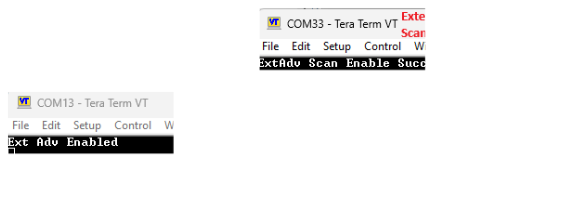
Project Graph
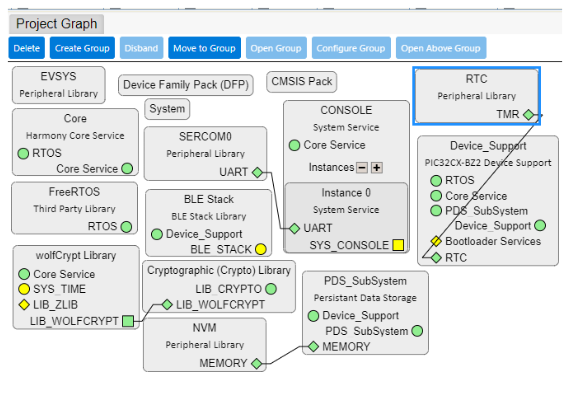
This section explains how MCC Project graph should look like and component configurations.
- Verify if the Project Graph window has all the expected configuration as illustrated in the following figure.
MCC Component Configuration
- Enable low power mode by selecting Low Power Enable in BLE Stack
configuration. This must add RTC module component
Figure 4-60. BLE Stack Configuration 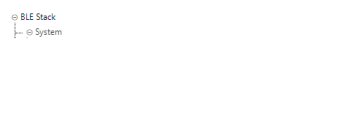
- Then click on Windows>MPLAB Code Configurator v5>Harmony>Clock
Configuration
Figure 4-61. Clock Configuration 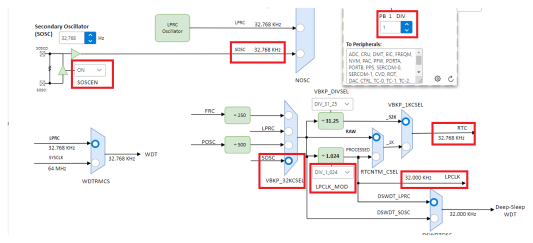
Verify Advertisement Configuration
-
Select the BLE Stack component in the Project Graph and configure the following in the Configuration Options panel
Figure 4-62. BLE Stack Configuration 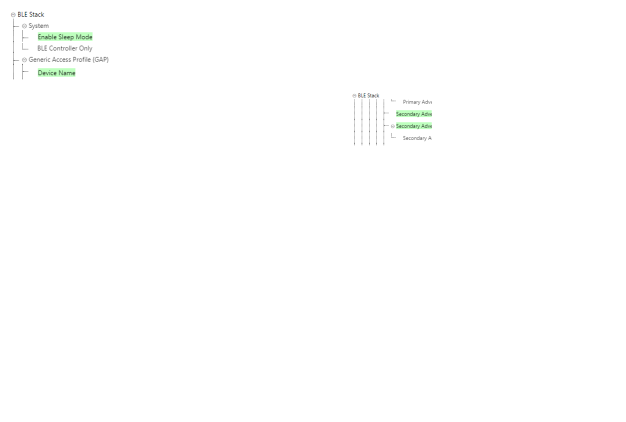
Configuring UART
For more details on UART Configuration, refer to UART Hello World section from Related Links.
Generating a Code
For more details on code generation, refer to MPLAB Code Configurator (MCC) Code Generation from Related Links.
Files and Routines Automatically Generated by the MCC
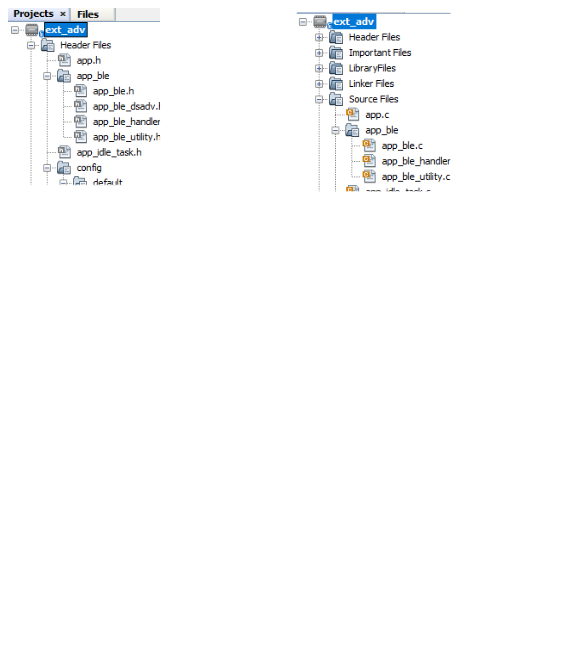
initialization.c
The BLE stack initialization routine executed during Application Initialization can be found in project files. This initialization routine is automatically generated by the MCC. This call initializes and configures the GAP, GATT, SMP, L2CAP and BLE middleware layers.
Auto generated Advertisement Data Format
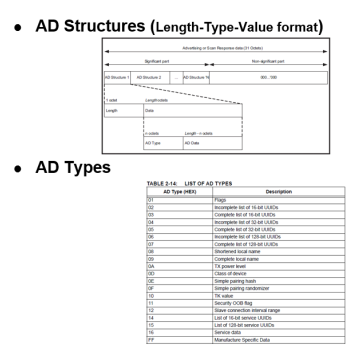
| Source Files | Usage |
|---|---|
app.c | Application State machine, includes calls for Initialization of all BLE stack (GAP,GATT, SMP, L2CAP) related component configurations |
app_ble\app_ble.c | Source Code for the BLE stack related component
configurations, code related to function calls from
app.c |
app_ble\app_ble_handler.c | All GAP, GATT, SMP and L2CAP Event handlers |
app_user_edits.c | User Code Change instruction |
app.c is auto generated and has a state
machine-based application code sample. Users can use this template to develop their
own application.Header Files
-
ble_gap.hcontains BLE GAP functions and is automatically included inapp.c
Function Calls
- MCC generates and adds the
code to initialize the BLE Stack GAP, GATT, SMP and L2CAP in
APP_BleStackInit() APP_BleStackInit()is the API that will be called inside the Applications Initial StateAPP_STATE_INITinapp.cRTC_Timer32Start()defined inplib_rtc_timer.ccalls to start the RTC Timer clock to facilitate low power mode
User Application Development
-
Include
- User Action is required
definitions.hmust be included in all the files where UART will be used to print debug informationNote:definitions.his not specific to just UART but instead must be included in all the application source files where any peripheral functionality will be exercised
-
Starting Extended Advertisement in
app.c// Enable Ext Adv BLE_GAP_ExtAdvEnableParams_T extAdvEnableParam; extAdvEnableParam.advHandle = 0x01; // Adv Set - 0x01 extAdvEnableParam.duration = 0; extAdvEnableParam.maxExtAdvEvts = 0; // Enable Cont ADV ret = BLE_GAP_SetExtAdvEnable(true, 0x01, &extAdvEnableParam); if (ret == MBA_RES_SUCCESS) SERCOM0_USART_Write((uint8_t *)"Ext Adv Enabled\r\n", 17);
This API is called in the applications initial state
APP_STATE_INITinapp.c. Parameters for the extended advertisement must be chosen. Below is an example.Figure 4-65. app.c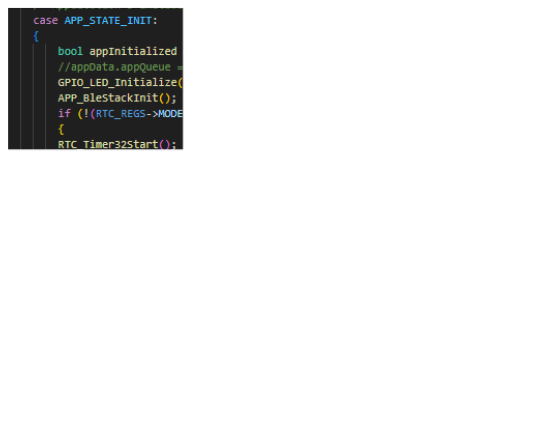
-
GPIO_LED_Initialize()inapp.cuint16_t ret; void GPIO_LED_Initialize ( void ) { CFG_REGS->CFG_CFGCON0CLR = CFG_CFGCON0_JTAGEN_Msk; /* PORTA Initialization */ /* PORTB Initialization */ /* PPS Input Remapping */ /* PPS Output Remapping */ /* PA */ GPIOA_REGS->GPIO_TRISSET = 0xFFFF; //Set all pins as input /* PB */ GPIOB_REGS->GPIO_ANSELSET = 0x0040; //PB6 ANSEL for Temp sensor GPIOB_REGS->GPIO_TRISSET = 0xFFFF; //Set all pins as input GPIOB_REGS->GPIO_CNPUSET = 0xF886; //Pull up: PRB 1, 2, 7, 11, 12 , 13 ,14 , 15 GPIOB_REGS->GPIO_CNPDSET = 0x0029; //Pull down RB0,3,5 for LED }