
1.1.1 Create / Configure FlashROM
The FlashROM can be partitioned into regions and each region can be used for a specific purpose, like serial number storage, version number saving, etc.
Use the FlashROM core generator (in SmartGen) to create a region within a page, modify the region, and assign properties to that region.
The FlashROM user interface includes the Configuration Grid, a list of existing regions, and the Properties field. The Properties field includes region-specific information. You can assign values to the following properties:
- Static Fixed Data - Enables you to fix the data so that it cannot be changed during programming time. This option is useful when the you have fixed data stored in this region that is required for the operation of the design in the FPGA. Key storage is one example.
- Modifiable Fixed Data - Select this option when the data in a particular region is expected to be static data (such as a version number, which remains the same for a long duration, but could conceivably change in the future). This option enables you to identify this region so that you need not come back and change the value every time you enter new data.
- Read from File - This provides the customer the full flexibility of FlashROM usage. If you have a customized algorithm for generating the FlashROM data, you can specify this setting. You can then generate a file with data for as many devices as you wish to program and load that into FlashPoint programming file generation software to get programming files that include all the data.
- Auto Increment/Decrement - This scenario is useful when you specify the contents of FlashROM for a large number of devices in a serial manner. You can specify the step value for the serial number and a maximum value for inventory control. During programming file generation, the actual number of devices to be programmed is specified and a start value is input to the software. Software generates the files to complete serial programming of the FlashROM.
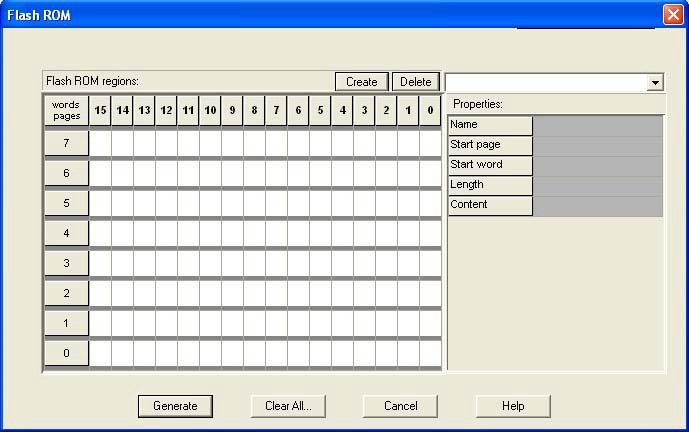
To create a new FlashROM, perform the following steps:
- In SmartGen, choose Flash ROM in the Function tab. Double-click the FlashROM core in the Variety View window to start the core generator.
- Click and drag the mouse to select words, then
click the Create button. The core generator displays the new
region properties in the Properties grid.
You may also right-click a word and choose Create from the shortcut menu, or select a word and press the Insert key on your keyboard. You can copy and paste regions in FlashROM. In order to do so, right-click a word and choose Copy, then click an empty word, right-click, and choose Paste. If the region is not copied, the page does not have enough room. Try another page with more room.
- Click the Properties grid to modify a regions properties. Start page, Start word, and Length are read-only. The data you enter is verified and stored in the FlashROM as soon as you leave the Properties grid and select another FlashROM region.
- Click Generate to generate a Netlist (you
must specify EDIF, VHDL, or Verilog), SmartGen GEN file, UFC, and MEM file. The
Generate button opens the Save As dialog. Specify a name,
location, and file type, and click Save.
After you generate the FlashROM netlist, you can instantiate the core similar to other SmartGen cores in your design.
To delete a FlashROM Region, perform the following steps:
- Click to select a region in the Regions window.
- Click the Delete button in the core generator, press the Delete key on the keyboard, or right-click and choose Delete from the shortcut menu.
- Click OK.
For information on how to program your FlashROM-enabled devices, see the FlashPoint User Guide.