
2.4 Target Device Selector
Click the Target button in the footer to open the target device menu.
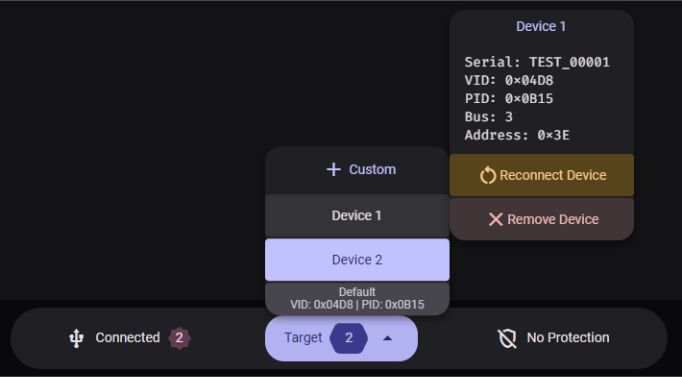
Custom—Opens the Add Custom Device Dialog to search for devices using a custom VID and PID
Tooltip: “Search for devices using a custom VID and PID.”
Connected device entries—Each detected device is listed by name. Selecting one sets it as the active target for read and write operations.
Hovering over a device entry reveals a submenu that shows:
- Device serial number, VID, PID, bus, and address (displayed in monospaced font)
- Reconnect Device—Issues a soft reset that re-establishes the connection to the device
- Remove Device—Removes the device from the list
Default VID/PID row—Displays the currently configured default VID and PID
Tooltip: “Click to change.”—Clicking it navigates to the Settings tab and highlights the Device Connection Settings section.