
13.16.1 Grid Overview
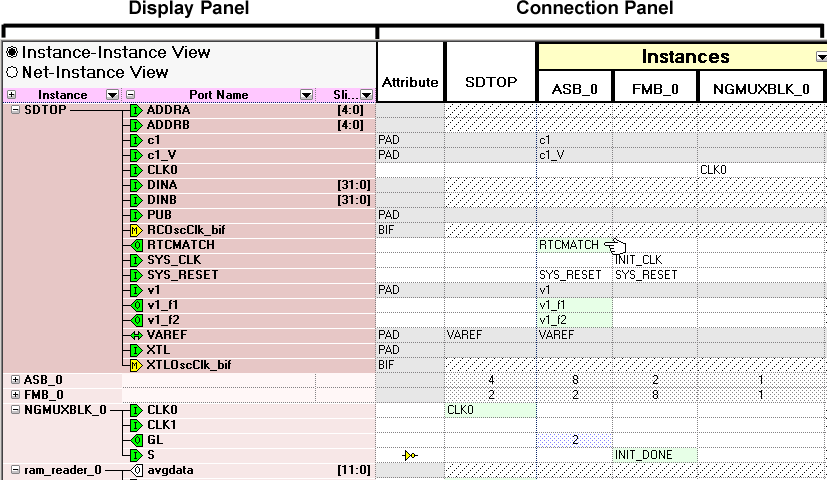
The Grid (see image below) provides a mechanism for making manual connections between building blocks in your design. The grid displays your design in a spreadsheet for sorting and filtering, enabling you to quickly access and manipulate any subset of your design.
The Grid shows block instances vertically and horizontally on the spreadsheet, such that the port rows on the spreadsheet intersect with port columns. Each intersection of rows and ports on the spreadsheet provides a connection opportunity.
The grid is divided into two panels, the Display panel and the Connection panel.
The Grid offers two different views: the Instance-Instance view and the Net-Instance view. The behavior of the two panels is the same in both views.
The default display of the Grid shows connections between all the instances in your design in an Instance-Instance view.
Actel recommends that you work with only a subset of the instances in the current design when making manual connections. This greatly reduces the information displayed in the Grid view and makes it easier to create manual connections.
Click the Maximize Work Area button  to hide the other windows and show more of the Grid.
To create new Grids with just a subset of instances, select the instances between which you are making connections on the Canvas, then right-click and choose Edit Connections. A new Grid will be displayed, with only those instances and the top-level. When you are done making connections, right-click the grid view name tab and close the subset view.
To further simplify the data search in the grid and to make connections efficiently, use Filtering, Hierarchical sort in the instance-instance view, and the find unconnected ports (Hide All Connected Ports) features.
To switch to Net-Instance view, click the Net-Instance view radio button.
To reset to the default view, from the Grid menu, choose Reset Instance [Net] View to Default.