
13.21.11 Exposing Bus Interface Pins
Pins that are contained as part of a bus interface will automatically be filtered out of the display. These ports are considered to be connected and used as part of a bus interface.
However, there are situations where you may wish to use the ports that are part of the bus interface as an individual port, in this situation you can choose to expose the pin from the bus interface.
To expose pins in a Bus Interface:
- Select a bus interface port, right-click, and
choose Expose Bus Interface Pins. The Expose Bus Interface Pin dialog box appears (as
shown below).
Figure 13-62. Expose Driver Pin Dialog Box 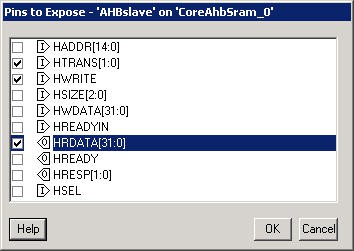
- Click the checkbox associated with the driver pin you want to expose. Once the port is exposed it appears in the Grid and is available for individual connection.
Note: If you have already connected the bus interface pin, then you will not be able to expose
the non-driver pins. They will be shown grayed out in the dialog. This is to prevent the pin
from being driven by two different sources.
To un-expose a driver pin, right-click the exposed port and choose Hide Bus Interface Pin.