15.10.5 Manually Assigning Technologies to I/O Banks
The procedure for manually assigning technologies to I/O banks differs depending on whether you are designing for IGLOO, Fusion, ProASIC3, or Axcelerator devices.
To assign technologies to I/O banks in IGLOOe, Fusion, ProASIC3L, ProASIC3E, and Axcelerator devices:
- Select an I/O bank in either ChipPlanner or PinEditor.
- From the Edit menu, choose I/O Bank Settings.
- In the I/O Bank Settings dialog box,
select the technologies, and click Apply.
Selecting a standard selects all compatible standards and grays out incompatible ones. For example, selecting LVTTL also selects PCI, PCIX, and LVPECL, since they all have the same VCCI. Further, selecting GTLP (3.3 V) disables SSTL3 as an option because the VREFs of the two are not the same. Once you click Apply, the I/O bank is assigned the selected standards. Any I/O of the selected types can now be assigned to that I/O bank. Any previously assigned I/Os in the bank that are no longer compatible with the standards applied are unassigned.
- Click More Attributes to set the low-power mode and input delay. (These attributes are supported in Axcelerator devices only.)
- Assign I/O standards to other banks by selecting the banks from the list and assigning standards. Any banks not assigned I/O standards use the default standard selected in the Device Selection Wizard.
- Leave the Use default pins for
VREFs option selected to set default VREF pins and unset non-default VREF
pins. If you unselect this option when setting a new VREF technology, no VREF pins
are set. If you unselect this option when default VREF pins are already set, it
unsets them.
If the Use default pins for VREFs option is selected when you click OK or Apply, the software: 1) determines if setting default VREF pins causes any I/O macros to become unassigned, and if so, displays a warning message enabling you to cancel this operation, 2) determines if unsetting non-default VREF pins causes any I/O macros to become unassigned, and if so, displays a warning message enabling you to cancel this operation, and 3) sets default VREF pins and unsets non-default VREF pins.
- Click OK. Using PinEditor, proceed to
assign I/Os with the same standards to the appropriate banks.
Figure 15-52. I/O Bank Settings Dialog Box for IGLOOe, Fusion, ProASIC3L, ProASIC3E, and Axcelerator Devices 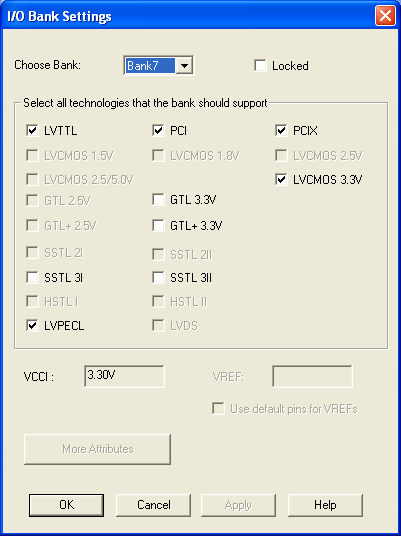
If VREF pins can be assigned, you must assign at least one VREF pin before running Layout. See "Assigning VREF Pins" in this guide for more information.
To set the low-power mode and input delay (for Axcelerator devices only):
- Click More Attributes in the I/O Bank Settings dialog box.
- Drag the slider bar to the desired delay. The delay is bank specific.
- Click View All Delays to see all the delay values (Best, Worst, Typical, Rise-Rise, Fall-Fall) for the input delay selected. You must select a technology to see the input delays.
- Click OK.
Figure 15-53. Other I/O Bank Attributes Dialog Box 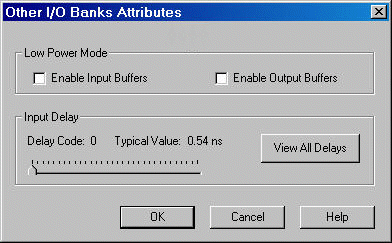
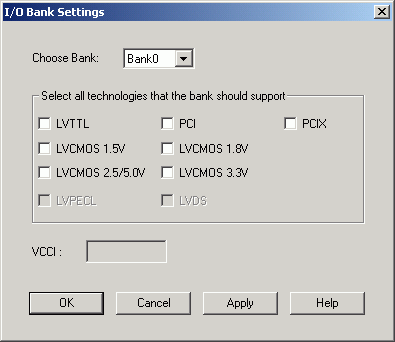
To assign technologies to I/O banks in ProASIC3 and IGLOO devices:
- Select an I/O bank in either ChipPlanner or PinEditor.
- From the Edit menu, choose I/O Bank Settings.
- In the I/O Bank Settings dialog box,
select the technologies, and click Apply.
Selecting a standard selects all compatible standards and grays out incompatible ones. For example, selecting LVTTL also selects PCI, PCIX, and LVPECL, since they all have the same VCCI. Note that LVDS is available only for banks 1 and 3. Once you click Apply, the I/O bank is assigned the selected standards. Any I/O of the selected types can now be assigned to that I/O bank. Any previously assigned I/Os in the bank that are no longer compatible with the standards applied are unassigned.
- Assign I/O standards to other banks by selecting the banks from the list and assigning standards. Any banks not assigned I/O standards use the default standard selected in the Device Selection Wizard.
- Click OK. Using PinEditor, proceed to
assign I/Os with the same standards to the appropriate banks.
Figure 15-54. I/O Bank Settings Dialog Box for IGLOO and ProASIC3 Devices