
13.32.13 Exporting Tcl Scripts
You can write out a Tcl script file that contains the commands executed in the current session. You can then use this exported Tcl script to re-execute the same commands interactively or in batch. You can also use this exported script to become more familiar with Tcl syntax.
You can export Tcl scripts from the Project Manager or Designer; the actions are the same.
- From the File menu, choose Export>Script Files. The Export Script Files dialog box appears.
- From the Save in drop-down menu, navigate to the folder in which you want to save the script files.
- Type a filename for this Tcl script file.
- Click Save. The Script Export
Options dialog box appears
Figure 13-134. Script Export Options 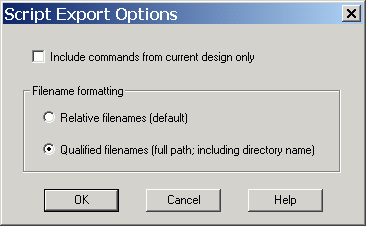
- Check the Include Commands from Current Design [Project] Only checkbox. This option applies only if you opened more than one design or project in your current session. If so, and you do not check this box, Project Manager/Designer exports all commands from your current session.
- Select the radio button for the
appropriate filename formatting. To export filenames relative to the current working
directory, select Relative filenames (default) formatting. To export filenames that
include a fully specified path, select Qualified filenames (full path; including
directory name) formatting.
Choose Relative filenames if you do not intend to move the Tcl script from the saved location, or Qualified filenames if you plan to move the Tcl script to another directory or machine.
- Click OK.
- When exporting Tcl scripts, Project Manager and Designer always encloses filenames in curly braces to ensure portability.
- Project Manager and Designer software do not write out any Tcl variables or flow-control statements to the exported Tcl file, even if you had executed the design commands using your own Tcl script. The exported Tcl file only contains the tool commands and their accompanying arguments.
extended_run_gui - Designer Only
This script is used to reproduce the GUI behavior and is more suited for running through Designer or inside another Designer TCL script.
The only difference from the extended_run_shell Tcl script is that the
extended_run_gui.tcl script does not need the – adb argument and
assumes that the design is already saved and open.
extended_run_gui.tcl [-n numPasses] [-starting_seed_index numIndex] [-save_all] [-
compare_criteria value] [-c clockName] [-analysis value] [-slack_criteria value] [-
timing_driven|-standard] [-stop_on_success] [-run_placer value] [-place_incremental value]
 [-route_incremental value] [-effort_level numLevel] [-timing_weight numWeight]
[-placer_high_effort value] [-mindel_repair value] [-power_driven value]- Open an
*.adbfile in Designer. - From the File menu, select
Execute Script. This opens the Execute Script dialog box.
Figure 13-135. Execute Script Dialog Box 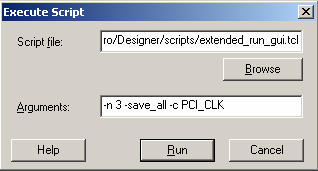
- Find the
extended_run-gui.tclscript under ACTEL_SW_DIR/scripts and then copy all the parameters in to the arguments section. - Click Run.
- Save the design in compiled
state.
… compile
save_design “my.adb”
- Override the original argument list in
the caller script and then source the
extended_run_gui.tclscript.set save_argv0 $::argv0
set save_argv $::argv
set ACTEL_SW_DIR $env(ACTEL_SW_DIR)
set ::argv0 “$ACTEL_SW_DIR/scripts/extended_run_gui.tcl”
set ::argv [list -n 3 -save_all -c PCI_CLK]
set ::argc [llength $::argv]
source $::argv0
set ::argv0 $save_argv0
set ::argv $save_argv
set ::argc [llength $::argv]