
13.32.11 Running Tcl Scripts from the GUI
Instead of running scripts from the command line, you can use Execute Script dialog box to run a script in the Project Manager or Designer.
To run a Tcl script from the GUI:
- In Project Manager, from the Project
menu choose Execute Script.In Designer, from the File menu choose Execute Script. This opens the Execute Script dialog box (as shown in the figure below).
Figure 13-132. Execute Script Dialog Box 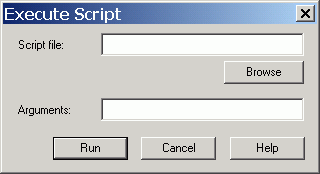
- Click Browse to display the Open dialog box, in which you can navigate to the folder containing the script file to open. When you click Open, Designer enters the full path and script filename into the Execute Script dialog box for you.
- In the Arguments edit box, enter the
arguments to pass to your Tcl script as shown in the following sample Execute Script
dialog box. Separate each argument by a space character. For information about accessing
arguments passed to a Tcl script, see "Running Scripts from the command line."
Figure 13-133. Execute Script Dialog Box Example 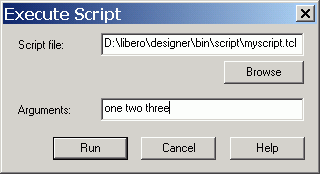
- Click Run.
Specify your arguments in the Execute Script dialog box. To get those argument values from your Tcl script, use the following:
puts "Script name: $argv0"
puts "Number of arguments: $argc"
set i 0
foreach arg $argv {
puts "Arg $i : $arg"
incr i
}