
5.8.2 Hierarchy in the Design Explorer
The Hierarchy tab displays a hierarchical representation of the design based on the source files in the project. The Project Manager continuously analyzes and updates source files and updates the hierarchy. The Hierarchy tab (see the figure below) displays the structure of the modules and components as they relate to each other.
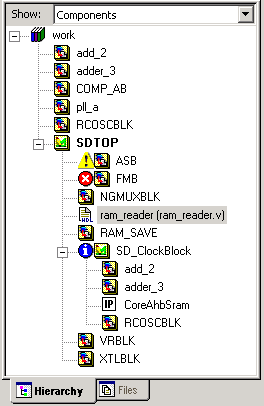
You can change the display mode of the Hierarchy by selecting Components or Modules from the Show drop-down list. The components view displays the entire design hierarchy; the modules view displays only schematic and HDL modules.
The file name (the file that defines the block) appears next to the block name in parentheses.
More information about the block can be found by right-clicking it and selecting Properties. The Block Properties dialog box displays block properties including, file path, created date, and last modified date.
All integrated source editors are linked with the Project Manager. If a source is modified and the modification changes the hierarchy of the design, the Design Hierarchy automatically updates to reflect the change.
If you want to update the design hierarchy, from the Edit menu, choose Refresh.
To open a component:
Double-click a component in the Hierarchy to open it. Depending on the block type and design state, several possible options are available from the right-click menus. You can instantiate a component from the hierarchy to a SmartDesign window.
Icons in the Hierarchy indicate the type of component and the state, as shown in the table below.
Icon | Description |
SmartDesign component |
Icon | Description |
| SmartDesign component with HDL netlist not generated |
| IP core was instantiated into SmartDesign but the HDL netlist has not been generated |
| Core |
| Error during core validation |
| Updated core available for download |
| HDL netlist |


