
6.3.6.3 Project Properties Configuration for Current/Running Firmware
By following the previous steps, the BLE OTA capability is added to the application project. The user categorizes this as Firmware in the Slot0 section. For more details, see Memory Management from Related Links. The user needs to add the metadata header and bootloader to this project to make it a working project with OTA capability to receive a new upgradable image over the Bluetooth® LE link.
MPLAB® X tools allow the user to configure and append the metadata
header to the application image. The required script and sample private key
(.pem) files are added to the project folder (.X)
when the user generates the OTA code using MCC.
.pem and .X)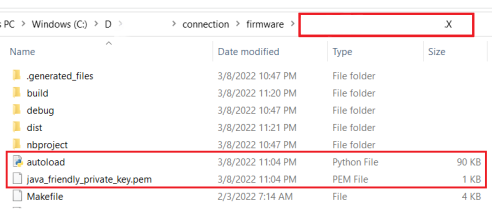
Attention: Before proceeding, close and reopen the OTA
application project in MPLAB® X IDE. The user must perform this
step to properly load the SignFirmware and OTA bin generation scripts into the project
environment.
The following are the steps to configure the project properties for enabling OTA firmware
upgrades.
- Right-click on the project in MPLAB® X and select
Properties.
Figure 6-79. Project Properties 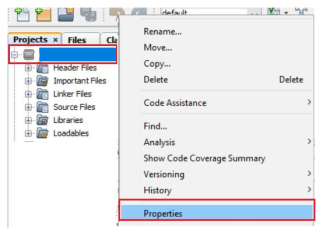
- The SignFirmware script adds a metadata header to your application image. For
more details, see BLE OTA DFU Image File Definition from Related Links.
The header contains parameters such as Firmware Revision, Authentication Method,
Manufacturer ID and Sequence Number.
Figure 6-80. SignFirmware Settings 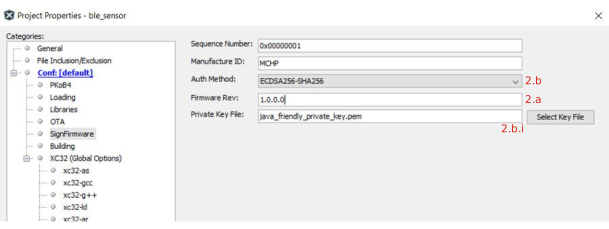
- In the “Firmware Rev:” field, set the firmware version of the currently running firmware. It must match the version in the Device Information Service (DIS). For more details, refer to Step 1 of Verifying Configurations from Related Links.
- From the “Auth Method:” drop-down list, choose one of the following
three authentication methods:
- Signature validation (ECDSA256-SHA256): This is the most
secure method and provides data integrity. The signature is
encrypted using an ECDSA private key. The user must program the
256-bit ECDSA public key into the device for signature
verification. The user can use tools like OpenSSL to
generate the key pair. For example, see Generate a JWT with ECDSA
keys. A sample private key is available in
the project folder (
.X). For more details, see Project Folder (.pemand.X) figure. The public key is used in the Bootloader project. - Hash validation (SHA-256): This method provides data integrity check with less security.
- No validation (None): This method provides no security and no integrity check.
Warning: Ensure to keep the sequence number as a non-zero value and not0xFFFFFFFF. This helps the bootloader distinguish between valid and invalid images. - Signature validation (ECDSA256-SHA256): This is the most
secure method and provides data integrity. The signature is
encrypted using an ECDSA private key. The user must program the
256-bit ECDSA public key into the device for signature
verification. The user can use tools like OpenSSL to
generate the key pair. For example, see Generate a JWT with ECDSA
keys. A sample private key is available in
the project folder (
- The standalone bootloader project
is available in the \bootloader folder of the application GitHub
repository. The bootloader code is available in the Boot Flash section. Add the
bootloader project (from either
bootloader_GPIOorbootloader_timerbased on requirement) as a loadable project to the OTA application project. When the user builds the OTA project, MPLAB® X generates a unified image containing:- Bootloader
- Metadata Header
- Firmware
Figure 6-81. Adding Loadable Project 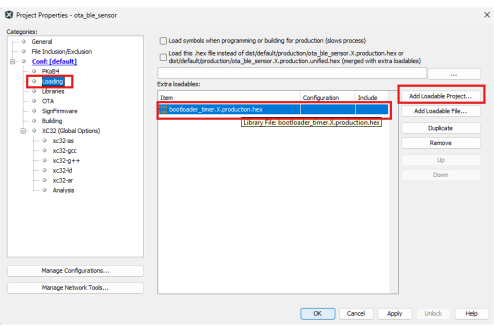
- After configuring the above settings, click Apply and then OK in
the project properties window.
- This saves the configuration and enables the OTA upgrade capability for the firmware.