15.6.5 Changing Colors
You can control which objects are visible in your design and what color they are.
To set display properties:
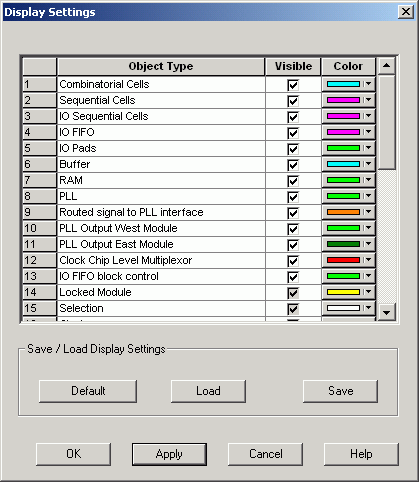
- From the View menu, choose DisplaySettings. The Display Settings dialog box displays a list of all the architectural features you can turn on and off in your tool.
- To make an object visible, select the Visible check box.
- To change the color used to display the object, click its color bar and select another color.
To save or open previously saved display settings, click:
- Save to save your display settings to a file.
- Load to open a saved display settings file.
- Default to load the default display settings.
- Click Apply to see your changes.
- Click OK to dismiss the
dialog box.
Figure 15-39. Display Settings Dialog Box in ChipPlanner