
13.2.5 Saving a Project with a New Name
Your project is saved when you close the project. To save the project with another name, use the Save Project As command.
To save the project with a new name:
- From the Project menu,
choose Save Project As. The Save Project As dialog box opens.
Figure 13-3. Save Project As Dialog Box 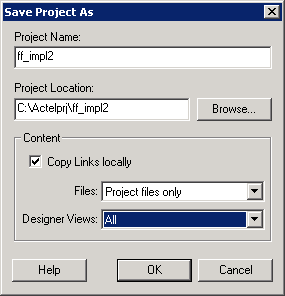
- Enter a new project name.
- Enter a new project location, or click Browse to specify a new location.
- Select the Copy Links locally checkbox if you have files linked to your current project and want to copy the links into your new project.
- Specify which Files (All, Project files only, or None) and Designer Views (All, Current view only, or None) to copy into the new project.
- Click OK.