
6.3.6.1.1 Pull-in MCC Components for OTA
The following steps detail the components and configurations required specifically for
OTA functionality.
- In the MCC “Device Resources” panel, locate and add the BLE OTA APP
SERVICE component.
- Click the + symbol (green) to add BLE OTA APP SERVICE to the project graph.
- When prompted, accept all dependencies or satisfiers by clicking
Yes. This ensures all required components are added
automatically.
Figure 6-43. Adding BLE OTA Application Service 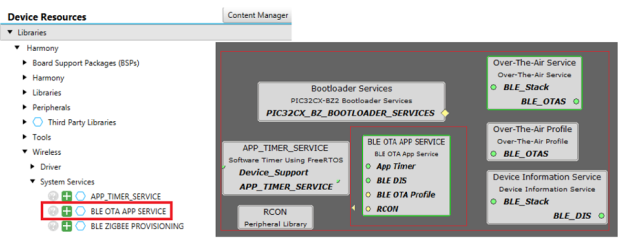
- The user can configure BLE OTA APP service according to the requirement:
- Enable Flash Image ID - This option checks for Image ID. If the user enables this option, the upgradable image must have the same ID as the current image for the OTA upgrade procedure to happen. Use the same value as in the BLE OTA DFU bin file generation configuration as shown below.
- Enable Image Decryption - If the upgradable image is secured (encrypted using AES128 CBC), the user must enable this configuration to decrypt the received image. The “AES Key” must match the key in the BLE OTA DFU bin file generation configuration as shown below.
Figure 6-44. Configuring BLE OTA APP Service 
- When image decryption is enabled, accept any additional crypto component
dependencies.
- Check Enable Image Decryption.
- When prompted, accept all dependencies or satisfiers by clicking Yes. This ensures all required components are added automatically.
Figure 6-45. Cryptographic (Crypto) Library Confirmation 
- In the Configuration Options tab, the user must verify the following:
- Navigate to “wolfCrypt Library”, under “Symmetrical Ciphers”, check Support AES?.
- Navigate to “Support AES”, check Support CBC Mode?.
Figure 6-46. Enabling Support CBC Mode 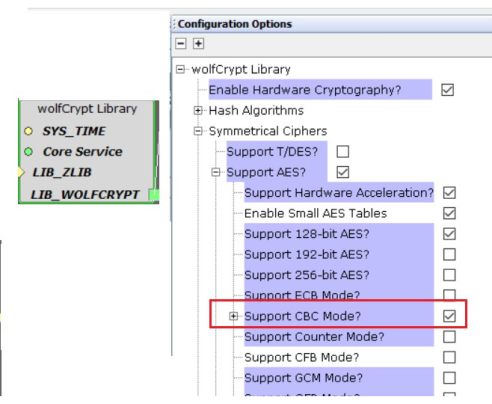
- Navigate to “System”, check AES Clock Enable.
Figure 6-47. AES Clock Enable 