
1.9 Overview and Configuration Summary
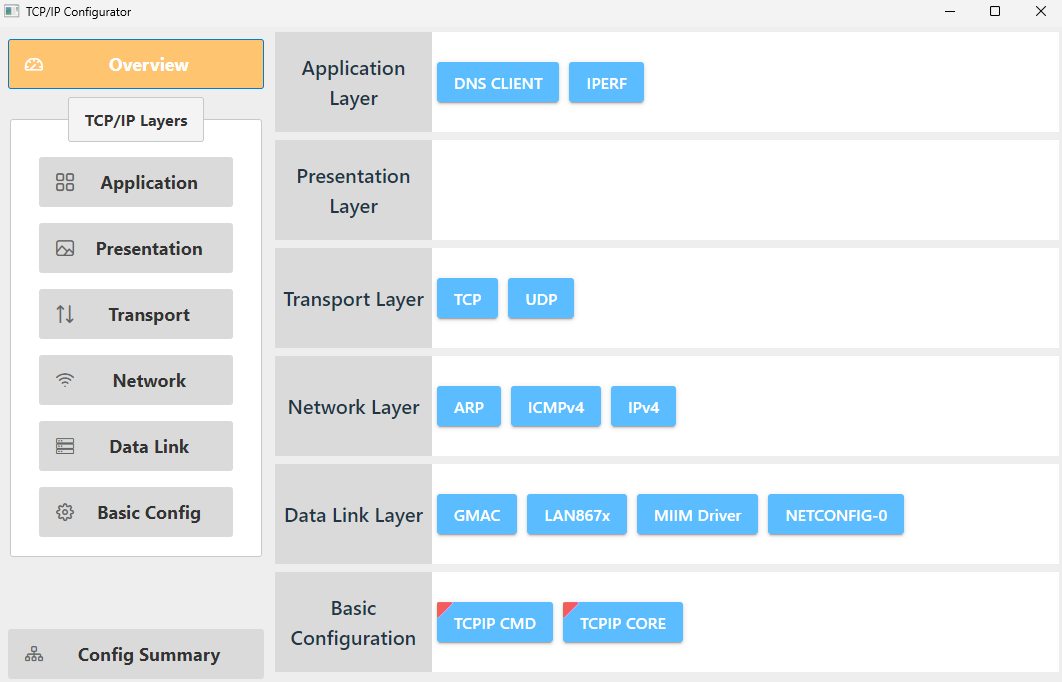
- In the TCP/IP Configuration window,
click the Overview button to view all added components.
- Click the Config Summary
button located at the lower left.
- In the “TCP/IP Modules” tab,
check if all required components have been added and verify their dependency
statuses.
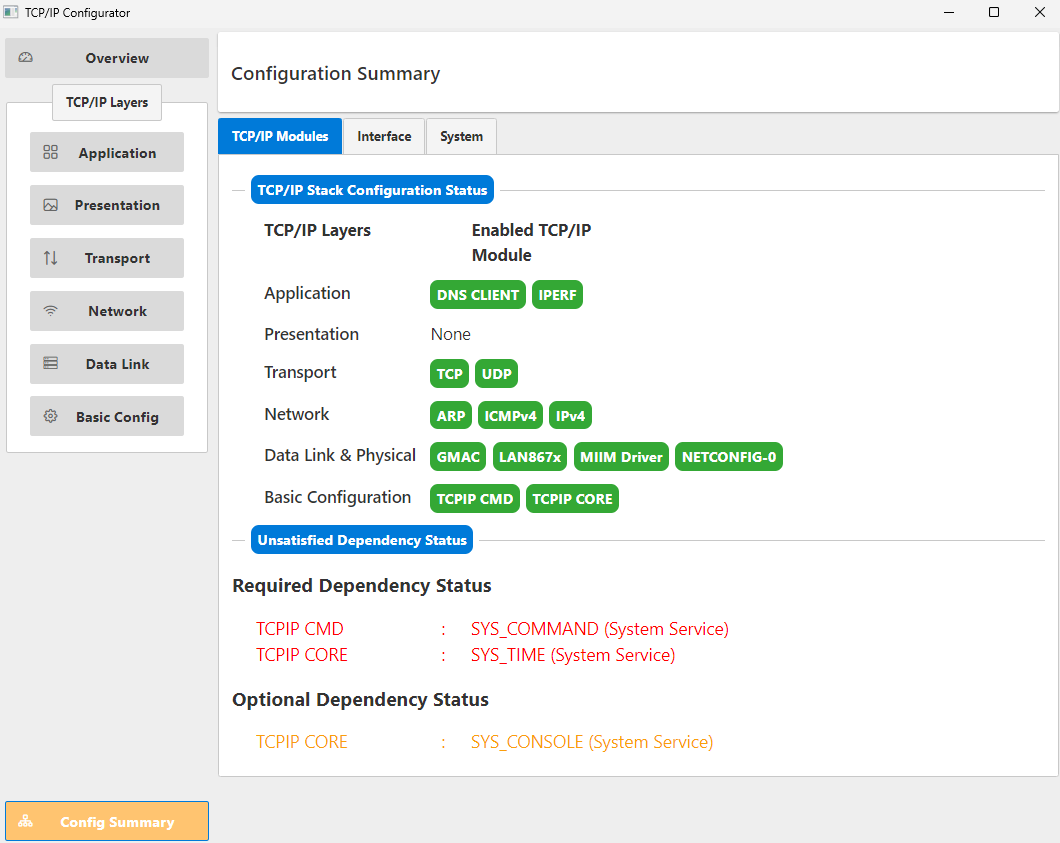 Tip: The configuration of unsatisfied dependencies is described in section Dependency Configuration.
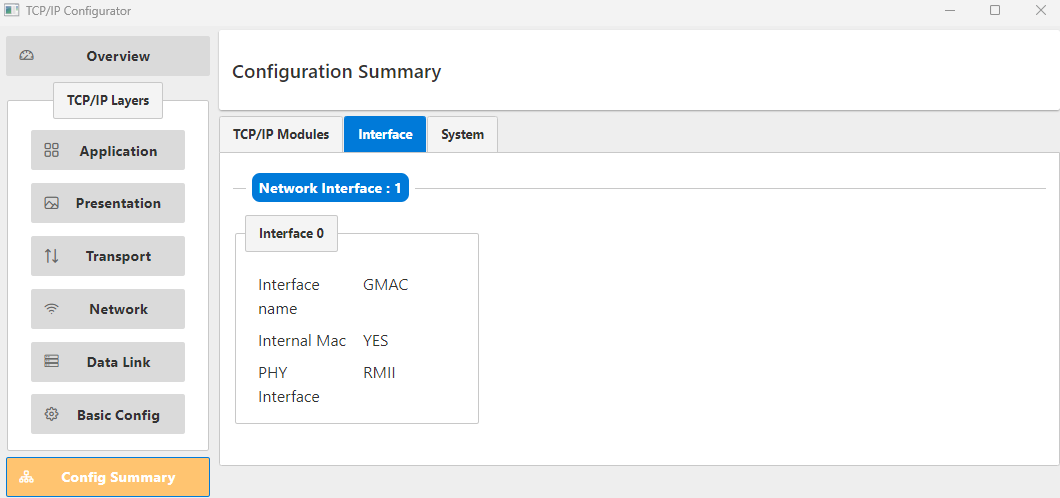
 - Click the “Interface” tab.
- Verify that MAC and PHY
interfaces have been added.
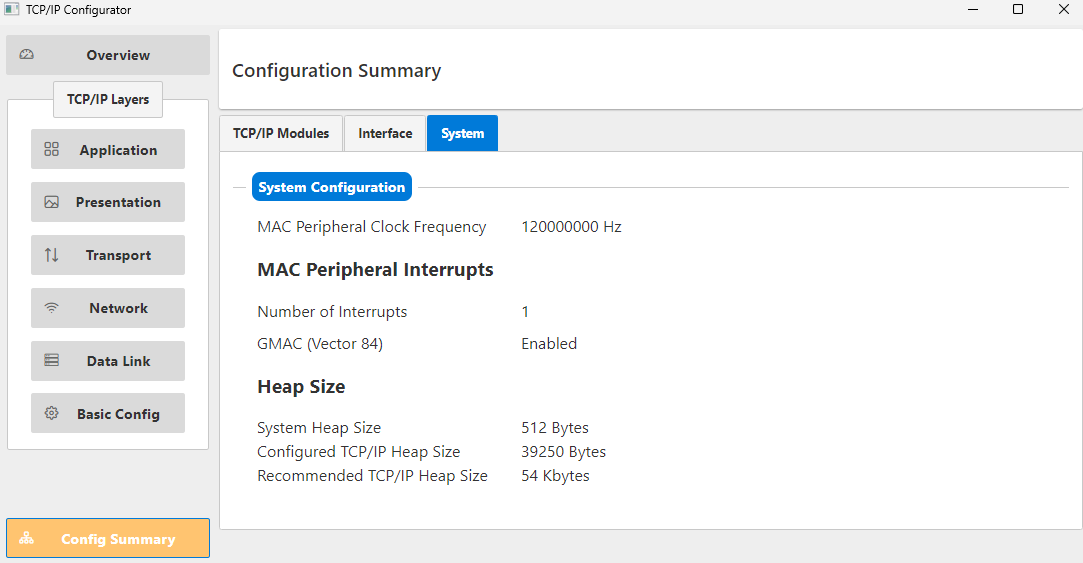
- Click the “System” tab to
view the system configuration.
- In the “TCP/IP Modules” tab,
check if all required components have been added and verify their dependency
statuses.
- Minimize the “TCP/IP Configuration” window.
- To check if the TCP/IP stack has
been added to the Project Graph,
- click the “Project Graph” tab and
- select “Root” from the “Views” drop-down menu.
The configuration elements appear piled in the upper left corner in the “Project Graph”.
- Organize the configuration
elements. The “Project Graph” should then look as shown below.
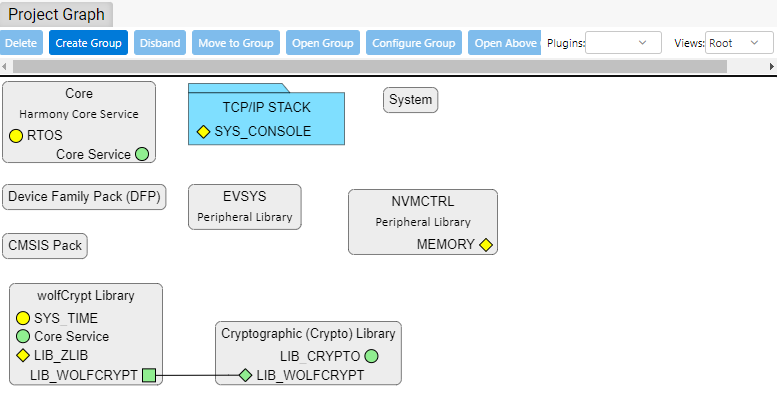 : Yellow diamond-shaped buttons indicate unsatisfied dependencies.