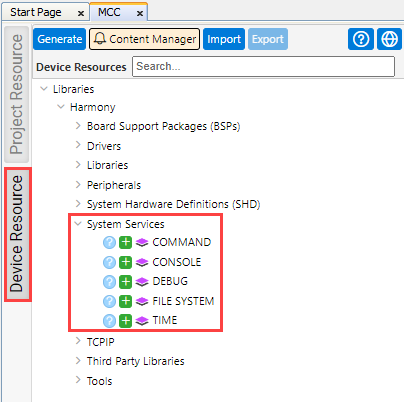
Add “System Services” to satisfy the “TCPIP CORE” and the “TCPIP CMD” dependency.
Click the “Device Resources”
tab.
Open the “Harmony” menu.
Open the “System Services”
menu.
Click on the respective “+”
icons to add “COMMAND”, “CONSOLE”, “DEBUG” and “TIME” services to the
demo.
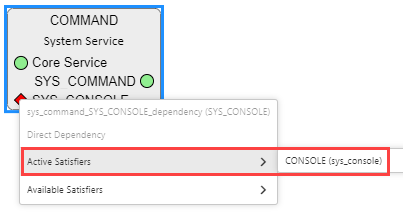
Add “CONSOLE” to satisfy the
“COMMAND” dependency.
Right click the red diamond
next to “SYS_CONSOLE”, to find the satisfier.
Select “CONSOLE”.
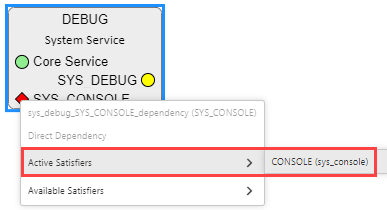
Add “CONSOLE” to satisfy the “DEBUG” dependency.
Right click the red diamond next to “SYS_CONSOLE”, to find the
satisfier.
Select “CONSOLE”.
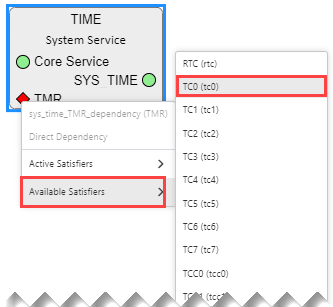
Add “TC0” to satisfy the “TIME”
dependency.
Right click the red diamond
next to “TMR”, to find the satisfier.
Select “TC0”.
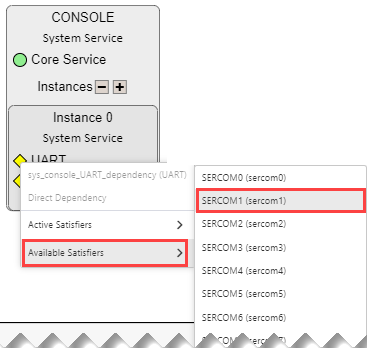
Add “SERCOM1” to satisfy the
“CONSOLE, INSTANCE 0” dependency.
Right click the yellow
diamond next to “UART”, to find the satisfier.
Select “SERCOM1”.
: This is only valid for the SAM E54 Curiosity Ultra Development Board
[4]. For other boards a different SERCOMx might be
used.
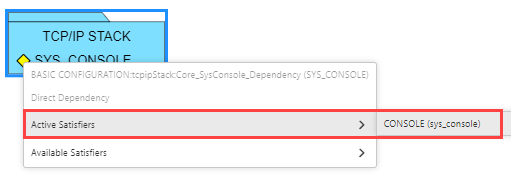
Add “CONSOLE” to satisfy the “TCP/IP
STACK” dependency.
Right click the yellow
diamond next to “SYS_CONSOLE”, to find the satisfier.
Select “CONSOLE”.
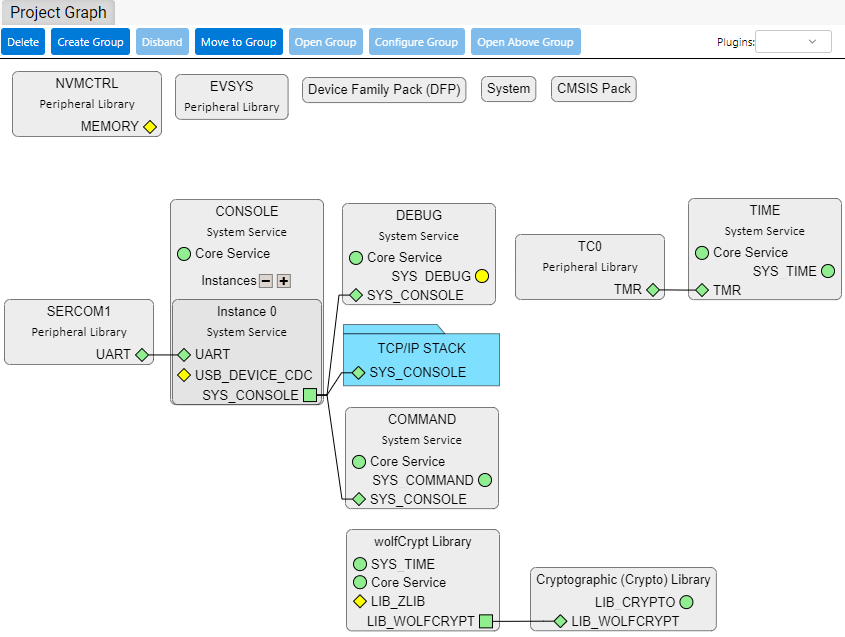
The “Project Graph” now should look as follows:
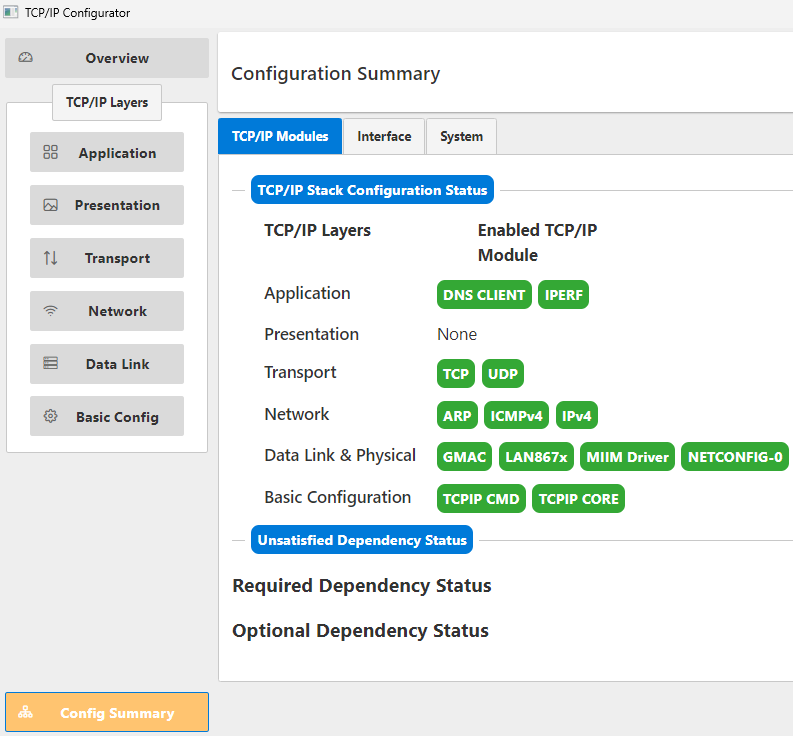
To verify if all dependencies have been satisfied,
open the “TCP/IP Configuration” window and
click “Config Summary”.
Close the “TCP/IP Configurator”
window.
The online versions of the documents are provided as a courtesy. Verify all content and data in the device’s PDF documentation found on the device product page.