1.7 Data Link Layer Configuration
- Click the Data Link button to
choose the data link layer configuration options.
The MPLAB Harmony TCP/IP stack lists different MAC and PHY components that are supported.
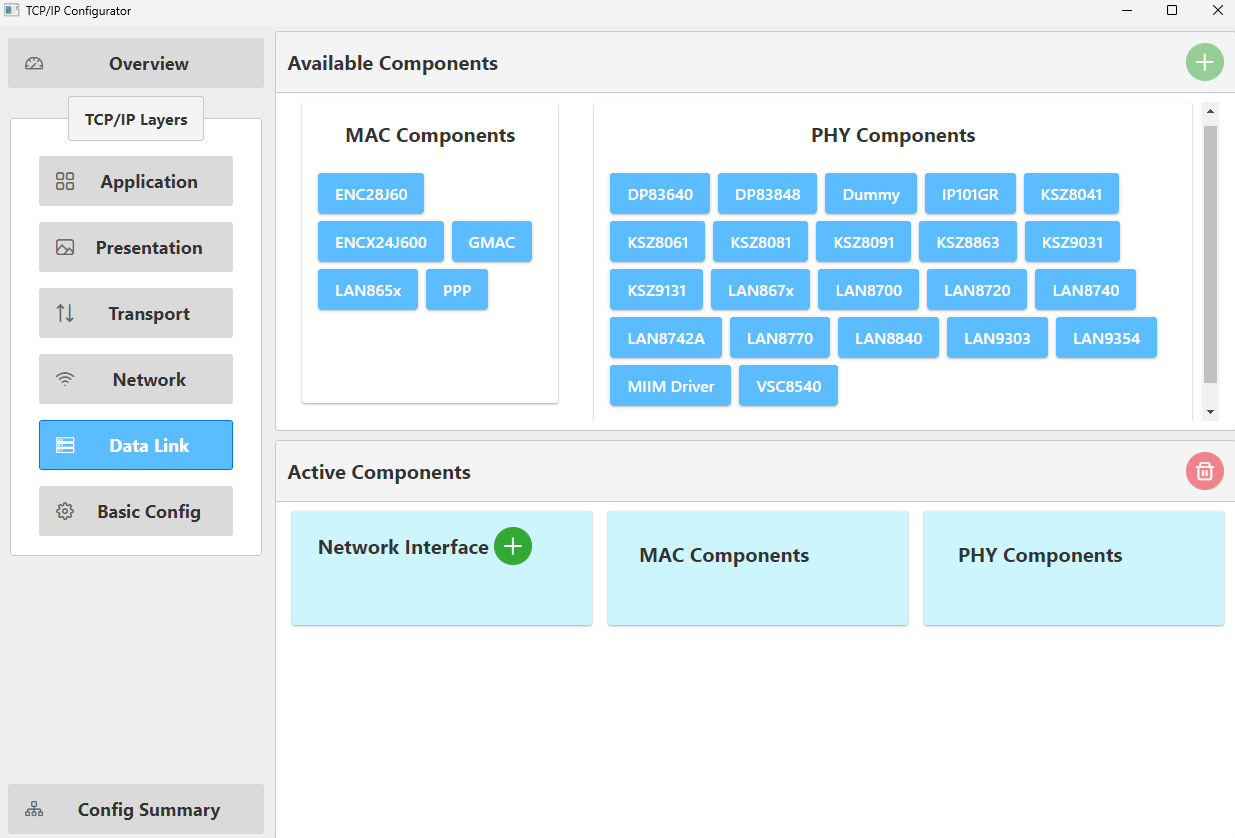
- Add a Network Interface.Click the “+” sign on the “Network Interface” block located in the “Active Components” area.
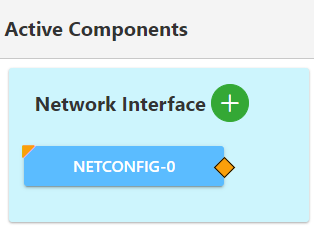
This action adds a NETCONFIG instance.
- Add a MAC component to this demo.
- Drag and drop “GMAC” from “Available Components” (“MAC Components”) into the MAC block in the “Active Components” area.
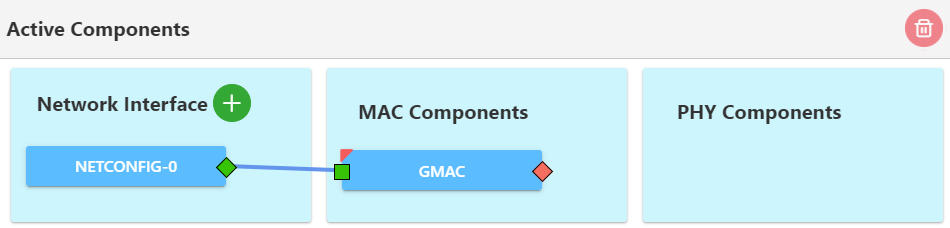
- Connect “NETCONFIG-0” with
“GMAC” by dragging the orange diamond from “NETCONFIG-0” to the orange
square on “GMAC”.
The two orange indicators will then turn green.
- Add a LAN867x and an MIIM driver to
this demo.
- Drag and drop “LAN867x” and “MIIM Driver” from “Available Components” (“PHY Components”) into the PHY block in the “Active Components” area.
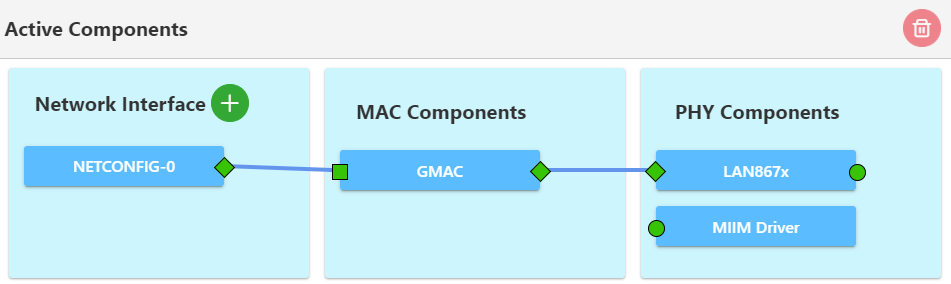
- Make the connections as shown
below.