
1.2 Select Device Content Libraries
The Content Manager provides a list of libraries that are essential for your project. When you create an MCC project for the first time, you need to select and download all required device content libraries.
To access the libraries, follow these steps:
- In the default MCC window, click the
"Device Resource" tab.
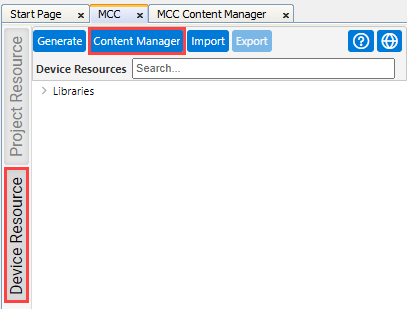
- Click the Content Manager
button.
This opens the "MCC Content Manager", which gives you access to the "Content Libraries".
- To list only the required "Content
Libraries" components, make the following adjustments:
- In the Device field, select "ATSAME54P20A".
- In the Content Type field, select "HARMONY".
- Activate "Show Local Content
Only".
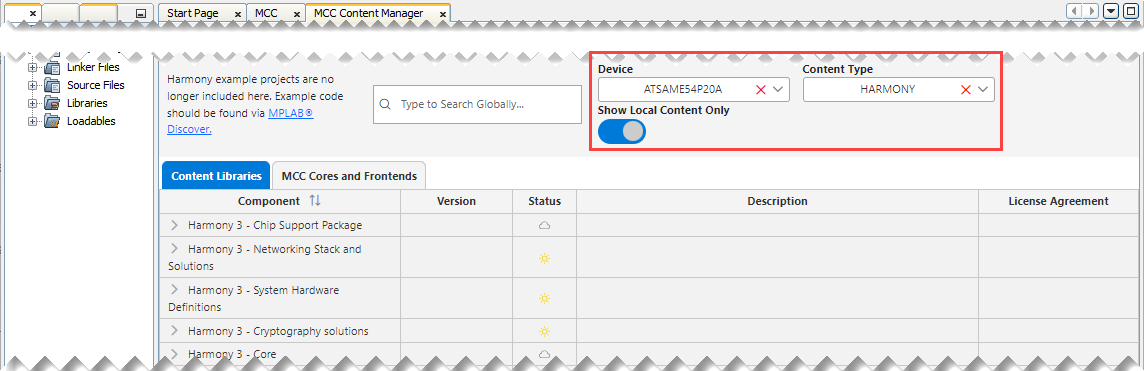
By default, the MCC Content Manager loads the latest component versions.
-
Click Apply.
Important: If any Compatibility Warnings are reported, they must be resolved first; otherwise, the components cannot be applied.
The tables below provide an overview of the required components.
The listed libraries need to be applied for both Bare-Metal and FreeRTOS projects. However, for the FreeRTOS project, the FreeRTOS kernel needs to be added additionally.
| Common Bare-Metal Project and FreeRTOS Project Libraries | ||
|---|---|---|
| Component | Version | |
| Harmony 3 - Chip Support Package: | ||
| csp | 3.23.0 | |
| Harmony 3 - Networking Stack and Solutions: | ||
| net | 3.14.4 | |
| net_10base_t1s | 1.4.2 | |
| Harmony 3 - System Hardware Definitions: | ||
| shd | 1.2.1 | |
| Harmony 3 - Cryptography Solutions: | ||
| crypto | 3.8.2 | |
| Harmony 3 - Core: | ||
| bsp | 3.23.0 | |
| core | 3.15.5 | |
| arm CMSIS: | ||
| CMSIS_5 | 5.9.0 | |
| quick_docs | 1.8.0 | |
| Harmony 3 - WolfSSL solutions: | ||
| wolfMQTT | 1.19.2 | |
| wolfssl | 5.4.0 (Note 1) | |
| Harmony 3 - zlib data-compression library: | ||
| zlib | 1.3.1 | |
| Harmony 3 - Harmony Services: | ||
| harmony-services | 1.5.0 | |
Note:
| ||
| Additional FreeRTOS Project Library | ||
|---|---|---|
| Component | Version | |
| FreeRTOS | ||
| FreeRTOS-Kernel | 11.2.0 | |