
20.3.4.1 Using Toggle Rates
Use Toggle Rates in the SmartPower Preferences to define your data frequency as a percentage of your clock frequency. If your data frequency is 20% of your clock frequency, type "20" in the Data Frequency text box
You may wish to create an empty clock domain and fill the lists of clock-pins and data pins manually. If so, do not select a clock pin, just type a new name for your clock domain.
Beyond the verification of the list of clock domains, you may also wish to verify that the lists of clock pins and data pins computed for each clock domain are correct.
- Display the list of clock pins or data pins of this Domain: A drop-down list in the Domains tab enables you to select clock pins or data pins. SmartPower displays the list of pins corresponding to your selection below the drop-down list. You can add or remove clock pins and data pins as necessary.
- Remove a pin from a clock domain: Highlight the selected pin and click the Remove button. The pin is removed from the clock domain and is made available in the list of pins that you can add in another clock domain.
- Highlight the selected pin in the list of pins that are not yet in a domain and click the Add button to add a pin in a clock domain. This pin is added to the clock domain. It is a clock pin or a data pin, depending on the specification of the drop-down list when you click the Add button.
You cannot add a pin that exists in another domain until you free it from its existing domain. The pin is unavailable until you remove it from that domain.
After you have verified that all the clocks of your designs are correctly identified and constructed, you must specify the correct clock and data frequency for each clock domain.
To add a new set of pins:
- Open the Create Clock Domain
dialog box.
Figure 20-76. Create Clock Domain Dialog Box 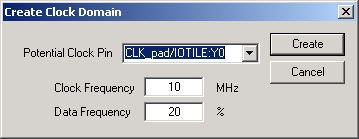
- Click the Domains tab, and click the Add
Domain button. Select Set of Pins from the
drop-down list.
Figure 20-77. Create Set of Pins Dialog Box 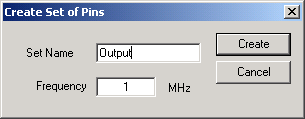
- Create a Set of Pins: Name your new set of pins, specify a data frequency, and click Create. The new set of pins appears in the Domains window.