
15.2.11 Reserving Pins for Device Migration
With this feature, you can begin a design with a larger device that you intend to implement later with a smaller device. Because there might be some pins on the smaller device that are not bonded, you want to make sure that the pin assignments created on the larger device are compatible with the pins on the smaller device. This feature reserves the pins on the larger device that are not bonded on the smaller device.
Pins in the current device that are not bonded in the target device will be marked as "reserved."
You can explicitly reserve a pin in PinEditor or I/O Attribute Editor (Package Pins view). You
can also reserve a pin by importing a PDC constraint file with the reserve
PDC command.
To explicitly reserve a pin in PinEditor:
- Select the pin to reserve, right-click it, and
choose Reserve Pin from the right-click menu. (See screen below.)
Repeat for each pin to reserve.
Figure 15-14. Reserve Pins from Right-click Menu in PinEditor 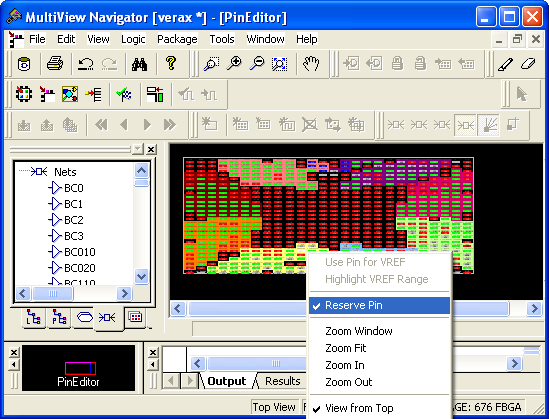 Note: To unreserve a reserved pin from the right-click menu in PinEditor, select the pin to unreserve, right-click it, and choose Reserve Pin to remove the checkmark.
To explicitly reserve a pin in I/O Attribute Editor:
- In Package Pins view, select the User Reserved check box associated with the pin to reserve. (See screen below.) Repeat for each pin to reserve.
To automatically reserve pins that are not bonded in a destination device for migration, follow these steps:
- In PinEditor, from the Edit menu, choose Reserve Pins for Migration. The Reserve Pins for Migration dialog box appears. The current device for which the pins will be reserved appears in the Reserve pins in the current device text box.
- From the "that are not bonded in the target device" drop-down list, select the target device to which you will be migrating your design.
- Unselect the Keep explicitly-reserved pins check box if you do not want to save the pins that are currently explicitly reserved.
Choose Undo Reserve Package Pin from the Edit menu to unreserve the last pin you reserved.
To reserve pins with a PDC file:
- Open the PDC file to edit.
- Use the reserve command to specify the names of the pins to reserve.
To unreserve pins with a PDC file:
- Open the PDC file to edit.
- Use the
unreservecommand to specify the names of the pins to unreserve.Note: SX-A devices do not support the reserved pins feature.
- reserve
- unreserve