
15.2.9 Using the Global Planner
The Global Planner runs automatically when you run Layout. The Global Planner automatically assigns global nets to clock conditioning circuit (CCC) locations on the chip in the design. You can also use the Global Planner tool from within the MultiView Navigator (MVN) to assign global nets in the design.
The Global Planner tool is available in MVN when at least one net is unassigned. In MVN, you can use the Global Planner tool either to assign all global nets in the design or to run the Global Checker.
If the Global Planner assigns a net to any of the four corners of the floorplan, a QuadrantClock region is automatically created for that area. You can lock this region to prevent the Global Planner tool from removing it during consecutive runs.
To automatically assign global nets:
- From the Tools window, choose , or click the Global Planner toolbar button:

Messages appear in the Output window informing you when the automatic global net assignment begins and ends. If the assignment is successful, "Global assigner completed successfully" appears in the Output window as shown below:
Figure 15-13. Global Planner Displays Messages in Output Window 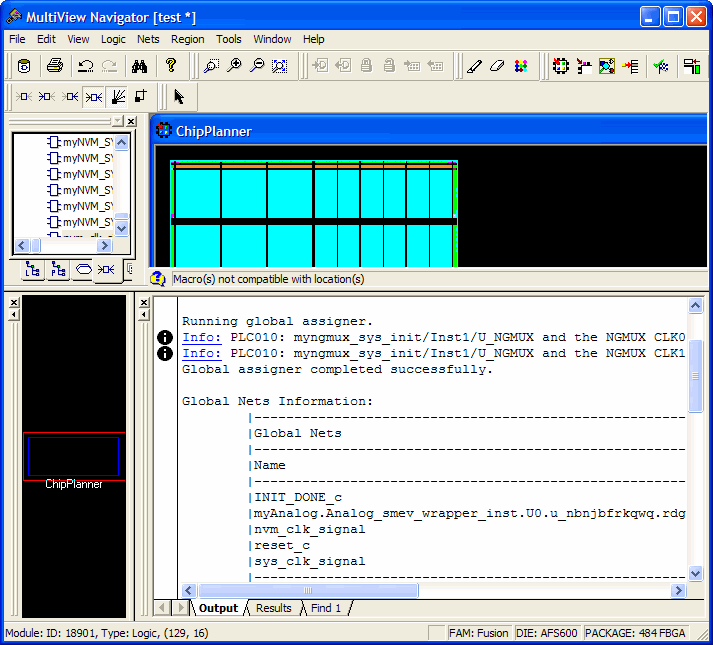 Note: Click an underlined "Error" or "Info" message to display more information.
 - To undo the global net assignments, choose Undo from the Edit menu. Undo unassigns the global nets assigned by the Global Planner. It does not unassign the global nets previously assigned manually.
- To redo the changes undone by the Undo command, choose Redo from the Edit menu.
- If you need to clear global net assignments made before using the Undo command, you can manually unassign or re-assign clocks to nets.
- When you choose Commit and Check from the File menu in the MultiView Navigator, it automatically performs comprehensive checking in addition to committing the changes to your design.