
15.2.6 Finding Objects
Use the Find command from any tool in MultiView Navigator to locate instances, nets, ports, and regions.
To find instances:
- From the Edit menu, choose Find.
The Find dialog box appears.
Figure 15-7. Find Instances Dialog Box 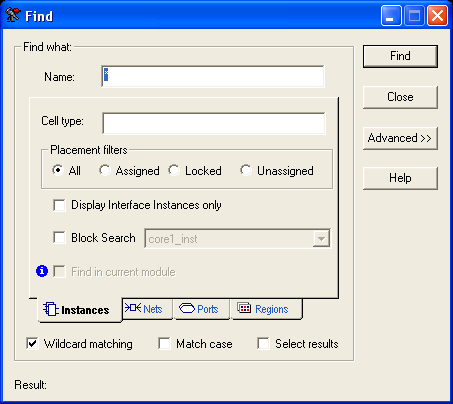
- Make sure the Instances tab is selected.
- To search by name, type the name and Cell
Type in the Name and Cell Type fields. Name is the name of the instance. Cell
Type refers to the macro type. For example, you can search for all macros of type AND by
typing
*AND* in the Cell Type field. Likewise, you can search for *OR2A* to list all the ORs used in the design. Usually cell types are prefixed with "ADLIB." When searching for instances, Instance Name or Cell Type can be blank, but not both. These fields accept wildcards. Wildcard characters include:
Table 15-2. Wildcard Characters Wildcard What It Does ? Matches any single character * Matches any string / This is the level-bordering symbol. “A/B” designates “object B, which is part of instance A.” - For Placement filters, select one of the
following:
All – Find all instances
Assigned – Find only instances assigned to a location
Locked – Find only locked instances
Unassigned - Find only instances that are not assigned to a location
- To find only macros connected to ports, select Display Interface Instances only.
- To find only instances in the current module, select Find in current module. This option is only available when NetlistViewer is the active view and is displaying the pre-optimized netlist.
- To find only instances in a specific user block or in all user blocks, select Block search, and then select the block from the drop-down list.
- Select Wildcard matching to search using wildcards.
- Select Matchcase to make the search case sensitive.
- Select Select Results to select the results of your find.
- Click to specify how you want to display your results.
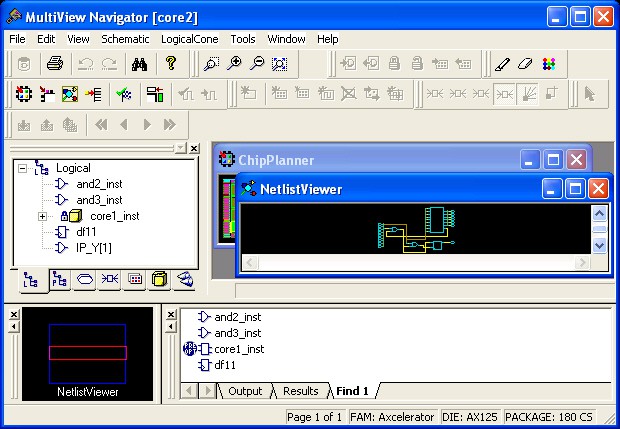
- Click Find. The located instances, if any, appear in the Find pane in the Log window.
Instances, ports, and nets found in the current module but which only exist in the pre-optimized
netlist have a special icon next to them in the Find pane:  . See the Find pane
in the illustration below for an example:
. See the Find pane
in the illustration below for an example:
To find a net:
- From the Edit menu, choose Find. The Find dialog box appears.
- Click the Nets tab.
Figure 15-9. Find Nets Dialog Box 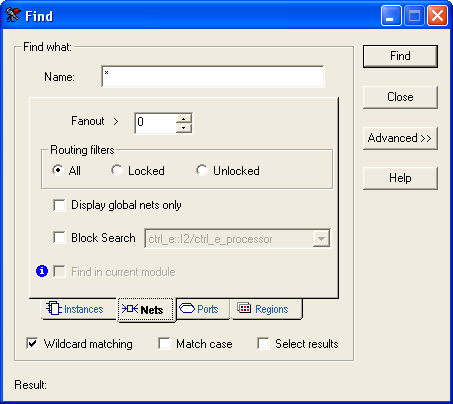
- Type the name of the net. This field accepts .
- To find nets with a specific fanout value, click the up and down arrows next to Fanout to set the fanout value.
- For Routing filters, select one of the
following:
All – Find all nets
Locked – Find only locked nets
Unlocked – Find only unlocked nets
- To find only clock nets in your active list, select Display global nets only.
- To find only nets in the current module, select Find in current module. This option is only available when NetlistViewer is the active view and is displaying the pre-optimized netlist.
- To find only nets in a specific block, select Block search box, and then select the block from the drop-down list.
- Select Wildcard matching to search using wildcards.
- Select Matchcase to make the search case sensitive.
- Click Select Results to select the results of your find.
- Click to specify how you want to display your results.
- Click Find. The located nets, if any, appear in the Find pane in the Log window.
To find ports:
- From the Edit menu, choose Find. The Find dialog box appears.
- Click the Ports tab.
Figure 15-10. Find Ports Dialog Box 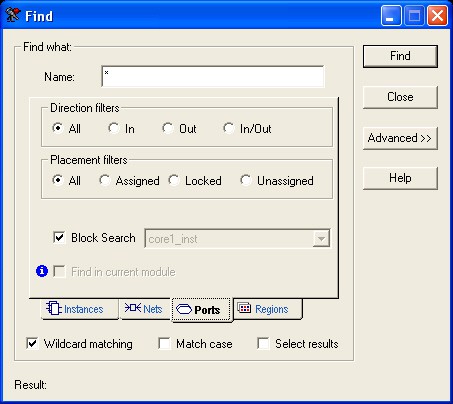
- To search by name, type the Name of the port to be located. This field accepts wildcards.
- To find a port by type, select All, In, Out, or In/Out.
- To find only ports in the current module, select Find in current module. This option is only available when NetlistViewer is the active view and is displaying the pre-optimized netlist.
- To find only ports in a specific block, select Block search box, and then select the block from the drop-down list.
- For Placement filters, select one of the
following:
All – Find all ports (input ports, outputs, and ports you can use for both input and output)
Assigned – Find only assigned ports
Locked – Find only locked ports
Unassigned – Find only unassigned ports
- Select Wildcard matching to search using .
- Select Matchcase to limit the search to items with the exact characters specified.
- Click Select Results to select the results of your search.
- Click to specify how you want to display your results.
- Click Find. The located ports, if any, appear in the Find pane in the Log window.
To find regions:
- From the Edit menu, choose Find. The Find dialog box appears.
- Click Regions.
Figure 15-11. Find Regions Dialog Box 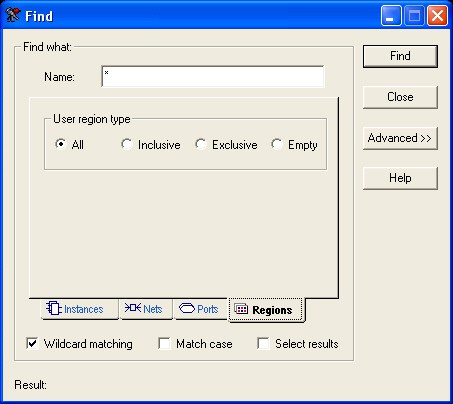
- To search by name, in the Name
field, type the name of the region you want to find. This field accepts wildcards. Wildcard
characters include:
Table 15-3. Wildcard Characters Wildcard What It Does ? Matches any single character * Matches any string - To search by type of region, select All, Inclusive, Exclusive, or Empty.
- Click to specify how you want to display your results.
- Click Find. The located regions, if any, appear in the Find pane in the Log window.
To use the advanced features:
- Click Advanced to specify where you want your results to appear. Your options appear below the Result area of the Find dialog box.