
5.23.5 Design Rules Check
To run the Design Rules Check, from the SmartDesign menu, choose Check Design Rules.
SmartDesign displays your design rule violations in the Design Rules Check grid (similar to the Grid), but with additional fields available: Type, Message and Details.
- Type displays an icon to indicate if the message is an error or a warning (as shown in the figure below). Error messages are shown with a small red stop sign and warning messages with a yellow exclamation point.

- Message identifies the specific error/warning (see list below)
- Details provides information related to the Message
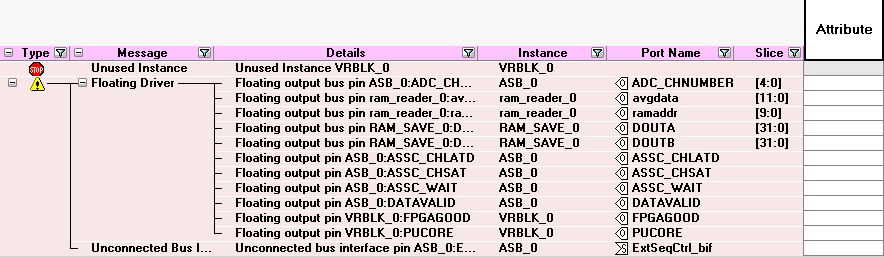
Unused Instance - You must remove this instance or connect at least one output pin to the rest of the design.
Out-of-date Instance - You must update the instance to reflect a change in the component referenced by this instance; see Fixing an out-of-date instance.
Undriven Pin - To correct the error you must connect the pin to a driver or change the state, i.e. tie low (GND) or tie high (VCC).
Floating Driver - You can mark the pin unused if it is not going to be used in the current design. Pins marked unused are ignored by the Design Rules Check.
Unconnected Bus Interface - You must connect this bus interface to a compatible port because it is required connection.
Required Bus Interface Connection – You must connect this bus interface before you can generate the design. These are typically silicon connection rules.
Exceeded Allowable Instances for Core – Some IP cores can only be instantiated a certain number of times for legal design. For example, there can only be one CortexM1 or CoreMP7 in a design because of silicon rules. You must remove the extra instances.
Incompatible Family Configuration – The instance is not configured to work with this project’s Family setting. Either it is not supported by this family or you need to re-instantiate the core.
Incompatible Die Configuration – The instance is not configured to work with this project’s Die setting. Either it is not supported or you need to reconfigure the Die configuration.
Incompatible ‘Debug’ Configuration – You must ensure your CoreMP7 and CoreMP7Bridge have the same ‘Debug’ configuration. Reconfigure your instances so they are the same.
No RTL License, No Obfuscated License, No Evaluation License – You do not have the proper license to generate this core. Contact Microchip to obtain the necessary license.
No Top level Ports - There are no ports on the top level. To auto-connect top-level ports, right-click the Canvas and choose Auto-connect