
13.7.4 Project Flow Window
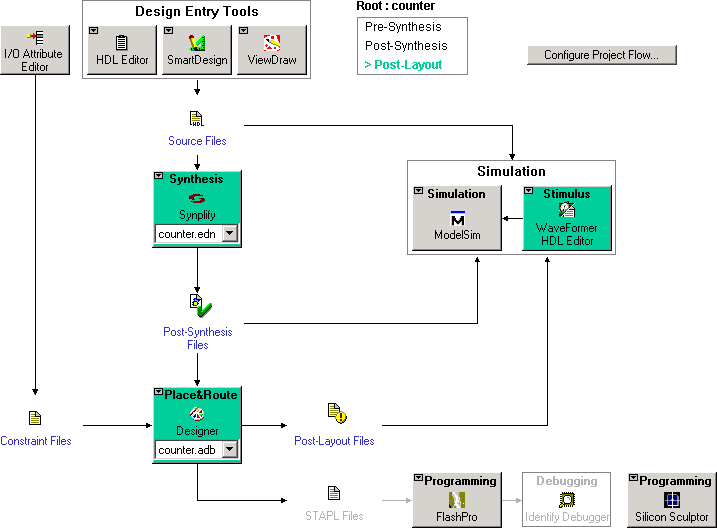
The Project Flow window displays all available tools involved in the design process (as shown in the following figure).
This window shows you the current state of your design by activating and highlighting tools at appropriate times in the design process, while graying out tools that are not yet available. Green checks indicate successfully completed steps.
Click a tool to start it. Right-click a tool to access the right-click menu, which provides all the available processes you can start with the tool.
Note: To create a Designer Block in the Libero IDE with an existing design, open your design
and from the Project menu choose Settings and click the Flow tab. Note that your design must
use a device family that supports Designer Blocks (IGLOO, ProASIC3, SmartFusion, Fusion,
Axcelerator, and RTAX-S). After checking this option, the Programming and Debugging options
are no longer visible in the Project Flow window.