
5.18.5 Connecting Multiple Pins (Connection Panel)
The Connect Multiple dialog box enables you to make multiple connections to a pin or net.
In the Instance to Instance view you can easily connect multiple non-driver pins from a single instance to a driver pin. To do so:
- Click a cell intersection of a driver pin and you
will see a drop down with Connect Multiple. Select Connect Multiple to open
the dialog box below.
Figure 5-46. Connect Multiple Pins Dialog Box - Instance to Instance 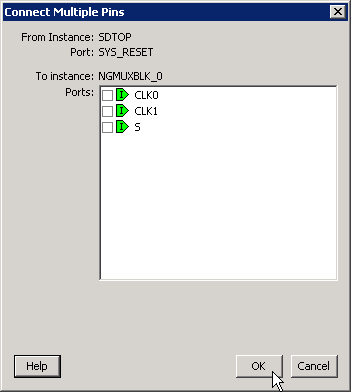
- The dialog box lists all the compatible non-driver pins that can be connected to the selected driver pin. Click the checkbox to connect these pins to the driver pin.
In the Net to Instance view you can easily connect multiple pins from a single instance to a net. To do so:
- Click a cell intersection of an existing net and
you will see a drop down with Connect Multiple. Select Connect Multiple to
open the dialog box below. The dialog box lists all the compatible non-driver pins that can
be connected to this net.
Figure 5-47. Connect Multiple Pins Dialog Box - Net to Instance 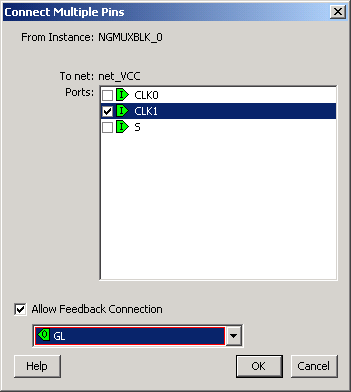
- Click the checkbox to connect these pins onto the net.
- If the instance has driver pins available, you can click the checkbox for Allow Feedback Connection to select the driver pin for this net.