
5.18.9 Filtering Views
To reduce the amount of data shown on the screen, you can display it selectively. The easiest way to hide an entry is to right-click the cell and choose Hide Selection. To show the entry again, you can right-click at the top and choose Show All Rows.
For more control over the data display, use the Custom Filter available from the button  on the header row.
The Grid enables you to filter all instances within the design, as well as their direction, ports and slices. The example below filters by instance, but you can filter any column in the Display panel with the same procedure.
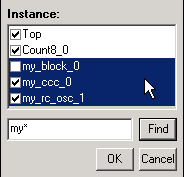
To filter the contents in the grid:
- Use the filter button and choose Custom Filter to bring up the
filter box (see figure above).
- From the filter box, you can find and select multiple values. In the image above, the Find field has highlighted all the instances that start with 'my', * is a wildcard. You must click inside the checkbox to select, or de-select, highlighted values.
- Click OK to commit your changes.
To hide data in the grid:
Select the rows you want to hide, right-click and choose Hide Selection.
To restore grid data:
From the SmartDesign menu, choose Connectivity View > Reset Instance View to Default.