
15.7.9 Assigning a Macro to a Region
During floorplanning, you can improve design performance by assigning macros to regions.
Note: You can use the Logical or Physical tab right-click menus to bypass the Assign Instances
to Region dialog box and assign instances to regions directly. To do so, in the Hierarchy
window, Logical/Physical tab, select one or more instances, right-click and choose Assign to
Region.
Note: You can also use the right-click menu to assign instances in the results from the
ActiveLists and in results from the Find command (in the Log window).
To assign a macro to a region:
- In the Regions tab of the Hierarchy window,
right-click a region and choose Assign/Unassign Instance from the
right-click menu. The Assign Instances to Region dialog box appears
with the name of the selected region in the Region name field. The
dialog box displays all the macros that you can assign to the selected region.
Figure 15-40. Assign Instances to Region Dialog Box 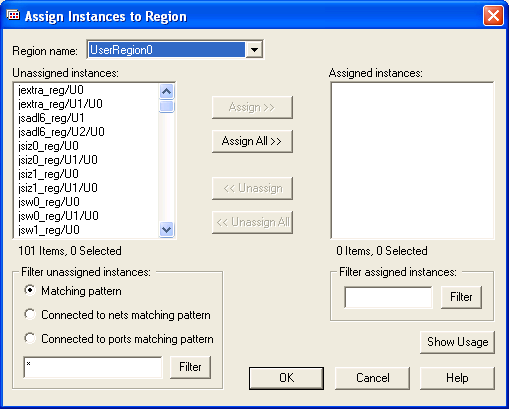
- To display a subset of the unassigned instances, you can create and apply filters. To filter the unassigned instances list by a pattern, enter the pattern (string) in the text box to the left of the Filter button, select Matching pattern, and then click Filter. Only the instances that match the pattern appear in the Unassigned Instances list. For example, enter *U18* to display only unassigned instances containing the characters U18. You can also display only instances connected to net or port names matching the specified pattern. These filters are valid for both regular and Block flows. In regular flows, each port is connected to only one instance, which is an I/O.
- To assign specific instances to the region, select one or more instances in the Assignable Instances list box, and then click Assign. To assign all instances to the region, click Assign All.
- Click OK.
The total number of instances that you can assign as well as the number of currently selected unassigned instances appears under the list box.
Note: You can also assign logic to regions from the Hierarchy window. To do so, drag and drop
the logic from the Hierarchy window to the region.